How to Check If Your Laptop Is Fast Enough for Your Needs
Published: 20 Oct 2026
A laptop can look powerful on paper but still feel slow when you use it every day. You may have a modern processor, plenty of RAM, and an SSD, yet apps can still take too long to open or games may struggle.
So, how to check if your laptop is fast enough for your needs? The answer depends on what you do with it. A laptop that is perfect for school may not be strong enough for gaming, video editing, or other demanding tasks. Do not judge a laptop by one specification alone. CPU, RAM, SSD, GPU, temperature, and the type of work you do all matter.
This guide shows you how to check laptop performance, understand your hardware, run simple tests, and decide whether you need an upgrade.
What Makes a Laptop Fast?
Laptop speed comes from several hardware parts working together. The processor handles instructions, RAM helps with multitasking, the SSD stores and loads files, and the GPU handles graphics.
Understanding these parts makes it much easier to perform a laptop performance test and understand the results.
The Main Performance Parts
- CPU: Handles general processing and calculations.
- RAM: Helps your laptop manage multiple tasks.
- SSD: Stores your files and helps apps load quickly.
- GPU: Handles graphics, games, and some creative workloads.
- Cooling system: Helps the hardware maintain performance.
- Operating system: Manages the software and hardware together.
Important Point: A powerful CPU cannot fully compensate for very low RAM, slow storage, poor cooling, or weak graphics hardware.
How to Check Your Laptop Specs
Before testing speed, you need to know what hardware your laptop actually has. Learning how to check laptop specs is easy on Windows.
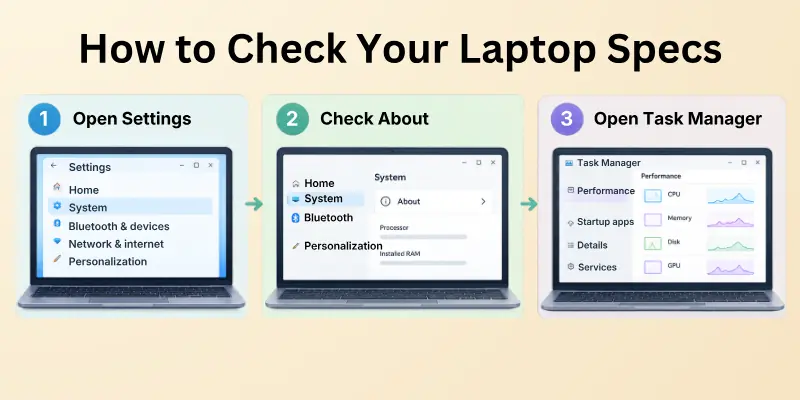
You can use Settings, Task Manager, or System Information to view important details.
Quick Windows Check
- Open Settings.
- Select System.
- Choose About.
- Look for the processor and installed RAM.
- Open Task Manager to see CPU, memory, disk, and GPU information.
You can also search for System Information from the Windows search box to find more detailed hardware information.
Recommended: Write down your CPU, RAM, storage type, storage capacity, and GPU before comparing your laptop with another machine.
How to Check Laptop Performance
Once you know your specifications, the next step is learning how to check laptop performance during normal use.
Open several applications and watch how the laptop responds. Pay attention to startup time, app loading, browser performance, file transfers, and multitasking.
Everyday Performance Checklist
- Laptop starts without unusually long delays
- Apps open within a reasonable time
- Browser tabs remain responsive
- Files open without long pauses
- Video calls work smoothly
- Multiple apps can run together
- The laptop does not freeze regularly
- Fans do not stay extremely loud during light tasks
Things to Know: Real world behavior can be more useful than a benchmark number because it shows how the laptop performs during the tasks you actually do.
How to Check Laptop Speed
If your laptop feels slow, you can start with a simple way to check laptop speed routine. Restart the laptop and allow Windows to finish loading. Then open a few applications that you normally use and observe how quickly they respond.
Simple Speed Test
Try this basic routine:
- Restart your laptop.
- Open your browser.
- Open several normal tabs.
- Start a common application.
- Open a document or spreadsheet.
- Play a high quality video.
- Switch between applications.
- Watch for delays or freezing.
This does not produce a scientific score, but it can reveal obvious problems.
Quick Tip: Test your laptop when it is plugged in and updated, then compare the experience with battery use. Power saving modes can reduce performance.
How to Test Laptop Performance With Task Manager
Windows Task Manager is one of the easiest ways to see what your laptop is doing right now. It can help with how to test laptop performance because you can watch CPU, memory, disk, and GPU usage while running your normal tasks.
Open Task Manager
Press: Ctrl + Shift + Esc
Then select the Performance tab. You can view:
| Component | What It Shows |
| CPU | Processor activity |
| Memory | RAM usage |
| Disk | Storage activity |
| Wi-Fi | Network activity |
| GPU | Graphics activity |
If one component remains near full usage while your laptop struggles, it may point toward a performance bottleneck.
Warning: High usage is not automatically bad. A component may reach high usage during demanding tasks. The important thing is whether the laptop behaves poorly at the same time.
How to Check CPU Performance
The CPU is one of the most important parts of a laptop. It handles many everyday tasks, including applications, browsing, calculations, and system processes.
For how to check CPU performance, open Task Manager and look at CPU usage while performing your normal work.
Watch for These Signs
- The CPU stays extremely busy during simple tasks.
- Apps become slow when several programs are open.
- The laptop becomes very hot.
- Performance drops after several minutes.
- Heavy workloads cause long delays.
A newer or stronger processor is usually better for demanding workloads, but the processor name alone does not tell the whole story.
Important Point: Compare the actual CPU model, generation, core count, power class, and real world performance instead of judging only by a brand name.
How to Check Laptop RAM
RAM affects how well your laptop handles multiple applications at once. If you want to know how to check laptop RAM, open Task Manager and select the Memory section. You can see the amount installed and how much is currently being used.
RAM Usage Guide
| RAM | General Use |
| 4GB | Very basic tasks |
| 8GB | Basic everyday use |
| 16GB | Comfortable for most users |
| 32GB | Heavy multitasking and creative work |
| 64GB+ | Specialized professional workloads |
These are general guidelines. Actual requirements depend on your operating system, applications, and workload.
Recommendation: For many modern users, 16GB is a comfortable target if the budget allows it.
How to Check SSD Speed
An SSD can make a laptop feel much faster than an older hard drive, especially when starting Windows and opening applications.
For how to check SSD speed, you can use a storage benchmark tool that measures sequential and random read and write performance.
What SSD Speed Affects
- Windows startup
- Application loading
- File transfers
- Game loading
- Large project loading
- General system responsiveness
However, SSD benchmark numbers should not be treated as the only measure of laptop speed.
Things to Remember: A faster SSD may improve loading and file operations, but it will not magically make a weak processor or GPU perform like a high end model.
How to Check GPU Performance
The GPU becomes especially important for gaming, 3D applications, video editing, and other graphics heavy work.
Learning how to check GPU performance can help you understand whether your laptop is suitable for demanding visual tasks.
GPU Matters Most For:
- PC gaming
- 3D rendering
- CAD software
- Video editing
- Animation
- AI applications
- High resolution graphics
You can view your GPU in Task Manager under the Performance tab.
Useful Tip: If gaming is your main goal, pay close attention to the dedicated GPU, its memory, power level, and actual game performance.
What Is a Laptop Performance Benchmark?
A laptop performance benchmark is a controlled test that measures how a computer performs certain tasks.
Benchmarks can provide scores that help you compare hardware, but they should not replace real world testing.
Benchmark Types
| Benchmark Type | Measures | Useful For |
| CPU benchmark | Processor performance | Work and productivity |
| GPU benchmark | Graphics performance | Gaming and 3D |
| SSD benchmark | Storage speed | Loading and transfers |
| System benchmark | Overall performance | General comparison |
| Game benchmark | Gaming frame rates | Gamers |
Important Note: Benchmark scores can vary because of temperature, power settings, background processes, drivers, and laptop design.
Best Laptop Benchmark Tools
If you want more detailed information, you can use the best laptop benchmark tools designed for CPU, GPU, SSD, or overall system testing.
Common categories include CPU benchmark programs, graphics tests, storage tests, and full system benchmarks.
Before Running a Benchmark
- Close unnecessary applications.
- Connect the charger.
- Allow the laptop to cool.
- Update important drivers.
- Use the same power mode for comparisons.
- Run the test more than once if results look unusual.
Warning: A benchmark puts a heavy load on the system. Stop the test if the laptop becomes dangerously hot, shuts down, or behaves abnormally.
Signs of a Slow Laptop
Sometimes you do not need a benchmark to know that something is wrong. Everyday behavior can reveal many performance problems. These are common signs of a slow laptop:
- Windows takes too long to start.
- Applications take a long time to open.
- The browser freezes frequently.
- Switching between apps feels delayed.
- Files take unusually long to load.
- The laptop freezes during basic work.
- Fans become loud during simple tasks.
- Programs close unexpectedly.
- Games have poor frame rates.
- Storage stays almost full.
Things to Check: A slow laptop does not always mean weak hardware. Malware, unnecessary startup apps, overheating, low storage, and outdated drivers can also cause slow performance.
How to Know If Your Laptop Is Fast Enough
The most useful question is not simply whether your laptop is fast. It is whether it is fast enough for your personal workload.
For example, a laptop that handles emails, documents, and browsing smoothly may be perfectly fast for an office worker.
Match Performance to Your Needs
| Task | Typical Requirement |
| Web browsing | Basic CPU and 8GB RAM |
| Schoolwork | Basic to mid range hardware |
| Office work | Mid range CPU and 8GB to 16GB RAM |
| Photo editing | Strong CPU and 16GB RAM recommended |
| Gaming | Strong CPU and dedicated GPU |
| Video editing | Strong CPU, GPU, and 16GB+ RAM |
| 3D work | Powerful CPU, GPU, and plenty of RAM |
These are broad guidelines rather than strict requirements.
Recommendation: Define your main tasks first. Then judge whether your hardware meets those tasks instead of chasing the highest specifications.
Laptop Performance for Everyday Use
For laptop performance for everyday use, you usually do not need expensive high end hardware.
A modern processor, 8GB to 16GB of RAM, and an SSD can provide a smooth experience for browsing, documents, streaming, email, and video calls.
Everyday User Checklist
- Fast startup
- Smooth web browsing
- Easy document editing
- Good video playback
- Reliable video calls
- Comfortable multitasking
- Enough storage space
Quick Tip: If your laptop handles your daily tasks without noticeable delays, you may not need an upgrade even if newer models have higher specifications.
Laptop Performance for Gaming
Gaming requires more than a fast CPU. Graphics performance, cooling, RAM, display resolution, and game settings all matter.
For laptop performance for gaming, test the games you actually play instead of relying only on general benchmark scores.
Gaming Performance Checklist
- Check GPU model
- Check GPU memory
- Check CPU model
- Check installed RAM
- Check game requirements
- Test frame rates
- Monitor temperatures
- Check for sudden performance drops
A game may run well at lower settings but struggle at high resolution or maximum graphics quality.
Gaming Tip: Stable frame rates are often more important than a very high peak frame rate that quickly drops during demanding scenes.
Why Is My Laptop Slow Even With Good Specs?
It can be frustrating when a laptop has decent specifications but still feels sluggish. The problem may be software, storage, heat, background processes, or an aging component rather than the main processor.
Possible Causes
- Too many startup applications
- Nearly full storage
- Background programs
- Outdated drivers
- Malware
- Overheating
- Battery saving mode
- Old Windows installation
- Insufficient RAM
- Storage health problems
Important Point: Check the cause before buying a new laptop. A simple software cleanup or hardware upgrade may solve the problem.
How to Improve Laptop Performance
If your laptop is not keeping up, you may be able to improve it without replacing the entire machine. These steps to improve laptop performance are a good starting point.
Quick Performance Improvements
- Remove unnecessary startup programs.
- Uninstall apps you no longer use.
- Keep enough free storage space.
- Update Windows and important drivers.
- Scan for malware.
- Close unused browser tabs.
- Keep air vents clear.
- Use the appropriate power mode.
- Consider adding RAM if supported.
- Consider an SSD upgrade if the laptop uses an older drive.
Suggested Action: Make one change at a time and test the laptop afterward. This makes it easier to identify what actually improved performance.
When Should You Upgrade Your Laptop?
Not every slow laptop needs to be replaced. A RAM or storage upgrade may be enough if the rest of the hardware is still suitable for your needs.
Upgrade or Replace?
| Situation | Better Option |
| Low RAM | Consider RAM upgrade |
| Old HDD | Consider SSD upgrade |
| Nearly full storage | Add or replace storage |
| Too many startup apps | Software cleanup |
| Overheating | Clean and inspect cooling |
| Very old CPU | Consider replacement |
| Weak GPU for gaming | New laptop may be better |
| Major hardware failure | Compare repair vs replacement |
Recommendation: If the CPU and GPU are still suitable but storage or RAM is limiting you, an upgrade can be much cheaper than buying another laptop.
Laptop Speed Test: What Should You Look For?
A laptop speed test can provide useful information, but the result should always be connected to your real needs.
Do not worry if your score is lower than another laptop unless the difference affects the tasks you care about.
Test These Areas
- Startup: How long does the laptop take to become usable?
- Applications: How quickly do your common programs open?
- Multitasking: Can you switch between apps smoothly?
- Storage: Are files and programs loading quickly?
- Gaming: Does the system maintain playable frame rates?
- Heat: Does performance drop after extended use?
Things to Remember: A benchmark score is a measurement, not a final judgment. Your experience with the laptop matters most.
Facts and Features That Affect Laptop Speed
Laptop performance is influenced by several connected factors. Looking at one specification can give you an incomplete picture.
Performance Facts
| Feature | Why It Matters |
| CPU cores | Helps with multitasking and demanding workloads |
| CPU generation | Newer designs can offer better efficiency and performance |
| RAM capacity | Helps with multitasking |
| RAM speed | Can influence certain workloads |
| SSD | Improves loading and responsiveness |
| GPU | Important for graphics heavy tasks |
| Cooling | Helps maintain performance |
| Power settings | Can affect processor and GPU behavior |
| Free storage | Helps avoid storage related slowdowns |
| Software | Background processes can affect performance |
Important Point: There is no single specification that defines laptop speed. Performance comes from the entire system working together.
A Simple Laptop Performance Test You Can Do Today
You do not need advanced technical skills to get a useful idea of your laptop’s condition. Use this simple test before deciding whether you need an upgrade.
Five Step Test
- Restart the laptop.
- Open Task Manager.
- Check CPU, Memory, Disk, and GPU usage.
- Open the applications you normally use.
- Watch for delays, freezing, high temperatures, or unusual noise.
Write down anything unusual and investigate that component first.
Quick Recommendation: Take screenshots of your Task Manager Performance tab before and during a demanding task. They can help you compare changes over time.
Should You Buy a Faster Laptop?
A new laptop may be worthwhile when your current machine cannot handle your required workload even after basic troubleshooting.
If your laptop is several years old and struggles with essential tasks, upgrading may provide a much better experience.
Consider a New Laptop If:
- Your processor is too weak for your work.
- Your GPU cannot run the software you need.
- The laptop cannot be upgraded.
- It overheats frequently.
- It has serious hardware problems.
- Repairs cost too much.
- Your workload has changed significantly.
Things to Remember: Buy for the work you expect to do over the next few years, not only for what you do today.
Final Performance Checklist
Before deciding whether your laptop is fast enough, run through this checklist. Complete check the following:
- Identify your CPU.
- Check your RAM capacity.
- Identify your SSD or HDD.
- Check your GPU.
- Look at CPU usage.
- Check memory usage.
- Check storage activity.
- Test your normal applications.
- Run an appropriate benchmark if needed.
- Check temperatures during demanding tasks.
- Look for freezing or unusual delays.
- Compare results with your actual workload.
Final Tip: If your laptop performs your important tasks smoothly, there is no need to upgrade simply because a newer model is available.
End Note: Is Your Laptop Fast Enough?
The answer to how to check if your laptop is fast enough for your needs is simpler than it may seem. Start by understanding your CPU, RAM, SSD, and GPU. Then test the laptop while doing the work that matters most to you.
A laptop does not need the most powerful hardware to be useful. If it opens your apps smoothly, handles your workload, and does not freeze or overheat, it may already be fast enough.
Your Final Decision
- Basic work feels smooth: Keep using your laptop.
- Small slowdowns occur: Try software cleanup first.
- RAM or storage is limiting you: Consider an upgrade.
- CPU or GPU is too weak: Compare newer laptops.
- Overheating causes slowdowns: Check cooling before replacing hardware.
Final Checklist
- Know your hardware.
- Test real world performance.
- Check CPU and RAM usage.
- Check SSD activity.
- Test GPU performance when needed.
- Watch temperatures.
- Fix software problems first.
- Upgrade only when it makes sense.
Final Recommendation: Do not upgrade just because your laptop is not the newest model. Upgrade when its actual performance prevents you from doing the things you need to do.
Frequently Asked Questions
These quick answers cover common questions about laptop speed, testing, hardware, and upgrades. Each answer focuses on a practical point you can use immediately. Understanding your laptop’s hardware can help you find performance limits and decide whether an upgrade is needed.
These FAQs also explain how to check laptop performance, identify slowdowns, and compare real world speed.
1. How can I check if my laptop is fast enough?
Check its CPU, RAM, SSD, and GPU, then test the applications and tasks you use most often.
Your laptop is fast enough when it handles your normal workload without frequent delays or freezing. Compare its performance with the requirements of the programs and games you regularly use.
2. How do I check my laptop speed?
You can use Task Manager for basic monitoring and benchmark software for more detailed performance measurements.
Check CPU, memory, disk, and GPU activity while using your laptop normally. This can help you identify which hardware component may be limiting performance.
3. How much RAM should a laptop have?
For many modern users, 8GB is a basic starting point and 16GB provides more comfortable multitasking.
The right amount depends on your applications and daily workload. Users who edit videos, run demanding software, or keep many programs open may benefit from more RAM.
4. Is an SSD important for laptop speed?
Yes. An SSD can make Windows startup, application loading, and file access feel much faster than an older HDD.
An SSD is especially noticeable during startup and when opening large programs or files. However, it does not replace the need for a capable processor and enough RAM.
5. How do I check my CPU performance?
Open Task Manager and watch CPU usage while performing your normal tasks. For deeper testing, use a trusted CPU benchmark.
High CPU usage during demanding tasks is normal, but constant high usage during simple work may indicate a background process or performance limitation. Benchmark results can also help compare processor performance.
6. How do I check my laptop GPU?
Open Task Manager, select Performance, and choose GPU. You can see the GPU model and current activity.
You can also check GPU usage while running games or graphics heavy applications. This helps you understand whether the graphics processor is being used effectively.
7. What are the main signs of a slow laptop?
Common signs include slow startup, delayed applications, freezing, poor multitasking, high temperatures, and slow file loading.
These symptoms can have different causes, so checking the hardware and system activity is useful. A slow laptop does not always mean that the hardware itself needs to be replaced.
8. Can I make my laptop faster?
Yes. Try removing unnecessary startup apps, freeing storage, updating software, checking for malware, improving cooling, or upgrading RAM or storage when supported.
Start with simple changes before spending money on new hardware. Checking laptop performance first can help you identify the upgrade or fix that may provide the most useful improvement.
9. Does more RAM make a laptop faster?
More RAM can improve multitasking when your existing memory is insufficient. It will not automatically make every laptop faster.
If your memory is frequently near its limit, adding RAM can help applications run more smoothly. If RAM is not the problem, upgrading it may provide little noticeable improvement.
10. Is a benchmark score enough to judge a laptop?
No. Benchmarks are useful for comparison, but real world performance matters more because every user has different needs.
A benchmark gives you a controlled performance measurement, but it may not represent your everyday workload. Consider both benchmark results and how the laptop performs during your actual tasks.
11. Why is my laptop slow even with an SSD?
Possible causes include limited RAM, background processes, overheating, low free storage, software problems, or an older processor.
An SSD improves storage performance, but other components can still create bottlenecks. Check Task Manager and system temperatures to help narrow down the cause.
12. When should I replace my laptop?
Consider replacement when the hardware cannot meet your workload, upgrades are unavailable, or repair costs are no longer reasonable.
Before replacing it, check whether a RAM or SSD upgrade, software cleanup, or cooling improvement could solve the problem. Comparing the laptop’s current performance with your actual needs can help you make a practical decision.





- Be Respectful
- Stay Relevant
- Stay Positive
- True Feedback
- Encourage Discussion
- Avoid Spamming
- No Fake News
- Don't Copy-Paste
- No Personal Attacks
- Be Respectful
- Stay Relevant
- Stay Positive
- True Feedback
- Encourage Discussion
- Avoid Spamming
- No Fake News
- Don't Copy-Paste
- No Personal Attacks
