How Does a Laptop Work? A Simple Explanation for Beginners
Published: 7 Oct 2026
Have you ever wondered how a laptop works when you press the power button, open a browser, type a document, or watch a video? A laptop may look like one simple device, but many hardware and software components work together inside it.
A laptop combines a processor, RAM, storage, motherboard, display, battery, graphics system, keyboard, touchpad, and operating system in a compact computer. The CPU processes instructions, RAM temporarily holds active data, storage keeps files and software, and the operating system helps everything communicate.
This beginner friendly guide explains how a laptop works step by step, what each major component does, and how these parts work together when you perform everyday tasks. You do not need advanced computer knowledge to understand a laptop. Think of it as a team where every component has a specific job.
What Is a Laptop?
A laptop is a portable personal computer designed to perform many of the same tasks as a desktop computer while using a smaller, battery powered design. It normally includes a display, keyboard, touchpad, speakers, storage, memory, processor, and battery in one device.
You can use a laptop for browsing the internet, writing documents, attending online classes, watching videos, playing games, editing photos, programming, and many other tasks. Laptop at a glance:
| Component | Main Function |
| CPU | Processes instructions and calculations |
| RAM | Temporarily holds active data |
| Storage | Saves files, applications, and the operating system |
| Motherboard | Connects major hardware components |
| GPU | Processes graphics and visual information |
| Display | Shows images, text, and video |
| Keyboard | Provides text and command input |
| Touchpad | Controls the pointer |
| Battery | Supplies portable power |
| Operating System | Manages hardware and software |
Things to Know: A laptop is not powered by the CPU alone. Its performance depends on several components working together.
How Does a Laptop Work?
The simplest way to understand how a laptop works is to follow the flow of power, input, processing, and output.
When you press the power button, the laptop receives electrical power and begins checking its hardware. Firmware such as BIOS or UEFI helps initialize the hardware before the operating system starts loading.
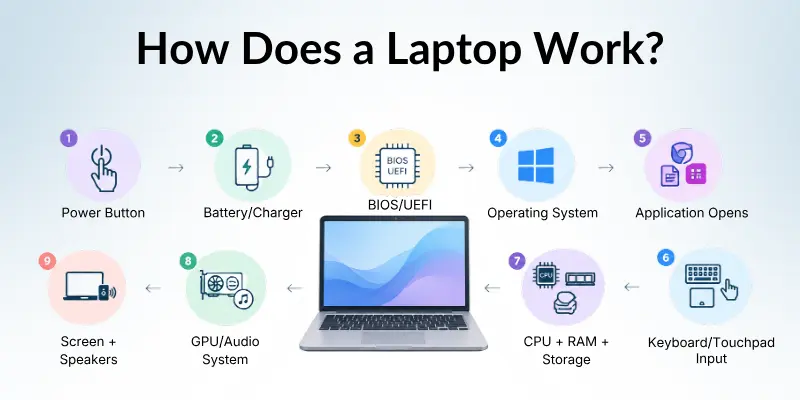
After the operating system loads, you can interact with applications using the keyboard, touchpad, touchscreen, or other input devices. The CPU processes instructions and uses RAM and storage as needed, while the display and speakers provide the results.
Simple Laptop Working Flow
- Power Button
- Battery / Charger
- BIOS / UEFI
- Operating System
- Application Opens
- Keyboard / Touchpad Input
- CPU + RAM + Storage
- GPU / Audio System
- Screen + Speakers
- You See or Hear the Result
This basic process happens extremely quickly, which is why a laptop can respond almost immediately when you click an icon or type a letter.
Useful Tip: If you remember only one thing, remember this flow: Input → Processing → Output → Storage.
What Happens When You Turn On a Laptop?
The laptop startup process involves several steps. Understanding these steps can also help you identify common laptop startup problems.
Step 1: The Laptop Receives Power
When you press the power button, the laptop receives power from its battery, AC adapter, or both. The motherboard distributes electrical power to the components that need it.
If the battery is empty, connecting a compatible charger can provide power and charge the battery.
Step 2: BIOS or UEFI Starts
The laptop’s firmware starts before the operating system. BIOS or the newer UEFI system initializes important hardware and helps begin the boot process.
It checks whether essential components are available and then looks for a device containing the operating system.
Step 3: The Operating System Loads
After the initial startup process, the laptop loads an operating system such as Windows, macOS, or Linux.
The operating system manages hardware resources and provides the interface that allows you to open applications, manage files, connect to networks, and control the computer.
Step 4: The Desktop Becomes Ready
Once the operating system finishes loading, you see the desktop, taskbar, icons, or other interface elements.
At this point, the laptop is ready to receive your commands.
You Must Remember: A black screen during startup does not always mean the screen is broken. Startup issues can involve power, firmware, memory, storage, or other hardware.
Main Components That Make a Laptop Work
A laptop contains many parts, but a few major components are responsible for most of its computing work.
1. CPU: The Processing Brain
The CPU (Central Processing Unit) processes instructions and performs calculations. It works with the operating system and other components to execute the commands generated by applications.
For example, when you open a calculator and enter a number, the CPU processes the instructions required to perform the calculation.
A powerful CPU can handle demanding tasks more effectively, although overall laptop performance also depends on RAM, storage, GPU, cooling, and software.
Quick Tip: CPU performance matters most when you regularly perform processor heavy tasks such as compiling code, rendering, data processing, or complex calculations.
2. RAM: The Laptop’s Short Term Memory
RAM (Random Access Memory) temporarily stores the data and instructions that the CPU is actively using.
Imagine your desk while studying. Your books and notes are kept on the desk because you need them immediately. RAM works in a similar way. It provides fast temporary working space for active programs and data.
When you shut down the laptop, the information stored in RAM is cleared.
Things to Know: More RAM can make multitasking easier, but RAM alone does not determine laptop speed.
3. Storage: Where Your Files Live
Laptop storage keeps information for the long term. It contains the operating system, applications, documents, photos, videos, and other files.
Modern laptops commonly use SSDs (Solid State Drives), while older computers may use HDDs. SSDs have no moving parts and generally provide faster read and write performance than traditional hard drives.
| RAM | Storage |
| Temporary memory | Long term storage |
| Helps active programs run | Stores files and applications |
| Data disappears after shutdown | Data remains after shutdown |
| Very fast working memory | Usually larger capacity |
Recommended: For everyday use, an SSD can make tasks such as starting Windows and opening applications feel much faster.
4. Motherboard: The Connection Center
The motherboard is the main circuit board inside the laptop. It provides pathways that allow the CPU, RAM, storage, graphics system, and other hardware to communicate.
You can think of it as the road system of a city. Different components are like buildings, while the motherboard provides the routes that allow information to move between them.
Footer Note: If the motherboard has a serious hardware fault, many laptop functions can stop working because several components depend on it.
5. GPU: Handles Graphics
The GPU (Graphics Processing Unit) handles graphics related calculations. It helps produce images, animations, video, games, and other visual content.
Some laptops use integrated graphics built into the processor, while others have a dedicated GPU designed for heavier graphics workloads.
For simple web browsing and office work, integrated graphics are often enough. Gaming, 3D design, video editing, and other graphics heavy tasks can benefit from a more powerful GPU.
Useful Tip: Do not judge a laptop’s complete performance by its GPU alone. CPU, RAM, cooling, storage, and software also matter.
6. Display: Shows the Results
The display converts processed visual information into images that you can see. A screen is made from many pixels that work together to create text, pictures, and video.
When you open a webpage, for example, the computer processes the webpage data and sends visual information to the graphics system, which helps produce what appears on the display.
Things to Remember: Screen resolution, refresh rate, brightness, panel technology, and size can all affect the viewing experience.
7. Keyboard and Touchpad: Input Devices
The keyboard allows you to enter letters, numbers, commands, and shortcuts. The touchpad lets you move the pointer, click items, scroll, and use gestures.
Some laptops also include a touchscreen, allowing you to interact directly with elements displayed on the screen.
Quick Tip: If a keyboard or touchpad suddenly stops responding, test another input device when possible. This can help determine whether the issue is software or hardware related.
How Does a Laptop Process Your Commands?
Suppose you open a web browser and type “weather today” into the search box. Several components immediately begin working together. The process looks like this:
- You press a key on the keyboard.
- The keyboard sends an input signal to the laptop.
- The operating system receives the input.
- The CPU processes the instruction.
- RAM holds the active browser data.
- The network hardware sends and receives internet data.
- The CPU and GPU help process the results.
- The display shows the webpage.
- The speakers can provide audio if required.
This entire process happens very quickly, creating the feeling that the laptop responds instantly.
Did You Know? A simple click can involve the operating system, CPU, RAM, storage, graphics system, and other hardware in a very short period.
How Does a Laptop Connect to the Internet?
Laptops can connect to networks using Wi-Fi, Ethernet, and other communication technologies. Many modern laptops also support Bluetooth for connecting wireless accessories.
When you open a website, the laptop sends network requests through its network hardware. Data comes back from the internet, and the CPU, operating system, memory, and graphics system help turn that information into the webpage you see. Internet connection flow works accordingly:
Laptop
↓
Wi-Fi / Ethernet
↓
Router
↓
Internet
↓
Web Server
↓
Internet
↓
Router
↓
Laptop
↓
Browser Displays Results
Useful Tip: Slow internet does not always mean your laptop is slow. Network speed and computer performance are different things.
How Does a Laptop Use Its Battery?
One of the biggest differences between a laptop and a traditional desktop computer is portability. A laptop can operate using a rechargeable battery when it is not connected to a wall outlet.
The battery supplies electrical energy to the laptop’s components. The operating system and hardware can also use power management features to reduce energy consumption when full performance is not needed.
Battery Usage Checklist
- Reduce unnecessary screen brightness.
- Close applications you are not using.
- Disconnect unused wireless accessories.
- Keep the operating system updated.
- Avoid unnecessary background programs.
- Use the appropriate power mode for your task.
- Check battery health if battery life becomes unusually short.
Recommended: If your laptop battery drains unusually quickly, check battery health, background applications, display brightness, power settings, and battery age.
How Does a Laptop Stay Cool?
The CPU and GPU produce heat while working. Because laptops have limited internal space, manufacturers use cooling systems such as fans, heat sinks, heat pipes, and heat spreaders to move heat away from important components.
If heat builds up too much, the laptop may reduce performance, become very hot, shut down, or show other overheating symptoms. Simple cooling system works in the following flow:
CPU / GPU
↓
Heat Produced
↓
Heat Sink / Heat Pipe
↓
Fan Moves Air
↓
Warm Air Leaves Laptop
↓
Components Stay Within Safe Limits
Warning: Do not block the laptop’s ventilation openings while using it. Keeping the vents clear helps the cooling system work properly.
Laptop vs Desktop: How Are They Different?
Laptops and desktop computers use many of the same basic computing concepts. The major difference is how their components are packaged and powered.
A laptop places its display, keyboard, pointing device, battery, and internal computer hardware into a compact portable design. A desktop usually has more physical space for larger cooling systems, upgrades, and interchangeable components.
| Feature | Laptop | Desktop |
| Portability | High | Low |
| Battery | Usually built in | Usually no main battery |
| Screen | Usually built in | Usually separate |
| Keyboard | Usually built in | Usually separate |
| Upgrade options | Often limited | Usually greater |
| Space for cooling | Limited | More available |
| Best advantage | Mobility | Expandability |
Things to Know: A laptop is not simply a smaller desktop. Its compact design requires careful power, heat, and space management.
What Happens When You Open an Application?
When you click an application, the operating system locates the program’s files on storage and loads the information needed to run it.
The application data is moved into RAM so the CPU can access the working information quickly. The CPU executes instructions, while the GPU may handle graphics and the display shows the application’s interface.
Example: Opening a Video
This given process helps to understand that how an application works after receiving an open command:
Click Video
↓
Operating System
↓
Storage / Internet
↓
RAM
↓
CPU Processes Data
↓
GPU Processes Visuals
↓
Display Shows Video
↓
Audio System Produces Sound
This is why a laptop needs several components to work together rather than relying on one single part.
Quick Tip: If applications take a long time to open, check storage speed, available RAM, CPU usage, and background programs before assuming the laptop needs replacement.
How to Check Whether Your Laptop Is Working Properly
Understanding how a laptop works can make basic troubleshooting much easier. You can check different components separately instead of guessing what is wrong.
Basic Laptop Health Checklist
- The laptop turns on normally.
- Operating system loads without errors.
- Keyboard keys respond correctly.
- The touchpad works properly.
- The screen displays images correctly.
- Speakers produce sound.
- The microphone detects audio.
- Webcam works in supported applications.
- Wi-Fi connects normally.
- Battery charges correctly.
- The laptop does not become excessively hot during normal use.
- Storage has enough free space.
For hardware specific problems, testing individual components can help identify faulty keys, display problems, audio issues, battery problems, and other common laptop faults.
Recommended: Run simple laptop hardware tests when you notice unusual behavior. Finding a problem early can make troubleshooting easier.
Common Problems That Can Affect How a Laptop Works
Even when the basic design is reliable, laptops can develop hardware or software problems. Common issues include:
- Laptop not turning on
- Slow laptop performance
- Laptop overheating
- Battery draining quickly
- Laptop screen problems
- Dead pixels
- Keyboard not working
- Touchpad problems
- No sound
- Microphone not working
- Webcam not working
- Wi-Fi connection problems
- Storage errors
- Application crashes
The cause can be software, drivers, overheating, damaged hardware, insufficient storage, battery wear, or another issue.
Things to Remember: Do not immediately replace a laptop because of one problem. Basic troubleshooting and hardware testing can sometimes identify a simple solution.
A Simple Way to Remember How a Laptop Works
You can understand the entire laptop working process using five basic stages:
1. Power: The battery or charger supplies electricity to the laptop.
2. Input: You provide commands through the keyboard, touchpad, touchscreen, microphone, camera, or external devices.
3. Processing: The CPU processes instructions while RAM provides temporary working space. The GPU handles graphics when needed.
4. Output: The display, speakers, and other output devices present the results.
5. Storage: The SSD or HDD stores the operating system, applications, documents, photos, videos, and other data.
Quick Memory Tip: Think Power → Input → Process → Output → Store. These five words explain the basic idea behind how a laptop works.
Final Thoughts
So, how does a laptop work? A laptop works by combining hardware and software into one portable computer. The battery or charger provides power, the operating system manages the system, input devices receive your commands, the CPU processes instructions, RAM holds active data, storage keeps information, and the GPU, display, and speakers provide the results.
The important point is that no single component makes the laptop work by itself. The CPU, RAM, storage, motherboard, operating system, battery, graphics system, and input/output devices constantly work together.
Once you understand this basic process, it becomes much easier to understand laptop performance, laptop hardware, computer troubleshooting, battery life, overheating, storage, RAM, CPU performance, and hardware testing.
Final Tip: If you are learning about laptops, start with the CPU, RAM, storage, motherboard, GPU, battery, and operating system. Understanding these seven areas gives you a strong foundation for learning more about computers.
FAQs About How a Laptop Works
These frequently asked questions cover the most common beginner concerns about laptop operation, components, performance, and basic troubleshooting.
1. How does a laptop work in simple words?
A laptop receives power, accepts input from you, processes information using its hardware and software, and shows the results through the screen or speakers. It also stores information for future use.
2. What is the main function of a laptop?
A laptop’s main function is to process information and allow you to perform computing tasks such as browsing, writing, studying, communicating, programming, gaming, and media playback.
3. What makes a laptop run?
A laptop needs electrical power, hardware components, firmware, and an operating system. The CPU, RAM, storage, motherboard, graphics system, and other components work together to run applications.
4. What does the CPU do in a laptop?
The CPU executes instructions and performs calculations. It works with the operating system, RAM, storage, and other components to process tasks.
5. What does RAM do?
RAM provides temporary working memory for programs and data that the laptop is actively using. More RAM can help with multitasking, depending on the workload and system configuration.
6. What is the difference between RAM and storage?
Use this quick comparison:
- RAM: Temporary working memory
- Storage: Long term data storage
- RAM: Used by active programs
- Storage: Keeps files even after shutdown
7. How does a laptop connect to Wi-Fi?
Follow the basic process:
- The laptop’s wireless hardware detects the available network.
- You select a Wi-Fi network.
- The laptop authenticates with the router.
- The router connects the laptop to the internet.
- Data travels between the laptop and online servers.
8. Why does a laptop get hot?
The CPU and GPU generate heat while processing tasks. The laptop’s cooling system uses components such as heat sinks, heat pipes, and fans to move heat away from these components.
9. How can I check if my laptop is working properly?
Use this quick checklist:
- Check startup
- Test the display
- Test the keyboard
- Test the touchpad
- Test speakers and microphone
- Check the webcam
- Test Wi-Fi
- Check battery charging
- Monitor overheating
- Check available storage
10. Can a laptop work without a battery?
Yes. A laptop can generally operate from an appropriate external power source when connected to its charger, although the exact behavior depends on the laptop design and battery condition.
You Must Remember: A laptop is a complete computer system made of many connected parts. Understanding what each part does is the easiest way to understand how the whole machine works.




- Be Respectful
- Stay Relevant
- Stay Positive
- True Feedback
- Encourage Discussion
- Avoid Spamming
- No Fake News
- Don't Copy-Paste
- No Personal Attacks
- Be Respectful
- Stay Relevant
- Stay Positive
- True Feedback
- Encourage Discussion
- Avoid Spamming
- No Fake News
- Don't Copy-Paste
- No Personal Attacks
