Keyboard Shortcut Keys: Complete Guide to Shortcuts, Uses, and Functions
Published: 27 Oct 2026
Keyboard shortcut keys are combinations of keys that help you perform computer tasks quickly. Instead of opening menus or using the mouse for every action, you can press a few keys together to copy text, save a file, switch windows, search for information, and much more.
Learning keyboard shortcuts can make computer work easier for students, office workers, writers, designers, programmers, and everyday users. You do not need to learn hundreds of shortcuts at once. Start with the most useful ones and build your skills gradually.
What Are Keyboard Shortcut Keys?
Keyboard shortcut keys are combinations of two or more keys that perform a specific command. A shortcut usually uses a modifier key such as Ctrl, Alt, Shift, Windows, or Command together with another key.
For example, Ctrl + C commonly copies selected content, while Ctrl + V pastes it. These shortcuts can save time because you do not have to repeatedly open menus with your mouse.
Important Things to Know: Keyboard shortcuts can change depending on the operating system, software, keyboard layout, and application. A shortcut that works in one program may perform a different action somewhere else.
Why Are Keyboard Shortcuts Important?
Keyboard shortcuts can make everyday computer tasks faster and more convenient. They are especially helpful when you repeat the same actions many times during work or study.
Using shortcuts can also reduce unnecessary mouse movement and help you keep your hands on the keyboard while typing or editing.
Useful Tip: Do not try to memorize every shortcut. Learn the shortcuts for the tasks you perform most often.
Most Common Keyboard Shortcut Keys
The following shortcuts are some of the most useful combinations for everyday computer use, especially on Windows systems.
| Keyboard Shortcut | Common Function | Typical Use |
| Ctrl + C | Copy | Copy text or files |
| Ctrl + V | Paste | Paste copied content |
| Ctrl + X | Cut | Move content |
| Ctrl + Z | Undo | Reverse an action |
| Ctrl + Y | Redo | Repeat an undone action |
| Ctrl + A | Select all | Select content |
| Ctrl + S | Save | Save a document |
| Ctrl + F | Find | Search within content |
| Ctrl + P | Open print options | |
| Ctrl + N | New | Create a new item in supported apps |
| Ctrl + O | Open | Open a file |
| Ctrl + W | Close | Close a tab or document in many apps |
| Alt + Tab | Switch windows | Move between open apps |
| Alt + F4 | Close active window | Close an application |
| Windows + D | Show desktop | Quickly view desktop |
Remember: These are common shortcuts, not universal rules. Always check the shortcuts supported by the software you are using.
Copy, Paste, Cut, and Undo Shortcuts
Copying, pasting, cutting, and undoing are some of the most common tasks people perform on computers. Learning these four shortcuts can immediately make your work easier.
Essential Editing Shortcuts
- Ctrl + C: Copy selected content.
- Ctrl + V: Paste copied content.
- Ctrl + X: Cut selected content.
- Ctrl + Z: Undo the last action in supported applications.
- Ctrl + Y: Redo an action in many Windows applications.
- Ctrl + A: Select all available content.
Recommended: Practice these six shortcuts while working on a simple document. After a few uses, they can become natural.
Save and Open Shortcuts
Saving your work regularly is important because it reduces the chance of losing changes. Keyboard shortcuts make saving much faster.
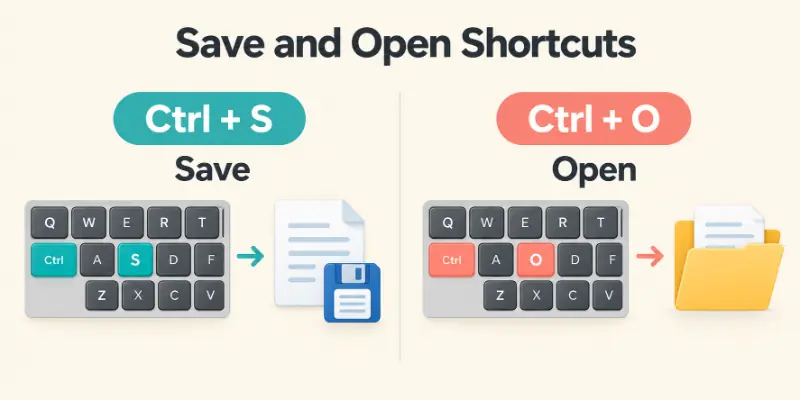
Ctrl + S is one of the most useful save shortcuts on Windows and in many applications. Ctrl + O commonly opens a file or document.
Quick Save Checklist
- Use Ctrl + S after making important changes.
- Use Ctrl + O when you need to open a file.
- Check the file name before saving.
- Save your work in the correct folder.
- Create backups of important files.
Useful Tip: Make Ctrl + S a habit. Saving frequently is much safer than waiting until you finish an entire project.
Keyboard Shortcuts for Text Editing
Keyboard shortcuts are especially useful when working with documents, emails, articles, or other text.
They allow you to select, find, move, copy, and modify text without constantly reaching for the mouse.
Useful Text Editing Shortcuts
| Shortcut | Common Use |
| Ctrl + A | Select all |
| Ctrl + C | Copy |
| Ctrl + X | Cut |
| Ctrl + V | Paste |
| Ctrl + Z | Undo |
| Ctrl + Y | Redo |
| Ctrl + F | Find text |
| Ctrl + H | Find and replace in supported applications |
| Home | Move toward the beginning of a line |
| End | Move toward the end of a line |
| Ctrl + Home | Move toward the beginning of a document |
| Ctrl + End | Move toward the end of a document |
Suggestion: If you write content regularly, learning navigation shortcuts such as Home, End, Ctrl + Home, and Ctrl + End can save a surprising amount of time.
Keyboard Shortcut Keys for Web Browsing
Web browsers support many useful keyboard shortcuts. These shortcuts can help you open tabs, close tabs, move between tabs, search pages, and reload content.
Browser Shortcut Checklist
- Ctrl + T: Open a new tab.
- Ctrl + W: Close the current tab.
- Ctrl + Shift + T: Reopen a recently closed tab in many browsers.
- Ctrl + Tab: Move to the next tab.
- Ctrl + Shift + Tab: Move to the previous tab.
- Ctrl + L: Move focus to the address bar.
- Ctrl + R: Reload the current page.
- Ctrl + F: Find text on the current page.
- Ctrl + D: Bookmark the current page in many browsers.
Useful Tip: Ctrl + Shift + T is especially helpful when you accidentally close an important browser tab.
Windows Keyboard Shortcuts
Windows provides many built-in shortcuts that can help users navigate the operating system. These shortcuts are useful for opening system tools, switching windows, locking the computer, and accessing the desktop.
Microsoft documents many Windows keyboard shortcuts, including combinations using the Windows logo key.
| Shortcut | Common Windows Action |
| Windows | Open Start |
| Windows + D | Show or hide desktop |
| Windows + E | Open File Explorer |
| Windows + L | Lock the computer |
| Windows + R | Open Run |
| Windows + I | Open Settings |
| Windows + S | Open Search |
| Windows + A | Open Quick Settings or Action Center depending on Windows version |
| Windows + Tab | Open Task View |
| Windows + Shift + S | Open screen snipping on supported Windows versions |
Important Things to Know: Windows shortcuts can change slightly between Windows versions. If a shortcut behaves differently on your computer, check the current Windows documentation.
Alt Key Shortcuts
The Alt key is often used with other keys to perform commands related to windows, menus, and applications. One of the most familiar combinations is Alt + Tab, which allows you to switch between open windows.
Common Alt Shortcuts
- Alt + Tab: Switch between open windows.
- Alt + F4: Close the active window.
- Alt + Enter: Performs different commands depending on the application.
- Alt + Space: Opens a window menu in supported Windows environments.
Warning: Be careful when using Alt + F4. It can close the active application or window.
Function Key Shortcuts
Function keys from F1 to F12 can also be used as shortcuts. Their functions depend heavily on the operating system and software.
For example, F1 commonly opens Help, F2 is commonly used to rename selected files in Windows, F5 often refreshes content, and F11 commonly switches full screen mode in many browsers.
Function Key Quick Guide
| Key | Common Function |
| F1 | Help |
| F2 | Rename selected file or folder in Windows |
| F3 | Search in some applications |
| F5 | Refresh or reload |
| F6 | Move focus between interface areas in some applications |
| F10 | Menu related keyboard control |
| F11 | Full screen mode in many browsers |
| F12 | Application specific commands or developer tools in some browsers |
Remember: Function key behavior is not universal. Laptop keyboards may also require the Fn key.
Keyboard Shortcuts for Screenshots
Screenshots are useful for saving what appears on your screen. Modern operating systems provide several ways to capture the screen.
On supported Windows versions, Windows + Shift + S opens a screen snipping feature that lets you select an area to capture. Some screenshot shortcut options are as follows:
- Windows + Shift + S: Select an area of the screen on supported Windows versions.
- Print Screen: Captures screen content depending on system settings.
- Alt + Print Screen: Can capture the active window on supported Windows systems.
- Application specific screenshot shortcuts may provide additional options.
Useful Tip: Use a selected area screenshot when you only need a small part of the screen. It can be easier to share and edit than a full screen image.
Keyboard Shortcut Keys for File Management
Shortcuts can also make working with files and folders easier. Common commands include opening, copying, renaming, and deleting items.
File Management Checklist
- Ctrl + C: Copy selected files or folders.
- Ctrl + X: Cut selected files or folders.
- Ctrl + V: Paste files or folders.
- F2: Rename a selected file or folder in Windows.
- Delete: Move selected items to the Recycle Bin in many Windows situations.
- Shift + Delete: Permanently delete selected items in supported Windows environments.
Warning: Be careful with Shift + Delete. It can bypass the normal Recycle Bin process, making recovery more difficult.
Keyboard Shortcuts for Productivity
Productivity shortcuts are designed to help you complete everyday tasks with fewer steps. They are especially valuable for people who spend many hours working on a computer.
The best shortcuts depend on your work, but saving, finding, switching windows, and undoing actions are useful for almost everyone. Given are some productivity shortcuts to learn first.
1. Ctrl + S: Save your work.
2. Ctrl + F: Find information quickly.
3. Ctrl + Z: Fix a mistake.
4. Alt + Tab: Switch between applications.
5. Ctrl + C and Ctrl + V: Copy and paste.
6. Windows + L: Quickly lock your computer.
Money Making Tip: If you perform repetitive online work, writing, data entry, research, or office tasks, learning the shortcuts used most often in your workflow can help you complete more work in less time.
Keyboard Shortcuts for Microsoft Word
Microsoft Word supports many keyboard shortcuts for creating and editing documents. Common shortcuts include Ctrl+B for bold, Ctrl+I for italic, Ctrl+U for underline, and Ctrl+F for finding text.
Useful Word Shortcuts
| Shortcut | Common Action |
| Ctrl + B | Bold |
| Ctrl + I | Italic |
| Ctrl + U | Underline |
| Ctrl + K | Insert hyperlink in supported versions |
| Ctrl + F | Find |
| Ctrl + H | Replace |
| Ctrl + S | Save |
| Ctrl + P | |
| Ctrl + Enter | Insert a page break |
| Ctrl + Home | Go toward the beginning of the document |
| Ctrl + End | Go toward the end of the document |
Recommended: If you write articles, assignments, reports, or documents regularly, learn the formatting shortcuts first. They can make editing much quicker.
Keyboard Shortcuts for Mac
Mac computers use many shortcuts similar to Windows, but the modifier keys are different. The Command key is used for many common shortcuts.
Apple provides keyboard shortcuts for tasks such as copying, pasting, undoing, saving, searching, and switching between applications.
| Action | Windows | Mac |
| Copy | Ctrl + C | Command + C |
| Paste | Ctrl + V | Command + V |
| Cut | Ctrl + X | Command + X |
| Undo | Ctrl + Z | Command + Z |
| Select All | Ctrl + A | Command + A |
| Save | Ctrl + S | Command + S |
| Find | Ctrl + F | Command + F |
| Ctrl + P | Command + P |
Important Things to Know: Do not assume that Windows and Mac shortcuts are identical. The Command and Option keys often replace the role of Ctrl and Alt in Mac shortcuts.
Keyboard Shortcut Keys for Accessibility
Keyboard shortcuts can also help users navigate a computer without relying heavily on a mouse. Many operating systems and applications provide keyboard based navigation and accessibility features.
For example, Tab can move between controls, Shift + Tab can move backward, and various system shortcuts can open accessibility settings.
Accessibility Shortcut Checklist
- Learn Tab for moving through controls.
- Use Shift + Tab to move backward.
- Use Arrow Keys for navigation where supported.
- Learn shortcuts for your operating system’s accessibility tools.
- Adjust keyboard settings if a shortcut is difficult to use.
Suggestion: Keyboard navigation can be particularly useful when a mouse is uncomfortable, unavailable, or slower for a particular task.
Keyboard Shortcuts for Students
Students can use keyboard shortcuts when writing assignments, researching information, preparing presentations, or organizing files.
Instead of clicking through menus repeatedly, students can use shortcuts to save documents, find words, copy information, and switch between applications. Student shortcut checklist:
- Ctrl + C: Copy.
- Ctrl + V: Paste.
- Ctrl + F: Find information.
- Ctrl + S: Save assignments.
- Ctrl + Z: Undo mistakes.
- Alt + Tab: Switch between research and writing applications.
- Ctrl + A: Select all when needed.
Useful Tip: Saving your work frequently is more important than learning a large number of shortcuts.
Keyboard Shortcuts for Office Workers
Office work often involves repeated tasks such as editing documents, handling spreadsheets, switching between programs, and managing files. A small set of reliable shortcuts can make these activities faster and easier. Useful office shortcuts are given below.
| Task | Shortcut |
| Save | Ctrl + S |
| Copy | Ctrl + C |
| Paste | Ctrl + V |
| Undo | Ctrl + Z |
| Find | Ctrl + F |
| Ctrl + P | |
| Switch applications | Alt + Tab |
| Close window | Alt + F4 |
| Select all | Ctrl + A |
| Open | Ctrl + O |
Recommended: Create your own small shortcut list based on the applications you use most often.
Keyboard Shortcuts for Gaming
Many computer games use keyboard keys for movement, actions, inventory management, communication, and other controls.
Unlike standard Windows shortcuts, gaming shortcuts are often customizable. Players can assign different actions to different keys according to the game and personal preference.
Gaming Keyboard Facts
- W, A, S, D are commonly used for movement in many PC games.
- The spacebar is often used for jumping.
- Esc commonly opens a menu or pauses some games.
- Shift may be used for sprinting in many games.
- Function keys may perform game specific commands.
- Macro keys may be available on some gaming keyboards.
Suggestion: Do not change every key immediately. First become comfortable with the game’s default controls.
Keyboard Shortcut Keys and Productivity: Facts and Figures
Keyboard shortcuts are useful because they reduce the number of steps needed for common actions. However, there is no single number of shortcuts that everyone should learn.
Different applications can provide dozens or even hundreds of commands, but most users only need a small group for everyday work.
Quick Facts
- Common shortcuts often use Ctrl, Alt, Shift, Windows, or Command.
- Function keys commonly range from F1 to F12 on traditional keyboards.
- Browser shortcuts can control tabs, pages, and searches.
- Windows and Mac use different modifier key conventions.
- Application specific shortcuts can greatly expand the number of available commands.
- Shortcut behavior can change between software programs.
Remember: Quality matters more than quantity. Knowing 15 useful shortcuts is better than memorizing 100 shortcuts you never use.
Keyboard Shortcut Mistakes to Avoid
Shortcuts are helpful, but using the wrong combination can sometimes create an unwanted result. Beginners should learn what a shortcut does before using it on important files.
Avoid These Common Mistakes
- Do not use unfamiliar shortcuts on important documents.
- Save your work before experimenting.
- Be careful with delete related shortcuts.
- Do not assume a Windows shortcut works exactly the same on Mac.
- Check the application’s shortcut list when something unexpected happens.
- Remember that laptop Fn settings can change how function keys behave.
Warning: Shortcuts can trigger powerful commands. Always be especially careful with commands that delete, close, or overwrite information.
How to Learn Keyboard Shortcuts Faster
The easiest way to learn keyboard shortcuts is to use them repeatedly in real situations. Memorizing a long list without practicing it usually does not work well.
A Simple 7 Day Shortcut Plan
Day 1: Learn Ctrl+C, Ctrl+V, and Ctrl+X.
Day 2: Learn Ctrl+Z, Ctrl+Y, and Ctrl+S.
Day 3: Practice Ctrl+A and Ctrl+F.
Day 4: Learn Alt+Tab and Alt+F4.
Day 5: Practice browser shortcuts such as Ctrl+T and Ctrl+W.
Day 6: Learn Windows or Mac specific shortcuts.
Day 7: Review everything and remove shortcuts you rarely use.
Recommended: Keep a small shortcut cheat sheet beside your computer until the most useful combinations become automatic.
How to Test Keyboard Shortcut Keys
Sometimes a shortcut does not work because of an application setting, operating system difference, keyboard layout, or a physical keyboard problem.
Before assuming that the keyboard is broken, test the individual keys involved in the shortcut. For example, if Ctrl+C does not work, test Ctrl, C, and another Ctrl shortcut separately.
A keyboard testing tool can be useful for checking whether individual keys are being detected. This helps separate a physical keyboard problem from a software or shortcut issue.
Useful Tip: Test individual keys first, then test the complete shortcut. This simple approach can make troubleshooting much easier.
Keyboard Shortcut Cheat Sheet
If you only want to remember the most important shortcuts, start with this short list.
| Shortcut | What It Does |
| Ctrl + C | Copy |
| Ctrl + V | Paste |
| Ctrl + X | Cut |
| Ctrl + Z | Undo |
| Ctrl + Y | Redo |
| Ctrl + A | Select all |
| Ctrl + S | Save |
| Ctrl + F | Find |
| Ctrl + P | |
| Ctrl + T | New browser tab |
| Ctrl + W | Close browser tab |
| Ctrl + Shift + T | Reopen closed browser tab |
| Alt + Tab | Switch applications |
| Alt + F4 | Close active window |
| Windows + L | Lock computer |
Useful Tip: Bookmark or print this section if you are still learning. Using the shortcuts repeatedly is the fastest way to remember them.
Conclusion
Keyboard shortcut keys are simple combinations that can make computer use faster, easier, and more efficient. From basic commands such as Ctrl+C and Ctrl+V to browser shortcuts, Windows commands, editing shortcuts, and application specific combinations, there is a shortcut for many common tasks.
You do not need to become an expert overnight. Start with a small group of shortcuts that match your daily activities, practice them regularly, and gradually add more. With time, many shortcuts will become automatic, reducing your dependence on the mouse and helping you work more comfortably.
Frequently Asked Questions About Keyboard Shortcut Keys
These FAQs provide quick answers to common questions about keyboard shortcuts. They cover basic definitions, useful combinations, operating system differences, and simple troubleshooting.
1. What are keyboard shortcut keys?
Keyboard shortcut keys are combinations of keys that perform specific commands quickly without requiring you to select the command from a menu.
They can help you copy text, save files, switch between windows, or undo changes with fewer steps. Most shortcuts are easy to learn once you use them regularly.
Quick Tip: Start with shortcuts for tasks you perform every day.
2. What is the most common keyboard shortcut?
Some of the most commonly used shortcuts include Ctrl+C, Ctrl+V, Ctrl+X, Ctrl+Z, Ctrl+A, and Ctrl+S.
These combinations cover everyday tasks such as copying, pasting, cutting, undoing, selecting, and saving. They work in many Windows applications, although some programs may use different commands.
Useful Tip: Learn a few basic combinations first and add more as your needs grow.
3. What does Ctrl+C do?
Ctrl+C commonly copies selected text, files, folders, or other content. The original content remains in its current location after copying. You can then use Ctrl+V to place the copied item somewhere else.
Quick Tip: Make sure the content is selected before pressing Ctrl+C.
4. What does Ctrl+V do?
Ctrl+V commonly pastes content that has been copied or cut. It can be used with text, images, files, folders, and other supported content. The result depends on what is currently stored on the clipboard.
Things to Know: If nothing appears after pressing Ctrl+V, check whether you copied or cut something first.
5. What does Ctrl+Z do?
Ctrl+Z commonly undoes the most recent action in supported applications. It can be useful when you accidentally delete text, make an unwanted edit, or change something by mistake. Some programs allow you to press it multiple times to reverse several recent actions.
Quick Tip: If you undo something accidentally, Ctrl+Y may redo the action in many Windows applications.
6. Are keyboard shortcuts the same on Windows and Mac?
No. Many common commands are similar, but Windows often uses Ctrl while Mac commonly uses the Command key.
For example, copying is usually Ctrl+C on Windows and Command+C on Mac. Other combinations can also vary between operating systems and applications.
Things to Remember: Always check the shortcuts for your specific operating system when switching between devices.
7. Can I create my own keyboard shortcuts?
Some applications and operating systems allow users to customize shortcuts, while others have fixed combinations.
Custom combinations can provide quicker access to frequently used commands or programs. The available options depend on the software and system settings.
Useful Tip: Choose combinations that are easy to remember and do not conflict with existing commands.
8. How many keyboard shortcuts should I learn?
There is no required number. Start with 10 to 15 shortcuts that you use frequently, then learn more as needed.
Basic combinations for copying, saving, searching, switching windows, and undoing actions are a good starting point. Learning them gradually makes them easier to remember.
Quick Tip: Practice a few shortcuts each day instead of trying to memorize a long list at once.
9. Why is a keyboard shortcut not working?
Check these points:
- The application may use a different shortcut.
- The operating system may use a different combination.
- A keyboard key may not be working.
- Your keyboard layout may have changed.
- A laptop’s Fn or function key mode may affect the command.
You can also test the individual keys with a keyboard testing tool to check whether they are being detected. If the keys work normally, the problem may be related to the software or its settings.
Important Note: Some shortcuts only work when a specific window, field, or application is active.
10. Can keyboard shortcuts make me faster?
Yes. Shortcuts can reduce repeated mouse movements and menu navigation, which can make common computer tasks more efficient.
They are especially useful for activities such as editing documents, browsing the web, managing files, and switching between applications. With regular practice, many combinations become automatic.
Useful Tip: Focus on shortcuts that save you time during your most common tasks.



- Be Respectful
- Stay Relevant
- Stay Positive
- True Feedback
- Encourage Discussion
- Avoid Spamming
- No Fake News
- Don't Copy-Paste
- No Personal Attacks
- Be Respectful
- Stay Relevant
- Stay Positive
- True Feedback
- Encourage Discussion
- Avoid Spamming
- No Fake News
- Don't Copy-Paste
- No Personal Attacks
