How to Fix a Laptop That Won’t Connect to Wi-Fi
Published: 14 Oct 2026
A laptop that suddenly refuses to connect to a wireless network can interrupt almost everything you want to do online. You may see the network but fail to connect, receive a “No Internet” message, or find that the wireless option has disappeared completely.
Most laptop wireless connection problems can be solved without professional repair. The cause may be something simple, such as Airplane mode, a wrong password, a temporary router problem, or an outdated network driver. Windows also includes several built-in troubleshooting options that can help identify and fix connection problems.
Check that wireless connectivity and Airplane mode are set correctly, restart the laptop and router, forget and reconnect to the network, run Windows network troubleshooting, update the wireless driver, and use network reset only as a final step.
Why Won’t My Laptop Connect to Wi-Fi?
There are several reasons why a laptop may fail to establish a wireless connection. The problem can be on the laptop, the router, or even with the internet service itself.
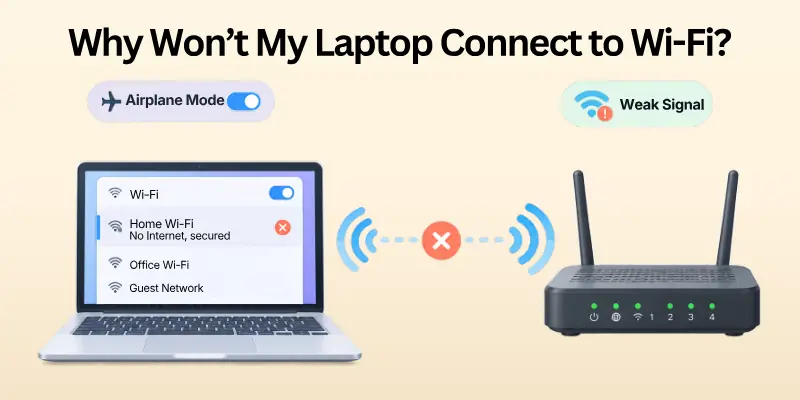
A useful first step is to test the same network on another phone, tablet, or computer. If other devices connect normally, the problem is probably with your laptop. If no device can connect, the router or internet connection may be the real source of the problem.
Common Causes of Wi-Fi Problems
Before changing advanced network settings, check the most common and simple causes first. Identifying the cause can help you choose the right wireless troubleshooting method and avoid unnecessary changes.
- Wireless connectivity is turned off
- Airplane mode is enabled
- Incorrect network password
- Laptop is too far from the router
- Router needs a restart
- Temporary Windows network problem
- Outdated or damaged wireless driver
- Network adapter is disabled
- DNS or TCP/IP problems
- Wireless frequency compatibility issues
- VPN or proxy interference
- Windows network settings are corrupted
Start by checking basic settings such as wireless connectivity, Airplane mode, and the network password. If these are correct, move on to the router, wireless driver, network adapter, and Windows network settings to find the cause.
Quick Checks Before Trying Advanced Fixes
Before changing drivers or network settings, spend a minute checking the basics. A small setting can sometimes be responsible for the entire problem.
Make sure wireless connectivity is turned on and that your laptop is trying to connect to the correct network. Microsoft also recommends checking Airplane mode, moving closer to the router, and verifying the network password.
Quick Wi-Fi Checklist
These simple checks can help you quickly identify common laptop wireless connection problems.
If everything looks correct but the laptop still will not connect, you can move on to more advanced troubleshooting steps.
- Wireless connectivity is turned on
- Airplane mode is turned off
- Correct network is selected
- Password is correct
- Laptop is within wireless range
- Router is powered on
- Other devices can access the same network
- Laptop has been restarted
Once these basic checks are complete, try connecting to the network again.
If the connection still fails, the problem may involve the wireless driver, network adapter, router settings, or Windows network configuration.
Fix 1: Turn Wi-Fi Off and On Again
Sometimes Windows temporarily loses communication with the wireless adapter. Turning the wireless connection off and back on can refresh the connection without changing any important settings.
Select the Network icon on the Windows taskbar, turn wireless connectivity off, wait a few seconds, and turn it back on. Then select your network and try connecting again. Windows provides wireless controls directly through its network settings.
A Simple Refresh
- Open the network menu.
- Turn wireless connectivity off.
- Wait about 10 seconds.
- Turn it back on.
- Select your network.
- Choose Connect.
- Enter the password if requested.
If the connection works after this, the issue was probably temporary.
Fix 2: Make Sure Airplane Mode Is Off
Airplane mode can disable wireless communication on your laptop. If it is accidentally enabled, your laptop may not connect to any network.
Open Settings > Network & internet > Airplane mode and make sure it is turned off. Also check the quick settings area because some laptops provide a keyboard shortcut for wireless controls. After turning off Airplane mode, wait a few seconds and check whether available networks appear.
If the wireless connection is still unavailable, make sure the network adapter is enabled and try restarting the laptop before moving to advanced fixes.
Things to Remember: If your laptop has a physical wireless switch or a dedicated function key, make sure it is enabled. Some laptop models include hardware controls that can disable wireless connectivity completely.
Fix 3: Restart Your Laptop
A simple restart can clear temporary Windows network errors and reload the wireless adapter. Save your work, close open programs, and select Start > Power > Restart. After Windows starts again, open the network menu and try connecting to your network. If the connection still fails, move on to the router check rather than restarting repeatedly.
A restart is a quick wireless troubleshooting step and does not change your saved network settings. It can also refresh other Windows services that may affect wireless connectivity.
If other devices are also unable to connect, checking the router and internet connection is the next useful step.
Fix 4: Restart Your Wi-Fi Router
If your laptop cannot connect while other devices are also having trouble, the router or internet connection may be responsible. Microsoft recommends restarting the modem and wireless router to establish a fresh connection with the internet service provider.
A typical restart involves unplugging the equipment, waiting at least around 30 seconds, then reconnecting the modem and router and allowing them to fully start. A proper router restart can clear temporary connection problems and refresh the network connection.
Router Restart Checklist
Follow the steps in the correct order, especially if you have both a separate modem and router. Wait until the equipment has fully restarted before testing the connection again.
- Unplug the router
- Unplug the modem if it is separate
- Wait about 30 seconds
- Power the modem back on
- Wait for its lights to stabilize
- Power the router back on
- Wait a few minutes
- Try connecting your laptop again
After the restart, check whether other devices can access the internet as well. If other devices connect normally but your laptop still cannot connect, the issue is more likely related to the laptop’s network settings, adapter, or driver.
Fix 5: Forget the Wi-Fi Network and Reconnect
If Windows saves incorrect or outdated connection information, forgetting the network can help.
Go to Settings > Network & internet > Wi-Fi > Manage known networks. Find your network and select Forget. Then return to the available network list, select the network again, and enter the password.
This can be especially useful when your laptop previously connected to the network but suddenly stopped doing so.
Why This Works: Forgetting the network removes its saved connection profile. When you connect again, Windows creates a fresh profile using the current password and network settings.
Fix 6: Move Closer to the Wi-Fi Router
Weak signal strength can make a wireless connection unreliable or prevent a laptop from connecting successfully.
Move your laptop closer to the router and try again. Remove major physical obstacles when possible, especially thick walls or large objects between the laptop and router. Microsoft also recommends moving closer to the access point when troubleshooting wireless connectivity.
Signal Strength Check
Checking the signal strength can help you determine whether distance is affecting your laptop’s wireless connection. Use the following guide to understand what different signal conditions may indicate.
| Signal Condition | What It May Mean |
| Strong signal | Distance is probably not the main issue |
| Medium signal | Connection may work but could be unstable |
| Weak signal | Move closer to the router |
| No network visible | Check adapter, router, or frequency settings |
If the connection improves when you move closer, distance or physical obstacles may be affecting the signal.
If there is little or no improvement, continue checking the network adapter, router settings, or wireless frequency.
Fix 7: Try Another Wi-Fi Frequency
Many modern routers broadcast wireless networks using 2.4 GHz and 5 GHz bands. Depending on your laptop’s wireless adapter and router configuration, one band may work better than the other.
If both networks appear separately, try connecting to the other one. Microsoft specifically recommends trying another frequency band when a laptop cannot connect to the expected network.
2.4 GHz vs 5 GHz
| Feature | 2.4 GHz | 5 GHz |
| Range | Usually longer | Usually shorter |
| Wall penetration | Generally better | Generally weaker |
| Potential speed | Lower | Higher |
| Interference | Often more crowded | Often less crowded |
| Best for | Distance and coverage | Nearby devices and speed |
If your laptop supports only one band, the other network may not appear.
Fix 8: Run the Windows Network Troubleshooter
Windows includes a built-in network troubleshooting system that can diagnose common connection problems.
On Windows 11, Microsoft recommends starting with the automated Network and Internet troubleshooter in the Get Help app. It can run diagnostics and attempt to identify common problems.
How to Run Network Troubleshooting
- Open the Get Help app.
- Search to connect to the network and internet.
- Select Run network diagnostics.
- Follow the instructions.
- Apply any recommended fixes.
- Try connecting again.
This is one of the safest troubleshooting methods because Windows checks the connection without requiring you to manually change advanced settings.
Fix 9: Check the Wi-Fi Network Adapter
Your laptop uses a network adapter to communicate with wireless networks. If the adapter is disabled, missing, or experiencing a driver problem, wireless connectivity may not work.
Open Device Manager, expand Network adapters, and locate your wireless adapter. If it is disabled, right click it and choose Enable device. Microsoft also recommends checking the adapter driver when Windows cannot detect or connect to wireless networks.
A quick adapter check can help you determine whether the problem is related to the laptop’s wireless hardware or its driver.
Network Adapter Checklist
Look for warning symbols or unusual messages that may indicate a driver or device issue. Use the checklist below to review the adapter before trying more advanced network fixes.
- Open Device Manager
- Expand Network adapters
- Find the wireless adapter
- Check whether it is enabled
- Look for a warning symbol
- Check the driver information
- Restart Windows after making changes
After making any changes, open the network menu and try connecting to your network again. If the adapter is enabled and appears to be working normally, the problem may be related to the driver, Windows network settings, or the router.
Fix 10: Update the Wi-Fi Driver
An outdated or damaged driver can cause wireless adapter not working problems, especially after a Windows update or other system change.
Open Device Manager > Network adapters, right click your wireless adapter, and select Update driver. You can also check the laptop manufacturer’s official support website for a compatible network driver.
If your laptop cannot access the internet, Microsoft recommends downloading the driver using another computer and transferring it with a USB drive when necessary.
When Should You Suspect a Driver Problem?
Before updating the driver, check whether your symptoms point to a driver related problem. This can help you avoid changing the driver when the actual issue is caused by the router, signal strength, or Windows network settings. A driver issue is more likely when:
- Wireless connectivity suddenly stopped after an update.
- The wireless adapter has a warning icon.
- Available networks are not appearing.
- The wireless adapter disappears from Device Manager.
- Other devices connect to the same router normally.
If several of these signs are present, checking or updating the wireless driver is a useful next step. Always choose a driver that matches your exact laptop model and wireless adapter to avoid compatibility problems.
Fix 11: Reinstall the Wi-Fi Adapter Driver
If updating the driver does not help, reinstalling it may solve a damaged driver problem. In Device Manager, expand Network adapters, right click the wireless adapter, select Uninstall device, and then restart the laptop.
Windows can automatically reinstall the network adapter driver after the restart. Microsoft recommends having a backup driver available before uninstalling the existing one.
Warning: Do not uninstall the adapter without first considering how you will reinstall the driver if Windows does not automatically restore it.
Fix 12: Reset Network Settings With Command Prompt
If Windows still cannot establish a connection, network commands can reset important networking components. Open Command Prompt as administrator and enter these commands one at a time:
netsh winsock reset
netsh int ip reset
ipconfig /release
ipconfig /renew
ipconfig /flushdns
Microsoft recommends these commands to reset the TCP/IP stack, renew the IP address, and flush the DNS resolver cache when troubleshooting Windows Wireless problems.
What These Commands Do
| Command | Purpose |
| netsh winsock reset | Resets the Winsock catalog |
| netsh int ip reset | Resets TCP/IP settings |
| ipconfig /release | Releases the current IP address |
| ipconfig /renew | Requests a new IP address |
| ipconfig /flushdns | Clears the DNS cache |
Restart your laptop after running the commands and test the connection again.
Fix 13: Check Proxy and VPN Settings
A VPN or manual proxy configuration can sometimes interfere with internet access even when the laptop appears connected to a wireless network.
If your laptop connects to the network but shows no internet, check Settings > Network & internet > Proxy and review any manual proxy settings. Microsoft also identifies proxy settings as one area to check when wireless connectivity is available but internet access is unavailable.
Temporarily disconnect from a VPN and test the connection again. If the internet works after disconnecting, the VPN or its configuration may need attention.
Fix 14: Check Whether the Problem Is Your Laptop or Router
This simple test can save a lot of time. Connect another device, such as a smartphone, tablet, or second computer, to the same network. If the other device connects successfully, your laptop is likely the problem. If multiple devices fail, investigate the router or ISP connection.
Quick Diagnosis Table
Comparing another device helps narrow down the source of the laptop internet connection problem. The results can tell you whether to focus on your laptop’s settings or investigate the network equipment and internet service.
| What You See | Most Likely Area |
| Only your laptop cannot connect | Laptop settings or adapter |
| All devices cannot connect | Router or ISP |
| Network is missing | Adapter, router, or frequency |
| Connected but no internet | IP, DNS, proxy, router, or ISP |
| Connection keeps dropping | Signal, driver, interference, or power settings |
| Connection disappeared after update | Driver or Windows change |
Use these results to choose the next troubleshooting step instead of trying every fix at once. If only your laptop is affected, focus on its network adapter, drivers, and Windows network settings. If several devices are affected, check the router and internet connection.
Fix 15: Use Network Reset as a Last Resort
If the previous methods fail, Network Reset Windows 11 can restore network adapters and settings to their defaults.
In Windows 11, go to Settings > Network & internet > Advanced network settings > Network reset and select Reset now. Microsoft recommends using network reset as one of the final troubleshooting steps.
Important Before Using Network Reset
Network reset removes installed network adapters and resets their settings. After restarting, Windows reinstalls the adapters, but you may need to configure networking software again, including some VPN clients or virtual network software.
What to Do When the Wi-Fi Option Is Missing
Sometimes the problem is more serious than a failed connection. The entire wireless option may disappear from Windows.
First, check whether your laptop has a physical wireless switch or keyboard shortcut. Then open Device Manager and check whether the wireless adapter appears under Network adapters.
If the adapter is not detected, Microsoft recommends checking for the correct driver from the laptop manufacturer’s website.
Wi-Fi Missing Checklist
These checks can help determine whether the missing wireless option is caused by a disabled adapter, driver problem, or hardware related issue. Work through the basic checks first before making changes to drivers or network settings.
- Check the physical wireless switch
- Turn off Airplane mode
- Check Device Manager
- Enable the wireless adapter
- Check for driver errors
- Install the correct driver
- Restart the laptop
- Run Windows network diagnostics
After completing the checklist, check whether the wireless option has returned to Windows. If the wireless adapter is still missing from Device Manager, the issue may require a compatible driver or further hardware troubleshooting.
What If the Laptop Connects to Wi-Fi but Has No Internet?
This situation is slightly different. Your laptop may be successfully communicating with the router while the router itself cannot reach the internet.
First, check another device on the same network. Then try restarting the router, renewing your IP address, flushing DNS, and checking proxy settings. Microsoft identifies these as useful steps for a wireless connection that shows No Internet.
If every device on the network has no internet access, contact your internet service provider because the issue may be outside your laptop.
What If Wi-Fi Keeps Disconnecting?
Frequent disconnections can be caused by weak signal strength, interference, driver problems, or power management settings.
Move closer to the router and test another wireless band first. If the problem continues, check the wireless adapter driver and its power settings. Microsoft also recommends checking wireless adapter power management when connections repeatedly drop.
Facts and Figures to Know
Here are some useful facts to keep in mind while troubleshooting a laptop that won’t connect to Wi-Fi. Understanding these points can help you choose the right troubleshooting method and avoid changing advanced settings unnecessarily.
They also explain some common wireless behaviors that can make connection problems confusing.
- Windows 10 and Windows 11 include built-in wireless troubleshooting options.
- Many routers provide both 2.4 GHz and 5 GHz wireless bands.
- Microsoft recommends network reset as a last step, rather than the first troubleshooting method.
- A laptop may connect to a router while still showing No Internet if the router or ISP cannot provide internet access.
- Windows can automatically reinstall a network adapter driver after certain driver uninstall and restart procedures.
These facts can help you understand whether the problem is related to your laptop, wireless network, or internet service.
Start with simple checks before using advanced options such as network reset or driver changes. Testing the connection on another device can also help narrow down the source of the problem.
The Best Order to Troubleshoot Wi-Fi
If you want to solve the problem quickly, follow this order from easiest to more advanced.
Step 1: Check Wi-Fi and Airplane mode.
Step 2: Verify the password and network name.
Step 3: Move closer to the router.
Step 4: Restart the laptop.
Step 5: Restart the router.
Step 6: Forget and reconnect to the network.
Step 7: Try another frequency band.
Step 8: Run Windows network troubleshooting.
Step 9: Check and update the wireless driver.
Step 10: Run network commands.
Step 11: Reinstall the network adapter driver if needed.
Step 12: Use Network Reset as a final step.
This order helps you avoid making unnecessary changes before checking the simple causes.
How to Prevent Future Wi-Fi Problems
Once your laptop is connected again, a few habits can help maintain a stable wireless connection. Regularly checking Windows, drivers, and your networking equipment can reduce common connection problems.
Simple changes to your router placement and network settings can also improve reliability.
- Keep Windows updated.
- Keep your Wi-Fi driver current.
- Keep the router firmware updated according to its manufacturer’s guidance.
- Place the router in a suitable location.
- Avoid unnecessary VPN or proxy configurations.
- Restart networking equipment when connection problems persist.
- Keep important laptop drivers backed up.
- Use a trusted Wi-Fi network and a strong password.
These habits can help reduce repeated laptop Wi-Fi connection problems and make troubleshooting easier when an issue occurs.
If connection problems continue despite these steps, check the signal strength, router, network adapter, and internet service for possible causes.
Conclusion
A laptop that won’t connect to Wi-Fi can be frustrating, but the problem is often easier to fix than it first appears. Start with simple checks such as Wi-Fi, Airplane mode, the password, signal strength, and a router restart.
If those steps do not work, forget and reconnect to the network, run Windows network troubleshooting, check the wireless adapter, and update its driver. More advanced solutions such as network commands, driver reinstallation, and Network Reset should come later in the troubleshooting process.
Important Points to Remember
Check before changing: Always determine whether the problem affects only your laptop or every device connected to the network.
Start simple: Restarting Wi-Fi, the laptop, and the router can solve temporary connection problems.
Protect your settings: Keep a backup network driver available before uninstalling a Wi-Fi adapter driver.
Use Network Reset carefully: It is a powerful troubleshooting option, but Microsoft recommends using it only after other methods fail.
Do not ignore the router: If phones, tablets, and other computers also cannot connect, the laptop may not be the real problem.
Frequently Asked Questions
Some FAQs related to fixing a Laptop that won’t connect to Wi-Fi are as follows.
1. Why won’t my laptop connect to Wi-Fi?
The most common causes include disabled Wi-Fi, Airplane mode, an incorrect password, weak signal, router problems, outdated drivers, or corrupted network settings. Start with the basic checks before trying advanced fixes.
2. How do I fix Wi-Fi not connecting on Windows 11?
Try this quick checklist:
- Turn Wi-Fi on
- Turn Airplane mode off
- Restart the laptop
- Restart the router
- Forget and reconnect to the network
- Run network troubleshooting
- Update the Wi-Fi driver
3. Why does my laptop say “No Internet” when connected to Wi-Fi?
Your laptop may be connected to the router but unable to reach the internet. Test another device on the same network. If all devices have the same problem, the router or ISP may be responsible.
4. What should I do if my Wi-Fi network does not appear?
Check that Wi-Fi is enabled and Airplane mode is off. Move closer to the router and check whether the wireless adapter appears in Device Manager. You should also consider whether your laptop supports the frequency being used by the router.
5. Can an outdated Wi-Fi driver stop a laptop from connecting?
Yes. A damaged, outdated, or incompatible network adapter driver can cause Wi-Fi connectivity problems. Updating or reinstalling the correct driver can help, especially if the issue started after a Windows update.
6. Should I reset network settings?
Use Network Reset only after trying simpler solutions. It restores network adapters and settings to their defaults and may require you to configure networking software again.
7. Does forgetting a Wi-Fi network delete the router?
No. Forgetting a network only removes the saved Wi-Fi profile from your laptop. You can connect again by selecting the network and entering its password.
8. Why does my laptop keep disconnecting from Wi-Fi?
Frequent disconnections may result from weak signal strength, wireless interference, driver problems, or power management settings. Test the laptop closer to the router and check the network adapter before changing advanced settings.
9. Can restarting the router fix laptop Wi-Fi problems?
Yes. Restarting the router can establish a fresh connection with your ISP and clear temporary router problems. Microsoft recommends restarting networking equipment as part of general Wi-Fi troubleshooting.
10. What commands can fix Wi-Fi problems in Windows?
These commands can reset important network components:
netsh winsock reset
netsh int ip reset
ipconfig /release
ipconfig /renew
ipconfig /flushdns
Run them in an administrator Command Prompt and restart the laptop afterward.
11. What if Wi-Fi works on my phone but not my laptop?
That usually suggests the router and internet service are working, so focus on the laptop. Check its Wi-Fi settings, saved network profile, adapter, and driver. Microsoft recommends comparing the connection on another device to help identify where the problem originates.
12. When should I contact my internet provider?
Contact your ISP if multiple devices cannot access the internet, especially after restarting the modem and router. If other devices work normally but only your laptop has the problem, continue troubleshooting the laptop first.





- Be Respectful
- Stay Relevant
- Stay Positive
- True Feedback
- Encourage Discussion
- Avoid Spamming
- No Fake News
- Don't Copy-Paste
- No Personal Attacks
- Be Respectful
- Stay Relevant
- Stay Positive
- True Feedback
- Encourage Discussion
- Avoid Spamming
- No Fake News
- Don't Copy-Paste
- No Personal Attacks
