How to Fix Windows Apps That Are Not Responding
Published: 13 Oct 2026
When a Windows app suddenly stops responding, freezes, or refuses to open, it can quickly become frustrating. You may see a “Not Responding” message, a frozen window, or an app that opens and closes without doing anything.
You usually do not need to reset your entire PC. A temporary app problem, outdated software, damaged system files, background conflicts, or corrupted app data can all cause Windows apps not responding to issues. The best approach is to start with simple fixes and move to advanced solutions only when needed.
Why Do Windows Apps Stop Responding?
An unresponsive app does not always mean that the app is permanently broken. Sometimes Windows is waiting for an application to complete a task, especially when the program is handling a large file or using many system resources.
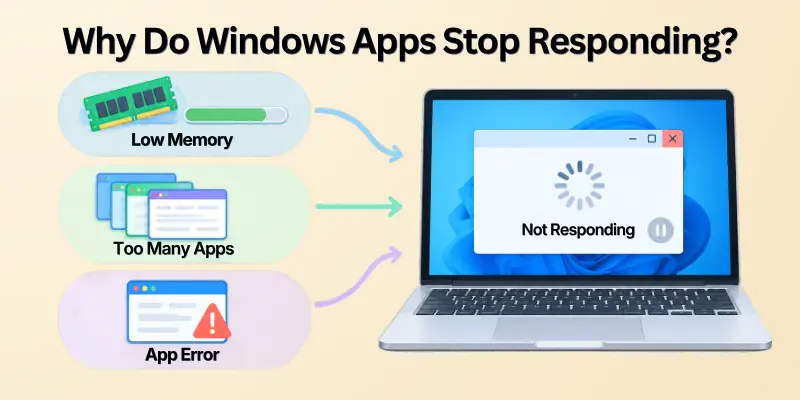
Other times, the problem can be connected to outdated software, damaged app data, insufficient system resources, or corrupted Windows components.
Common causes include:
- Temporary application glitches
- Too many programs running at once
- Low available memory
- Outdated Windows or app versions
- Corrupted application files
- Damaged Windows system files
- Conflicts with startup software
- Problems with Microsoft Store apps
- Malware or unwanted software
- Compatibility problems after an update
Microsoft recommends built in repair options and system repair tools for several types of app problems.
First Check How Much of Windows Is Frozen
Before making major changes, check whether only one application is stuck or whether the whole computer has become unresponsive.
Try opening another program, moving the mouse, opening the Start menu, or pressing Ctrl + Shift + Esc to launch Task Manager. If everything else works normally, the problem is probably limited to one application.
Quick Troubleshooting Checklist
- Check whether other apps are working
- Save any important work that is still accessible
- Open Task Manager
- Identify the frozen application
- Check whether Windows has available updates
- Restart the PC if the problem continues
If several Windows apps are freezing at the same time, you should investigate Windows itself rather than focusing on only one program.
Fix 1: Close and Reopen the Unresponsive App
The simplest solution is often the most useful. A temporary application glitch can disappear after the program is completely closed and launched again.
If the app still responds to the mouse, close it normally. If it is completely frozen, open Task Manager, select the affected program, and choose End task.
Be careful when ending a task because unsaved work may be lost. After closing the program, wait a few seconds and open it again.
Fix 2: Restart Your Windows PC
A restart can clear temporary memory problems, stuck background processes, and short term software glitches.
Select Start > Power > Restart and allow Windows to start normally. Microsoft also lists restarting the PC as an initial troubleshooting step for program problems.
Why a Restart Can Help
A restart can:
- Close stuck processes
- Refresh Windows services
- Clear temporary memory usage
- Reload system components
- Reinitialize hardware drivers
- Remove some temporary software conflicts
If the same application freezes again after every restart, continue with the next solutions instead of repeatedly restarting the computer.
Fix 3: Update Windows and Your Apps
An outdated operating system or application can sometimes cause compatibility and stability problems. Before trying complicated commands, make sure Windows and the affected application are up to date.
Open Settings > Windows Update and check for available updates. If the problem involves a Microsoft Store application, open Microsoft Store and check its Library for available app updates. Microsoft specifically recommends checking for Windows updates when troubleshooting Store apps.
Also Check the App Itself
If the application has its own update option, use it. For desktop programs, visit the software publisher’s official website when an update is required.
Keeping software current can help reduce compatibility problems and improve application stability.
Fix 4: Repair the Problematic App
Windows provides a built in Repair option for many applications. This is useful when one specific program is freezing or behaving incorrectly. In Windows 11, go to: Start > Settings > Apps > Installed apps
Find the affected application, select the three dot menu, choose Advanced options, and select Repair if the option is available. Microsoft notes that repair and reset options are not available for every application.
Repair vs Reset
Before choosing a more advanced fix, it helps to understand what each option changes.
Repair, Reset, and Reinstall can have different effects on the application’s files, settings, and stored data.
Use the table below to choose the appropriate option for your situation.
| Option | What It Does | Best Used When |
| Repair | Attempts to fix the app without a full reset | The app is malfunctioning |
| Reset | Restores the app to a fresh state | Repair does not solve the problem |
| Reinstall | Removes and installs the app again | App files may be damaged |
Start with Repair because it is the less disruptive option. After repairing the app, open it again and check whether the freezing or other problem has been resolved.
If Repair does not help, you can move to Reset or Reinstall depending on the application and the type of problem.
Fix 5: Reset the App in Windows 11
If repairing the application does not solve the problem, you can try Reset.
Go to Settings > Apps > Installed apps, select the affected application, open Advanced options, and choose Reset when available. Microsoft recommends trying Repair first and Reset afterward if the problem continues.
This method is particularly useful when one Windows application keeps freezing while other programs work normally.
Important Point: Resetting an application can remove its stored app data or settings. If the program contains important local information, check its documentation before using this option.
Fix 6: Reinstall the Problematic Program
Sometimes an application installation becomes damaged. In that situation, uninstalling and reinstalling the program can replace broken files.
Go to Settings > Apps > Installed apps, find the program, and select Uninstall. Then download the latest version from the official software source.
For Microsoft Store applications, Microsoft recommends reinstalling through the Store when normal repair steps do not resolve the issue.
Reinstallation Checklist
- Save important application data
- Note any custom settings
- Uninstall the affected program
- Restart Windows
- Download the latest version
- Install the program again
- Test whether the freezing problem has disappeared
After reinstalling the program, open it and test the features that were previously freezing. If the application still becomes unresponsive, the problem may be related to Windows, hardware resources, or another background program. Make sure the newly installed version meets your Windows version and system requirements.
Fix 7: Repair Windows System Files With DISM and SFC
If several applications are freezing, crashing, or failing to work, damaged Windows system files may be part of the problem. Microsoft provides two built in tools called DISM and System File Checker, or SFC. Microsoft recommends running DISM first and then SFC when repairing corrupted Windows system files.
Step by Step Guide
Step 1: Search for Command Prompt.
Step 2: Right click it and choose Run as administrator.
Step 3: Run this command: DISM.exe /Online /Cleanup image /Restorehealth. Wait for the operation to complete.
Step 4: Then run: sfc /scannow. Do not close the Command Prompt window while the SFC scan is running. Microsoft states that SFC checks protected system files and can replace corrupted files with a cached copy.
Step 5: Restart your computer after the scans finish.
What These Commands Do
| Tool | Main Purpose |
| DISM | Repairs the Windows component image |
| SFC | Checks and repairs protected system files |
| Both tools | Help address Windows corruption that can cause system problems |
If the problem is caused by damaged Windows components, these tools may restore normal application behavior.
Fix 8: Check for Microsoft Store App Problems
If only Microsoft Store applications are affected, the problem may be related to the Store or app installation. Open Microsoft Store > Library and check for available updates. You can also repair or reset supported Store apps through Windows Settings.
Microsoft recommends closing and reopening the app, checking Windows updates, repairing or resetting the app, and reinstalling it when necessary.
Store App Checklist
- Open Microsoft Store
- Check Library for updates
- Update the affected application
- Restart Windows
- Try the app again
- Repair or reset the app if necessary
- Reinstall the app as a final app level fix
After completing these steps, open the affected Store app again and check whether it works normally. If several Microsoft Store apps are affected, the issue may be related to Windows or the Store itself rather than one application.
If the problem continues, consider checking Windows system files or other system level troubleshooting options.
Fix 9: Perform a Windows Clean Boot
If your applications work normally after starting Windows with minimal background software, another program or service may be causing the conflict.
A Windows clean boot starts the system with essential drivers and startup programs. Microsoft recommends this approach for identifying software conflicts that affect applications.
How to Perform a Clean Boot
- Search for msconfig and open System Configuration.
- Select the Services tab.
- Select Hide all Microsoft services.
- Select Disable all.
- Open the Startup tab.
- Select Open Task Manager.
- Disable the appropriate enabled startup items.
- Restart the PC.
- Test the application.
If the application works correctly after a clean boot, a background service or startup application may be responsible. Microsoft recommends systematically enabling items again to isolate the source.
Warning: Clean boot changes startup behavior temporarily. After troubleshooting, return Windows to Normal Startup and restore the startup items you disabled.
Fix 10: Check Your PC’s Available Resources
Sometimes the problem is not the application itself. Your computer may simply be running low on available resources. Open Task Manager with Ctrl + Shift + Esc and look at CPU, Memory, Disk, and GPU usage.
Things to Look For
- Very high memory usage
- Heavy CPU usage
- High disk activity
- Many unnecessary background programs
- An application consuming unusually large resources
Closing programs you do not need can reduce the workload and may improve Windows performance.
Fix 11: Check for Malware or Unwanted Software
Unexpected freezing, crashing, or unusual application behavior can sometimes be associated with unwanted or malicious software.
Open Windows Security and run an appropriate malware scan. Microsoft also recommends using Windows Security when malware is suspected during application troubleshooting.
Avoid downloading random “PC fixer” programs that promise instant Windows repairs. Use trusted Windows tools and official software sources whenever possible.
Fix 12: Consider a System Restore or Windows Recovery Option
If applications were working correctly before a recent system change, System Restore may be worth considering when restore points are available.
For serious and persistent problems, Windows also provides recovery options. A PC reset is a much bigger step and should not be the first solution for a single frozen application.
Microsoft warns that resetting Windows can remove apps and settings. The Keep my files option preserves personal files but still removes installed applications and settings, so important data should be backed up first.
Which Fix Should You Try First?
Not every Windows app troubleshooting method is appropriate for every situation. Use the simplest solution that matches your problem.
Starting with a basic fix can save time and help you avoid unnecessary changes to Windows. Use the table below to quickly match a common problem with a suitable first step.
| Problem | Recommended First Step |
| One app freezes once | Close and reopen it |
| One app freezes repeatedly | Repair or reset the app |
| App will not open | Update, repair, or reinstall it |
| Several apps freeze | Check Windows and system files |
| Store apps stop working | Update or repair Store apps |
| Apps freeze after startup | Try a clean boot |
| Windows behaves strangely | Run DISM and SFC |
| Malware is suspected | Run a Windows Security scan |
| Problems remain after major changes | Consider recovery options |
Use the recommended first step before moving to more advanced solutions. If the problem continues, move gradually through the troubleshooting process and test the app after each change. This makes it easier to identify which solution helped fix the problem.
Facts and Figures to Know
A few practical facts can make Windows app troubleshooting easier. Understanding these built-in tools and Windows features can help you choose the right fix for an unresponsive application.
The following points also highlight important support, recovery, and troubleshooting details you should know.
- Windows includes built in tools such as DISM and SFC for system file repair.
- App repair and reset options are available only for supported applications.
- A clean boot uses essential drivers and startup programs to help isolate software conflicts.
- Windows 10 support officially ended on October 14, 2025, so supported devices should consider moving to Windows 11 for continued updates and security fixes.
- A Windows reset can remove installed apps and settings, even when the Keep my files option is selected.
These facts can help you troubleshoot Windows apps more carefully and avoid unnecessary system changes. Before using advanced recovery options, make sure your important files are backed up.
If a problem affects multiple applications, look for a wider Windows or system issue instead of focusing on one app.
A Simple Troubleshooting Order
When a Windows app freezes, it is better to start with simple fixes before making major system changes. This troubleshooting order helps you identify the problem step by step without immediately using advanced recovery options.
Start with the easiest solutions and move to deeper troubleshooting only if the problem continues. If you want the easiest possible process, follow these steps in order:
- Close the frozen application.
- Open it again.
- Restart Windows.
- Install Windows and app updates.
- Repair the affected app.
- Reset the app if Repair does not work.
- Reinstall the program if necessary.
- Run DISM followed by SFC.
- Check for malware.
- Perform a clean boot if several apps continue freezing.
- Consider Windows recovery options only after other solutions fail.
Following the steps in this order can save time and reduce unnecessary changes to your system. After each step, test the affected application to see whether the problem has been resolved.
If the app works normally again, there is usually no need to continue with more advanced troubleshooting. This approach starts with low risk fixes and gradually moves toward deeper system troubleshooting.
How to Prevent Windows Apps From Freezing Again
Once your applications are working properly, a few simple habits can reduce future problems.
- Keep Windows updated.
- Keep important applications updated.
- Avoid installing software from unknown websites.
- Remove programs you no longer use.
- Keep enough free storage available.
- Restart your PC regularly.
- Avoid running too many demanding programs simultaneously.
- Use Windows Security to monitor for threats.
- Back up important files before major system changes.
After following these habits, your Windows apps are less likely to become unresponsive or freeze unexpectedly. Regular maintenance can also help your laptop stay stable and responsive during everyday use.
If an app continues to freeze frequently, check its updates, system requirements, and available storage, or consider reinstalling it.
Conclusion
When Windows apps are not responding, the problem can come from a simple temporary glitch or a deeper software conflict. The best strategy is to start with easy solutions such as restarting the app, restarting Windows, and installing updates.
If the issue continues, use Windows’ built in Repair and Reset options, reinstall the affected program, and run DISM followed by SFC when system file corruption is suspected. For problems involving several applications, a clean boot can help identify conflicting background software. Important points to remember:
- Do not rush to reset Windows. Start with the smallest fix that matches the problem.
- Protect your work first. Ending a frozen application can cause unsaved data to disappear.
- Use trusted tools. Windows already includes several useful troubleshooting and repair features.
Check the scope of the problem. One frozen app usually needs app level troubleshooting, while many frozen apps may point toward a Windows or background software issue.
Frequently Asked Questions
Windows apps can become unresponsive for many reasons, including temporary glitches, high system usage, outdated software, or corrupted files.
These FAQs provide quick answers to common questions about Windows apps not responding and simple ways to troubleshoot them. Use these tips to identify whether the problem is limited to one app or affects Windows more broadly.
1. Why does Windows say an app is not responding?
Windows may display this message when an application stops processing normally or takes too long to respond. The cause can be temporary, such as heavy workload, or related to corrupted files, outdated software, or another system problem.
2. How do I fix an app that is not responding in Windows 11?
Try these solutions:
- Close and reopen the app.
- Restart your PC.
- Update Windows and the app.
- Use Repair from the app’s Advanced options.
- Use Reset if Repair fails.
- Reinstall the application if necessary.
3. What should I do if all Windows apps are freezing?
If several programs are freezing, do not focus only on one application. Check system resources, install Windows updates, run DISM and SFC, scan for malware, and consider a clean boot to identify background conflicts.
4. Does restarting Windows fix frozen apps?
A restart can fix temporary software glitches by closing stuck processes and refreshing Windows services. However, if the same application repeatedly becomes unresponsive, additional troubleshooting is needed.
5. Should I use Repair or Reset first?
Use Repair first. If Repair does not solve the problem, try Reset if the option is available. Microsoft recommends this order for supported applications.
6. Can corrupted Windows files make apps stop responding?
Yes. Microsoft notes that missing or corrupted system files can cause Windows features to malfunction, become unresponsive, or freeze. DISM and SFC are built in tools designed to help repair these problems.
7. What does sfc /scannow do?
sfc /scannow checks protected Windows system files for corruption and attempts to repair damaged files. Microsoft recommends running DISM before SFC when using these tools for system file repair.
8. Can a clean boot fix Windows apps?
A clean boot can help identify whether a third party service or startup application is interfering with a program. If the app works correctly in a clean boot environment, a background conflict may be involved.
9. Why are Microsoft Store apps not working?
Microsoft Store apps can experience problems because of outdated software, damaged app data, or installation issues. Check Store updates, repair or reset the affected app, and reinstall it when necessary.
10. Will resetting an app delete my personal files?
It depends on the application and the type of data it stores. Resetting can remove an app’s stored data and settings, so check the app’s documentation or back up important information before using Reset.
11. Should I reset Windows if apps keep freezing?
A complete Windows reset should generally be a later option, not the first fix for one problematic app. It can remove applications and settings, so back up important files before using it.
12. What is the fastest way to fix a frozen Windows app?
For a temporary freeze, close the app through Task Manager and reopen it. If the issue keeps returning, update the app, use Repair or Reset, and then investigate Windows system files or background conflicts.




- Be Respectful
- Stay Relevant
- Stay Positive
- True Feedback
- Encourage Discussion
- Avoid Spamming
- No Fake News
- Don't Copy-Paste
- No Personal Attacks
- Be Respectful
- Stay Relevant
- Stay Positive
- True Feedback
- Encourage Discussion
- Avoid Spamming
- No Fake News
- Don't Copy-Paste
- No Personal Attacks
