How to Update Laptop Drivers in Windows
Published: 12 Oct 2026
Your laptop depends on small pieces of software called drivers to communicate with its hardware. Your Wi-Fi adapter, graphics card, keyboard, touchpad, speakers, Bluetooth device, and other components all rely on drivers to work correctly.
When a driver becomes outdated, damaged, or incompatible, you may notice problems such as missing sound, slow graphics, Wi-Fi issues, Bluetooth failures, screen glitches, or devices that suddenly stop working.
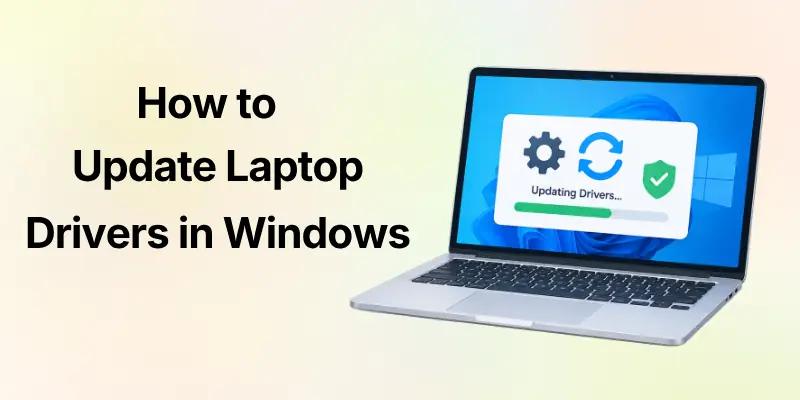
Updating the laptop drivers in Windows is usually simple. In most cases, you can start with Windows Update, and if that doesn’t help, move to Device Manager or your laptop manufacturer’s official support website.
This article covers the easiest way to update most laptop drivers is to open Settings → Windows Update → Check for updates. You can also look under Advanced options → Optional updates → Driver updates when available. For a specific device, Device Manager can also search for or install a compatible driver.
What Is a Laptop Driver?
A driver is software that helps Windows communicate with a hardware component. Think of it as a translator between Windows and your laptop’s hardware. Without the right driver, Windows may not know how to properly communicate with a device.
For example: Windows → Driver → Hardware
Your operating system sends instructions through the driver, and the driver helps the hardware understand those instructions.
Common laptop components that use drivers
- Wi-Fi adapter
- Bluetooth
- Graphics card
- Touchpad
- Keyboard
- Speakers
- Microphone
- Webcam
- Display
- Printer
- USB devices
- Storage controllers
Useful Tip: If one particular device is causing trouble, you usually don’t need to update every driver on your laptop. Start with the driver related to that device.
Why Should You Update Laptop Drivers?
Drivers don’t necessarily need to be updated every day. However, a newer compatible driver can sometimes fix hardware problems, improve compatibility, or address reliability and security issues.
Microsoft notes that Windows automatically delivers recommended driver updates for supported hardware through Windows Update.
Updating a driver may help when:
- Your Wi-Fi keeps disconnecting.
- Your laptop has no sound.
- Bluetooth won’t connect.
- Your graphics look unusual.
- A webcam isn’t detected.
- A touchpad behaves incorrectly.
- A printer isn’t working properly.
- Windows shows a hardware error.
- A newly installed device isn’t recognized.
But there is an important point:
Important: A newer driver isn’t automatically better for every situation. Compatibility matters. Use a driver intended for your exact hardware and Windows version.
Should You Update Every Driver?
No. This is one of the biggest mistakes beginners make. You don’t need to search for a new driver for every component simply because a newer version exists.
A better approach
Something working normally?
→ Leave it alone unless there’s a good reason to update.
Something isn’t working?
→ Identify the device.
Windows Update offers a compatible driver?
→ Consider installing it.
Does the manufacturer provide a newer driver for your exact laptop?
→ Check its release notes and compatibility before installing.
Recommended: Update drivers when you have a specific reason—such as fixing a problem, improving compatibility, or installing a manufacturer recommended release.
Before Updating a Laptop Driver
Driver installation is usually safe when you use the correct source, but preparation is still important.
Quick checklist
- Save your work.
- Close unnecessary applications.
- Connect your laptop to power.
- Make sure your internet connection works.
- Create a backup of important files.
- Identify the device you want to update.
- Check your Windows version.
- Use an official driver source.
You don’t normally need to install third party “driver updater” software.
Safety Tip: Avoid websites that offer huge collections of unknown drivers. For manual installation, Microsoft recommends using the device manufacturer’s official website.
Method 1: Update Laptop Drivers Using Windows Update
For most users, Windows Update is the best place to start. Microsoft says Windows automatically downloads and installs recommended drivers for many hardware devices through Windows Update.
Windows 11 steps
- Open Start.
- Select Settings.
- Click Windows Update.
- Select Check for updates.
- Install available updates.
- Restart your laptop if Windows asks you to.
Microsoft’s current instructions use Settings → Windows Update → Check for updates, followed by Download & install when updates are available.
Simple flow
Open Settings
↓
Windows Update
↓
Check for updates
↓
Download & install
↓
Restart
↓
Test your hardware
Useful Tip: Start here before using more advanced driver installation methods.
Method 2: Find Optional Driver Updates in Windows
Sometimes a driver isn’t installed automatically. Windows can provide certain drivers under Optional updates.
In Windows 11
Go to: Settings → Windows Update → Advanced options → Optional updates
If driver updates are available, you can select the ones you want and choose Download and install. Microsoft notes that optional drivers are not installed automatically.
What might appear here?
Depending on your laptop, you could see updates related to:
- Audio
- Bluetooth
- Network adapters
- Graphics
- Chipset
- Cameras
- Input devices
- Other hardware
Important Point: Read the driver name carefully. Don’t install an optional driver simply because it appears on the list. Make sure it matches a device you actually need to update.
Method 3: Update Drivers Through Device Manager
Device Manager gives you more direct control over individual hardware devices. It’s particularly useful when you know which component is causing a problem.
How to open Device Manager
- Right click the Start button.
- Select Device Manager.
- Find the hardware category.
- Expand the category.
- Right click the device.
- Select Update driver.
Microsoft provides Device Manager as another way to update or reinstall drivers, although Windows Update is recommended as the first approach for most users.
Example
Suppose your laptop’s Wi-Fi is not working. You might open: Device Manager → Network adapters. Then identify your wireless adapter. Right click it and select: Update driver
Tip: Don’t update a device randomly. First identify what the hardware actually does.
How to Search Automatically for a Driver
After selecting the Update driver in Device Manager, Windows can search automatically for an appropriate driver. Follow this process:
Device Manager
↓
Choose the device
↓
Right click
↓
Update driver
↓
Search automatically for drivers
↓
Follow the instructions
Windows will check for an available driver and install it if an appropriate update is found. If Windows doesn’t find a newer driver, that doesn’t necessarily mean your laptop has the wrong driver. A newer version may be available directly from the hardware or laptop manufacturer.
Things to Know: “The best drivers for your device are already installed” doesn’t always mean that no newer manufacturer specific driver exists.
Method 4: Install a Driver Manually
Manual installation is useful when Windows Update and automatic Device Manager searches don’t provide the driver you need. The important part is finding the correct driver for your exact hardware.
Basic process
- Identify your laptop model.
- Visit the manufacturer’s official support website.
- Find your laptop model.
- Open its driver or downloads section.
- Select your Windows version.
- Download the appropriate driver.
- Install it according to the manufacturer’s instructions.
- Restart the laptop if required.
Microsoft specifically recommends getting drivers from the hardware manufacturer’s website when Windows Update can’t find a suitable driver.
Warning: Never download a driver simply because the file name looks similar to your device. Confirm the laptop model, hardware, Windows version, and system architecture first.
How to Find Your Laptop Model
Before manually downloading a driver, you need to know your laptop’s exact model. You can often find this information:
- On a label underneath the laptop
- On the original packaging
- In the manufacturer’s support application
- In Windows System Information
- In your device settings
A simple Windows method
Search for: System Information. Then look for information such as System Manufacturer and System Model. Write these details down before visiting the manufacturer’s support page.
Recommended: Use the full model information rather than searching for only the brand name.
Which Laptop Drivers Are Most Important?
Not every driver has the same impact. Some components are particularly important because they control essential laptop functions.
| Driver | What It Controls | Common Problems |
| Wi-Fi / Network | Internet connection | Disconnects, no Wi-Fi |
| Graphics | Display and visual performance | Flickering, crashes |
| Audio | Speakers and microphone | No sound |
| Bluetooth | Wireless accessories | Devices won’t connect |
| Touchpad | Cursor and gestures | Touchpad not responding |
| Chipset | Core hardware communication | Compatibility issues |
| Camera | Webcam | Camera not detected |
| Storage | Storage related hardware | Drive or performance issues |
Useful Tip: If one component is broken, focus on that component first instead of changing unrelated drivers.
How to Update Wi-Fi Drivers
A Wi-Fi driver problem can make your laptop appear to have an internet problem when the real issue is the wireless adapter.
First, try Windows Update
Go to: Settings → Windows Update → Check for updates. If a suitable driver is available, Windows may install it.
If that doesn’t help
Open: Device Manager → Network adapters. Find your wireless adapter and choose: Update driver → Search automatically for drivers.
Microsoft lists network adapters among the hardware categories that can receive driver updates through Windows Update.
Important: If updating the Wi-Fi driver doesn’t solve the problem, the issue may be caused by network settings, the router, hardware, or something else not necessarily the driver.
How to Update Graphics Drivers
Graphics drivers are important for your laptop’s display and graphics hardware. They can affect:
- Screen quality
- Video playback
- Games
- External monitors
- Graphics applications
- Display stability
Start with Windows Update
Check: Settings → Windows Update. Then look under Optional updates if driver updates are available.
For some graphics hardware, the manufacturer may also provide a newer driver through its official support software or website.
Warning: Graphics drivers can affect system stability. Don’t install a driver intended for a different GPU or laptop model.
How to Update Audio Drivers
If your laptop suddenly has no sound, an audio driver may be one possible cause. Try windows update first. Open: Settings → Windows Update → Check for updates.
Microsoft specifically recommends Windows Update as the first method for obtaining audio driver updates.
You can also use Device Manager. Go to: Device Manager → Sound, video and game controllers.
Right click your audio device and select: Update driver → Search automatically for drivers. Restart your laptop after the installation if needed.
Tip: If updating the driver doesn’t restore sound, also check volume settings, output device selection, mute controls, and the physical speakers.
How to Know if a Driver Needs Updating
You don’t always need to guess. Windows can give you clues. Watch for these signs:
- A device suddenly stops working.
- Device Manager displays a warning icon.
- Hardware is missing.
- Windows reports a driver error.
- A device works incorrectly after a Windows update.
- A newly connected device isn’t recognized.
- The manufacturer recommends a specific update.
Quick decision flow
Is the hardware working normally?
→ Yes: You may not need to change anything.
→ No: Identify the device.
↓
Is a suitable update available through Windows Update?
→ Yes: Install it.
→ No: Check Device Manager.
↓
Still no solution?
→ Check the manufacturer’s official support page.
Things to Remember: A driver update should solve a problem or provide a meaningful improvement. Don’t change working drivers simply for the sake of having the newest number.
How to Check Your Current Driver Version
Sometimes you need to know which driver is already installed. The Device Manager can show this information. Follow these steps.
- Open Device Manager.
- Find the device.
- Right click it.
- Select Properties.
- Open the Driver tab.
- Review the driver information.
You may see details such as the driver provider, date, and version. This can help you compare the installed driver with a version offered by the manufacturer.
Useful Tip: Take a screenshot before changing a driver. If something goes wrong, you’ll have a record of the previous setup.
What If a New Driver Causes Problems?
Sometimes a newly installed driver can create a problem instead of solving one. For example, a device might stop working correctly immediately after a driver update.
Don’t panic. Windows may allow you to roll back the driver to the previous version. Basic rollback process includes the following:
- Open Device Manager.
- Find the affected device.
- Right click it.
- Select Properties.
- Open the Driver tab.
- Select Roll Back Driver if the option is available.
- Follow the instructions.
- Restart the laptop if prompted.
Microsoft notes that rolling back to a previous driver can help when an issue began after a recent driver update. Administrator permissions may be required.
Important: Don’t roll back a driver simply because the version number looks older. Use rollback when a recent driver change is actually connected to the problem.
What If the Driver Is Completely Broken?
Sometimes updating isn’t enough. A driver may need to be reinstalled. Microsoft’s Device Manager instructions allow you to uninstall a device and then restart Windows so the system can attempt to reinstall the driver.
Basic reinstall flow
Device Manager
↓
Find the affected device
↓
Right click → Uninstall device
↓
Restart Windows
↓
Windows attempts to reinstall the driver
This method should be used carefully, particularly for essential devices such as network adapters.
Warning: Don’t uninstall an important device driver unless you understand what you’re doing and have a recovery path if Windows doesn’t reinstall it automatically.
What Does a Yellow Warning Icon Mean?
You may sometimes see a yellow warning symbol beside a device in Device Manager. This can indicate that Windows has detected a problem with that hardware or its driver.
If you see the warning icon:
- Right click the device.
- Select Properties.
- Read the device status message.
- Note any error code.
- Search for a driver update.
- Check the manufacturer’s support page if necessary.
Microsoft provides specific guidance for Device Manager error codes, so recording the exact code can make troubleshooting much easier.
Tip: Don’t ignore a warning icon, but don’t assume the driver is automatically the only cause either.
Can Windows Automatically Update Laptop Drivers?
Yes. Windows can automatically download and install recommended drivers through Windows Update. Microsoft describes this as the preferred route for many hardware drivers. This means you don’t necessarily have to manually search for every new driver.
Automatic approach
Windows Update
- Checks available updates
- Finds compatible drivers
- Downloads them
- Installs them
This is one reason you should check Windows Update before visiting multiple driver websites.
Recommended: Let Windows handle routine recommended driver updates whenever possible, and use manual installation when you have a specific reason.
Should You Use Driver Updater Software?
For most people, no. You don’t need a third party program that promises to scan hundreds of drivers and update everything automatically.
Windows already has built-in tools for driver updates, and manufacturers provide official support pages for manual downloads.
Be careful with programs that:
- Promise hundreds of outdated drivers
- Ask for payment before showing basic information
- Install unrelated software
- Download drivers from unclear sources
- Use frightening warnings to pressure you
- Claim your PC is “at risk” because a driver is old
Safety Warning: If you need a manual driver, get it from Microsoft or the official laptop/hardware manufacturer’s support page. Microsoft explicitly advises avoiding unofficial driver sources.
Windows Update vs. Device Manager vs. Manufacturer Website
Which method should you use? The answer depends on what you’re trying to accomplish.
| Method | Best For | Difficulty |
| Windows Update | Routine recommended drivers | ⭐ Easy |
| Optional Updates | Additional available drivers | ⭐ Easy |
| Device Manager | Updating a specific device | ⭐⭐ Moderate |
| Manufacturer Website | Specific or newer compatible drivers | ⭐⭐ Moderate |
| Manual installation | Advanced troubleshooting | ⭐⭐⭐ Advanced |
The best order for most users
1. Windows Update
↓
2. Optional driver updates
↓
3. Device Manager
↓
4. Official manufacturer website
This approach keeps things simple while giving you more control when the basic method doesn’t work.
Recommended: Start simple. Move to advanced methods only when you actually need them.
What If Windows Says the Best Driver Is Already Installed?
This message can be confusing. It generally means Windows didn’t find a newer suitable driver through that particular search.
It does not necessarily prove that no newer driver exists anywhere. A newer driver may be available from the device manufacturer.
Microsoft specifically notes that if Windows doesn’t find an updated driver, you can check Windows Update or the manufacturer’s official website. Your next steps are:
Windows says no update found
- Check Windows Update
- Check Optional updates
- Identify the hardware
- Visit the official manufacturer support page
- Compare the available driver with your installed version
Things to Know: Never install a driver simply because its version number is higher. Compatibility is more important than the number.
How to Update Drivers After a Windows Update
Sometimes a major Windows update can change how a hardware device behaves. If something stops working afterward, don’t immediately assume the laptop needs every driver updated.
Instead:
- Identify the affected device.
- Check Windows Update.
- Check Optional updates.
- Open Device Manager.
- Look for warning symbols.
- Check the manufacturer’s support page if necessary.
If the problem began immediately after a driver update, Windows may offer a rollback option.
Useful Tip: Change one thing at a time. This makes it much easier to discover which change fixed or caused the problem.
A Simple Example: Fixing a Laptop With No Sound
Imagine you open your laptop one morning and there is no sound. You could immediately download a random “audio driver updater.” That’s not the best approach. Instead, follow a simple process:
No sound
↓
Check volume and output device
↓
Open Windows Update
↓
Install available updates
↓
Check Optional driver updates
↓
Open Device Manager
↓
Check the audio device
↓
Update or reinstall the driver if appropriate
This approach starts with simple checks and only becomes more technical when necessary.
Lesson: A missing driver isn’t always the cause of a hardware problem. Troubleshoot the symptom before changing system software.
Laptop Driver Update Safety Checklist
Before installing a driver manually, run through this checklist.
Verify the driver
- Correct laptop model
- Correct hardware component
- Correct Windows version
- Correct system architecture
- Official download source
- Appropriate driver release
- Important files backed up
- Laptop connected to power
After installation
- Restart if required
- Test the affected device
- Check for warning symbols
- Confirm the driver version
- Make a note of any new problems
Golden Rule: Never install a driver just because a website says your computer has “outdated drivers.” Identify the hardware first.
Facts and Figures About Laptop Drivers
Driver information can look technical, but you only need to understand a few key terms.
| Term | Simple Meaning |
| Driver | Software that helps Windows communicate with hardware |
| Driver Version | Identifies a particular driver release |
| Driver Date | Date associated with the installed driver |
| Driver Provider | Company that supplied the driver |
| Device Manager | Windows tool for viewing hardware |
| Optional Driver | A driver Windows makes available but doesn’t automatically install |
| Rollback | Returns a device to a previous driver |
Microsoft explains that drivers act as a communication layer between Windows and hardware, while Windows Update can automatically deliver recommended driver updates.
Important Point: You don’t need to memorize technical driver terminology. Focus on the device, the problem, and the correct source for its driver.
Final Thoughts
Knowing how to update laptop drivers in Windows can save you from many common hardware headaches.
The easiest place to start is Windows Update. If the driver you need isn’t available there, check Optional updates, then use Device Manager for a specific device. When Windows still can’t find the right driver, the laptop manufacturer’s official support page is the next sensible option.
Most importantly, don’t fall into the trap of updating every driver just because a website says they’re outdated.
Identify the problem, find the correct hardware, use a trusted source, install carefully, and test the device afterward.
That simple approach keeps driver management safer, easier, and much less confusing—even if you’re completely new to Windows.
Frequently Asked Questions
Keeping laptop drivers updated can help Windows communicate properly with hardware such as the Wi-Fi adapter, graphics card, keyboard, touchpad, and audio devices.
However, not every driver needs to be updated regularly, especially when your laptop is working without problems. These FAQs explain simple and safe ways to check, update, and manage drivers in Windows.
1. How do I update laptop drivers in Windows?
Start with Settings → Windows Update → Check for updates. You can also check Optional updates → Driver updates when available. For a specific device, Device Manager can search for an appropriate driver.
Windows Update is a convenient starting point because it can provide drivers that are compatible with your version of Windows. Always check the driver name and device before installing a manual update.
2. What is the safest way to update laptop drivers?
For most users, Windows Update is the safest starting point. If you need a manual driver, download it from the official laptop or hardware manufacturer’s support website.
Avoid downloading drivers from unknown websites because the files may be incorrect or unsafe. Make sure the driver matches your exact laptop model or hardware.
3. Do I need to update every driver?
No. If your hardware is working correctly, there may be no reason to change every driver. Focus on drivers related to a specific problem or manufacturer recommendation.
Updating drivers unnecessarily can create compatibility issues in some cases. Before making changes, identify whether you actually have a hardware, performance, or compatibility problem.
4. How do I update drivers without Device Manager?
Use Windows Update. Windows can automatically provide recommended driver updates, and optional drivers may appear under Settings → Windows Update → Advanced options → Optional updates.
This method is useful if you prefer not to manage individual devices manually. It also gives you a simple way to check for available driver updates in one place.
5. How do I update drivers through Device Manager?
Open Device Manager, find the device, right click it, select Update driver, and choose Search automatically for drivers.
Device Manager is helpful when you already know which hardware is having a problem. You can also use it to view the device name and check its driver information.
6. What if Windows says the best driver is already installed?
Check Windows Update and Optional updates. If no suitable update appears, visit the official manufacturer’s support page for your exact laptop or hardware model.
The message does not always mean that no newer driver exists anywhere. The manufacturer’s website may provide a model specific driver that Windows does not automatically offer.
7. How do I update Wi-Fi drivers?
Start with Windows Update. If that doesn’t help, open Device Manager → Network adapters, identify your wireless adapter, and use Update driver.
An outdated or incorrect Wi-Fi driver can sometimes cause connection problems. Before downloading a manual driver, confirm the exact wireless adapter model.
8. How do I update graphics drivers?
Check Windows Update and Optional updates first. If your graphics manufacturer provides a compatible driver specifically for your laptop or graphics hardware, you can also use its official support channel.
Graphics drivers can affect display performance, gaming, video playback, and application compatibility. Laptop users should make sure the driver is suitable for their specific graphics hardware.
9. What should I do if a new driver causes problems?
If the problem began after a driver update, open Device Manager, select the affected device’s Properties → Driver, and check whether Roll Back Driver is available.
If rollback is available, it can return the device to the previous driver. You should also note which driver was changed so you can troubleshoot the issue more easily.
10. Can outdated drivers slow down a laptop?
They can contribute to performance, compatibility, or hardware problems, but an older driver isn’t automatically a problem. If your laptop is working correctly, don’t assume that every old driver needs replacement.
Other issues, such as low storage, too many startup programs, overheating, or insufficient RAM, can also affect laptop performance. Check the actual cause before changing drivers.
11. Should I use a third party driver updater?
Usually, no. Windows Update, Device Manager, and official manufacturer support pages provide safer ways to manage drivers.
Third party driver tools may recommend updates that your system does not actually need. Using official sources also makes it easier to identify the correct driver for your hardware.
12. Do I need to restart after updating a driver?
Sometimes. If Windows or the manufacturer’s installer asks you to restart, do so. A restart can allow the newly installed driver to load correctly.
Even when a restart is not required, restarting can help confirm that the hardware is working normally. Test the affected device after the update to make sure the problem has been resolved.





- Be Respectful
- Stay Relevant
- Stay Positive
- True Feedback
- Encourage Discussion
- Avoid Spamming
- No Fake News
- Don't Copy-Paste
- No Personal Attacks
- Be Respectful
- Stay Relevant
- Stay Positive
- True Feedback
- Encourage Discussion
- Avoid Spamming
- No Fake News
- Don't Copy-Paste
- No Personal Attacks
