How to Clean a Laptop Safely: Beginner’s Guide
Published: 18 Oct 2026
A clean laptop is not only easier to use, but it can also help you avoid dust buildup, blocked vents, and sticky keys. You do not need to be a computer expert to clean your device. Make sure to turn off your laptop, unplug the charger, and disconnect accessories before cleaning it.
This beginner friendly guide explains how to clean a laptop safely without damaging important parts. You will learn what tools to use, what to avoid, and how to clean the screen, keyboard, ports, vents, and other areas.
Why Should You Clean Your Laptop?
Dust, fingerprints, food crumbs, and other debris can collect on a laptop over time. Regular cleaning can keep the device looking better and help maintain proper airflow.
A simple cleaning routine is also an important part of laptop maintenance tips. It can reduce dirt around the keyboard, screen, vents, and ports.
What Can Build Up Inside or Around a Laptop?
- Dust and dirt
- Fingerprints and skin oils
- Food crumbs
- Pet hair
- Lint
- Moisture
- Debris around vents and ports
Things to Remember: Cleaning is not just about appearance. Keeping vents and openings clear can help your laptop maintain normal airflow.
What You Need Before Cleaning
You do not need expensive equipment for basic laptop cleaning. A few simple and suitable tools can handle most everyday dirt.
The right laptop cleaning tools are safer than household products that may contain harsh chemicals or leave moisture behind.
Basic Cleaning Kit
| Cleaning Tool | Main Use | Safety Level |
| Microfiber cloth | Screen and exterior | Excellent |
| Soft brush | Keyboard and vents | Excellent |
| Compressed air | Dust and crumbs | Good when used correctly |
| Distilled water | Light surface cleaning | Good |
| Isopropyl alcohol | Certain exterior surfaces | Good when properly diluted or used according to manufacturer guidance |
| Cotton swabs | Small areas | Good with care |
Useful Tip: Keep one microfiber cloth only for your laptop. This helps prevent dust and particles from another surface from scratching the screen.
How to Clean a Laptop Safely
The safest approach is to clean your laptop from the outside first. Work slowly and avoid putting liquid directly onto the device.
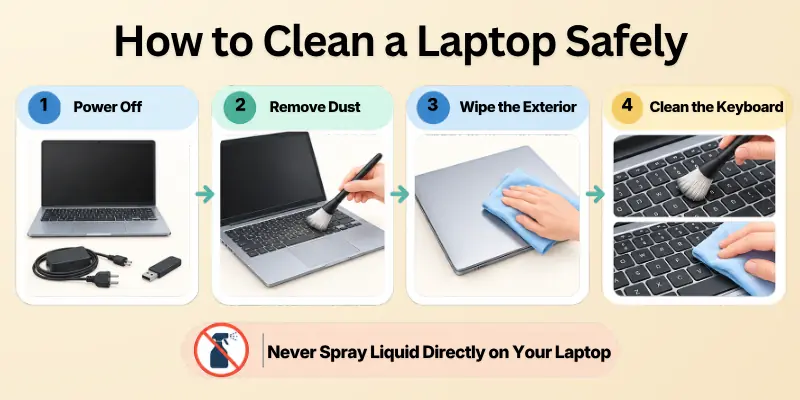
Follow these steps to make safe laptop cleaning simple and effective.
Step 1: Shut Down and Unplug Your Laptop
Turn the laptop completely off before you start. Do not clean an active or sleeping laptop if you can avoid it.
Unplug the charger and remove USB drives, headphones, memory cards, and other accessories.
Warning: Never spray cleaning liquid directly onto a laptop. Always apply a small amount to a suitable cloth when the manufacturer allows it.
Step 2: Remove Loose Dust and Crumbs
Open the laptop carefully and turn it slightly so loose debris can fall away from the keyboard.
Use a soft brush or suitable compressed air to remove visible dust. Avoid forcing debris deeper into the laptop.
Step 3: Clean the Laptop Exterior
Use a dry microfiber cloth to wipe the lid, palm rest, and other exterior surfaces.
For stubborn marks, lightly dampen the cloth with an appropriate cleaning solution. The cloth should never be wet enough to drip.
Step 4: Clean the Keyboard
Cleaning the keyboard regularly can prevent dirt from collecting between the keys.
For keyboard cleaning for laptops, use a soft brush or short bursts of compressed air. Wipe the key surfaces gently with a microfiber cloth.
Keyboard Cleaning Checklist
- Turn the laptop off
- Disconnect the charger
- Remove loose crumbs
- Brush between keys
- Wipe the key surfaces
- Check for sticky or damaged keys
- Let the surface dry completely before use
Things to Note: Do not pour or spray liquid between the keys. Even a small amount of liquid can cause serious internal damage.
How to Clean a Laptop Screen
The screen needs extra care because its surface can be sensitive to pressure and unsuitable cleaning chemicals.
For how to clean a laptop screen, start with a clean, dry microfiber cloth. Gently wipe the screen without pressing hard.
Safe Screen Cleaning
- Turn off the laptop.
- Let the screen cool if it has been running.
- Remove loose dust with a microfiber cloth.
- Wipe gently in one direction or with light circular movements.
- Use only a manufacturer approved solution when needed.
- Make sure the screen is dry before closing the laptop.
Warning: Avoid paper towels, rough fabrics, household glass cleaners, and excessive moisture unless your laptop manufacturer specifically recommends them.
How to Clean Laptop Ports
USB ports, charging ports, headphone jacks, and other openings can collect dust and lint.
When learning how to clean laptop ports, remember that these areas contain delicate components. Use gentle methods and never push objects deep inside a port.
Safe Port Cleaning Checklist
- Turn off the laptop
- Disconnect all cables
- Inspect the port under good lighting
- Remove loose debris carefully
- Use suitable compressed air if appropriate
- Never force a cotton swab or sharp object inside
- Check that the port is dry before reconnecting anything
Important Note: A wooden toothpick, pin, paper clip, or metal object can damage contacts inside a port. Avoid using them.
How to Clean Laptop Vents and Fans
Laptop vents allow air to move through the cooling system. Dust buildup around these areas can restrict airflow.
If you want to know how to clean laptop fans, begin with the external vents. Internal fan cleaning may require opening the laptop, which can affect warranties or damage components if done incorrectly.
External Vent Cleaning
- Turn off and unplug the laptop.
- Find the intake and exhaust vents.
- Brush away loose dust.
- Use compressed air carefully when appropriate.
- Keep the laptop on a hard, flat surface during normal use.
Recommendation: If heavy dust is visible inside the laptop or the device regularly becomes unusually hot, consider professional cleaning instead of opening it yourself.
How to Remove Dust From a Laptop
Dust is one of the most common laptop cleaning problems. It can gather around the keyboard, vents, ports, and gaps in the chassis.
The best method for how to remove dust from a laptop depends on where the dust is located. Use a microfiber cloth for surfaces and a soft brush or appropriate compressed air for openings.
Dust Removal Guide
| Area | Recommended Method | Avoid |
| Screen | Microfiber cloth | Rough cloth |
| Keyboard | Soft brush and microfiber cloth | Excess liquid |
| Vents | Soft brush or suitable compressed air | Sharp objects |
| Ports | Gentle air and inspection | Metal tools |
| Palm rest | Microfiber cloth | Strong chemicals |
| Laptop lid | Microfiber cloth | Abrasive materials |
Useful Tip: Never use a household vacuum directly on delicate laptop components unless the manufacturer specifically recommends it.
How to Clean Laptop Dust Without Causing Damage
Knowing how to clean laptop dust is only half the job. The other half is knowing what not to do. Do not rush the process. A few extra minutes of careful cleaning are better than trying to remove stubborn dirt with excessive pressure.
Things You Should Avoid
- Spraying liquid directly onto the laptop
- Cleaning while the laptop is powered on
- Using sharp objects inside ports
- Pressing hard on the screen
- Using abrasive cloths
- Pouring water onto the keyboard
- Blocking the vents while the laptop is running
- Opening the laptop without knowing the correct procedure
Warning: Never use excessive force to remove dust or debris. Delicate components can be damaged even when the outside of the laptop looks strong.
Best Way to Clean a Laptop by Area
Different laptop parts require different cleaning methods. There is no single product that is ideal for every surface. The best way to clean a laptop is to match the cleaning method to the specific component.
Quick Cleaning Comparison
| Laptop Area | Best Basic Method | Liquid Needed? | Main Concern |
| Screen | Microfiber cloth | Usually no | Scratches and pressure |
| Keyboard | Brush and cloth | Minimal or none | Liquid entering keys |
| Touchpad | Microfiber cloth | Usually no | Excess moisture |
| Vents | Brush or suitable compressed air | No | Damaging fan components |
| Ports | Gentle air and inspection | No | Damaging contacts |
| Exterior | Microfiber cloth | Sometimes | Chemical damage |
Things to Remember: When in doubt, check your laptop manufacturer’s cleaning instructions before using a chemical product.
Laptop Cleaning Tips for Beginners
Good cleaning habits are more useful than aggressive cleaning. A small routine can keep dirt under control. Use these laptop cleaning tips to make the process easier:
- Clean your hands before using the laptop.
- Keep food and drinks away from the keyboard.
- Wipe fingerprints regularly.
- Keep air vents clear.
- Use a laptop on a suitable hard surface.
- Store the laptop in a clean, dry place.
- Clean accessories such as the mouse and charger carefully.
- Check the manufacturer’s care instructions.
Useful Tip: Preventing dirt is easier than removing heavy buildup later.
How Often Should You Clean Your Laptop?
The answer depends on how you use your laptop and the environment around it. If you work in a dusty area, use your laptop frequently, or have pets nearby, you may need to clean it more often.
Recommended Cleaning Schedule
| Cleaning Task | Suggested Frequency |
| Screen wipe | Every 1 to 2 weeks or when needed |
| Keyboard cleaning | Weekly or as needed |
| Exterior cleaning | Every 1 to 2 weeks |
| Port inspection | Monthly |
| Vent inspection | Monthly |
| Deeper internal cleaning | As needed or according to manufacturer guidance |
These are general guidelines, not strict rules. Your environment and laptop design should determine the actual schedule.
Things to Note: If your laptop becomes unusually hot, shuts down unexpectedly, or has loud fans, cleaning may not be the only issue. Hardware inspection may be necessary.
Laptop Cleaning: Facts and Figures
A few simple facts can help beginners understand why cleaning matters. The exact impact of dust varies by laptop model, room conditions, workload, and cooling design. Therefore, cleaning should be treated as routine maintenance rather than a guaranteed performance upgrade.
Quick Facts
- 1 microfiber cloth: Usually enough for basic surface cleaning.
- 0 direct sprays: Never spray cleaning liquid directly onto the laptop.
- 100% power off: The safest starting point before physical cleaning.
- 2 main tools: A microfiber cloth and soft brush can handle many basic cleaning tasks.
- Monthly inspection: A useful general habit for checking vents and ports.
Important Note: These figures are practical cleaning guidelines, not universal manufacturer specifications.
Safe Laptop Cleaning vs. Unsafe Laptop Cleaning
Understanding the difference between careful and careless cleaning can help prevent expensive mistakes. Here is a quick comparison for beginners.
| Safe Cleaning | Unsafe Cleaning |
| Laptop is powered off | Laptop remains powered on |
| Microfiber cloth is used | Rough paper or abrasive material is used |
| Liquid goes onto the cloth | Liquid is sprayed directly onto the device |
| Ports are cleaned gently | Sharp objects are inserted |
| Vents are handled carefully | Excessive pressure is used |
| Manufacturer instructions are checked | Random chemicals are used |
Warning: The wrong cleaning method can cause scratches, liquid damage, broken keys, or damaged ports.
A Simple Laptop Cleaning Routine
If you want a routine that is easy to remember, use this simple process.
Power off → Unplug → Dust → Wipe → Inspect → Dry → Restart
You can save this sequence as a quick reminder: Laptop Cleaning Routine
1. Shut down laptop
2. Unplug charger and accessories
3. Remove loose dust
4. Clean keyboard and exterior
5. Clean screen gently
6. Inspect ports and vents
7. Allow surfaces to dry
8. Reconnect accessories
9. Turn laptop on
Suggested Recommendation: Keep this routine simple. Regular gentle cleaning is safer than occasional aggressive cleaning.
Common Laptop Cleaning Mistakes
Beginners often make cleaning harder by using too much liquid or too much force. Avoid these common mistakes to make laptop cleaning guide practices safer and more effective.
Mistakes to Avoid
- Using window cleaner on the screen
- Spraying liquid onto the keyboard
- Using a wet cloth
- Pressing hard on the display
- Ignoring vents
- Using sharp tools inside ports
- Cleaning while the laptop is connected to power
- Opening the laptop without proper knowledge
Things to Remember: If a stain does not come off easily, do not increase the pressure. Use the correct cleaning method instead.
When Should You Get Professional Laptop Cleaning?
Basic external cleaning is suitable for most beginners. Internal cleaning is different because it may require removing panels and working near sensitive components.
Consider professional help if your laptop has heavy internal dust, overheating problems, unusual fan noise, or repeated shutdowns.
Professional Cleaning May Be Better When:
- The laptop is overheating frequently.
- Internal dust is clearly visible.
- The fan is unusually loud.
- You are not comfortable opening the chassis.
- The laptop is still under warranty.
- A liquid has entered the laptop.
- The device has stopped working normally.
Important Note: Never attempt to repair liquid damage by simply turning the laptop back on. Professional inspection may be needed.
Final Laptop Cleaning Checklist
Before you finish, use this checklist to make sure you have cleaned the laptop safely.
Complete Cleaning Checklist
- Laptop completely shut down
- Charger disconnected
- Accessories removed
- Screen gently cleaned
- Keyboard cleaned
- Touchpad wiped
- Exterior cleaned
- Ports inspected
- Vents checked
- Loose dust removed
- No liquid remains
- Laptop completely dry
- Accessories reconnected
- Laptop restarted safely
Final Tip: Do not try to make your laptop look perfectly clean in one aggressive session. Gentle, regular care is the safer approach.
Summary
Learning how to clean a laptop safely does not have to be complicated. With a microfiber cloth, a soft brush, careful handling, and the right cleaning routine, beginners can keep their laptops cleaner and easier to use.
Focus on gentle cleaning rather than aggressive scrubbing. Clean the screen, keyboard, ports, vents, and exterior according to their individual needs.
Most importantly, always turn the laptop off, disconnect the charger, avoid direct liquid, and follow the manufacturer’s cleaning instructions when available.
Final Recommendation: Clean your laptop regularly, handle every component gently, and seek professional help when internal cleaning or hardware problems are beyond your experience.
Frequently Asked Questions
Keeping a laptop clean can help maintain good airflow, protect the screen and keyboard, and reduce dust buildup around important openings. These FAQs cover common questions about how to clean a laptop safely without damaging its delicate parts.
Always use gentle cleaning methods and check the manufacturer’s instructions when you are unsure about a particular surface.
1. How do I clean a laptop safely?
Turn it off, unplug it, remove loose dust, and use a clean microfiber cloth. Avoid direct liquid sprays and excessive pressure.
Start with the outside surfaces before cleaning areas such as vents and ports. Taking a gentle approach can help prevent scratches, moisture damage, and accidental pressure on delicate parts.
2. Can I use water to clean my laptop?
A slightly damp microfiber cloth may be suitable for some exterior surfaces, but never apply water directly to the laptop. Always follow the manufacturer’s instructions.
Use only a small amount of moisture and make sure the cloth is not wet enough to drip. Keep liquids away from ports, openings, the keyboard, and other areas where they could enter the device.
3. How do I clean a laptop screen?
Use a clean microfiber cloth and gentle pressure. Avoid harsh household cleaners and excessive moisture.
Wipe the display carefully rather than pressing hard on the panel. Cleaning the screen regularly can remove fingerprints, dust, and light smudges without putting unnecessary pressure on the display.
4. Can I use alcohol to clean my laptop?
Some manufacturers allow specific alcohol based cleaning products on certain surfaces. Check the manufacturer’s instructions before using them.
Different laptop materials may react differently to cleaning products. If the manufacturer does not recommend a particular cleaner, use a dry or slightly damp microfiber cloth instead.
5. How do I clean a laptop keyboard?
Turn the laptop off, remove loose debris, use a soft brush or suitable compressed air, and wipe the keys gently.
Avoid pushing dust farther between the keys while cleaning. Do not spray liquid directly onto the keyboard, as moisture can reach the internal components underneath.
6. How do I clean laptop vents?
Turn the laptop off and remove external dust with a soft brush or suitable compressed air. Do not use sharp objects.
Keeping the vents clear helps maintain proper airflow around the cooling system. If dust is deeply packed inside the laptop, avoid forcing it further into the device.
7. How often should I clean my laptop?
A light cleaning every one to two weeks is a useful general routine, while vents and ports can be inspected monthly.
The ideal cleaning schedule also depends on where and how often you use the laptop. Dusty environments, pets, and frequent travel may require more regular exterior cleaning and inspection.
8. Can dust make a laptop overheat?
Heavy dust buildup can restrict airflow and may contribute to cooling problems. However, overheating can have several other causes.
Blocked vents can make it harder for warm air to leave the laptop. If the device remains unusually hot after cleaning, the issue may involve the fan, thermal system, workload, or another internal component.
9. What is the best way to clean a laptop?
The safest approach is to use the correct method for each part. Use microfiber cloths for surfaces and gentle dust removal for vents and openings.
Different components need different cleaning methods, so avoid using one product everywhere. A careful cleaning routine can protect the laptop while helping remove dust and fingerprints.
10. Can I vacuum my laptop?
Avoid using a household vacuum directly on delicate laptop components unless the manufacturer specifically recommends it.
Strong suction may not be appropriate for sensitive parts, especially inside the device. For basic cleaning, use methods recommended by the manufacturer for removing dust from vents and openings.
11. Should I clean my laptop while it is charging?
No. Shut down the laptop and disconnect the charger before physical cleaning. Disconnecting power reduces the risk of electrical or moisture related problems during cleaning. Give the laptop enough time to cool down if it was recently under heavy use.
12. When should I get professional laptop cleaning?
Professional cleaning is a good option when internal dust is heavy, the laptop overheats, the fan becomes unusually loud, or you are not comfortable opening the device.
A professional can inspect areas that are difficult to reach without damaging internal components. This can be especially useful when cleaning requires opening the laptop or working near delicate hardware.






- Be Respectful
- Stay Relevant
- Stay Positive
- True Feedback
- Encourage Discussion
- Avoid Spamming
- No Fake News
- Don't Copy-Paste
- No Personal Attacks
- Be Respectful
- Stay Relevant
- Stay Positive
- True Feedback
- Encourage Discussion
- Avoid Spamming
- No Fake News
- Don't Copy-Paste
- No Personal Attacks
