Function Keys on Keyboard: F1 to F12, Uses, Shortcuts, and Complete Guide
Published: 25 Oct 2026
Function keys on a keyboard are a special group of keys usually found at the top of a computer keyboard. They are labeled from F1 to F12 and can perform different actions depending on the operating system, application, or device.
For beginners, these keys may look confusing because pressing them does not always type something on the screen. Instead, they usually perform a command or activate a specific feature.
What Are Function Keys on a Keyboard?
Function keys are special keys designed to perform specific commands quickly. On a standard keyboard, you will usually find 12 function keys, starting with F1 and ending with F12.
Their exact functions can change depending on the software you are using. On laptops, these keys may also control hardware features such as brightness, volume, Wi-Fi, or screen settings when used with the Fn key.
Important Things to Know: F1 to F12 do not have one universal function in every program. Always consider the operating system and application you are using.
Where Are Function Keys Located?
Function keys are normally located in a horizontal row along the top of the keyboard, above the number keys. They are labeled F1, F2, F3, and so on through F12.
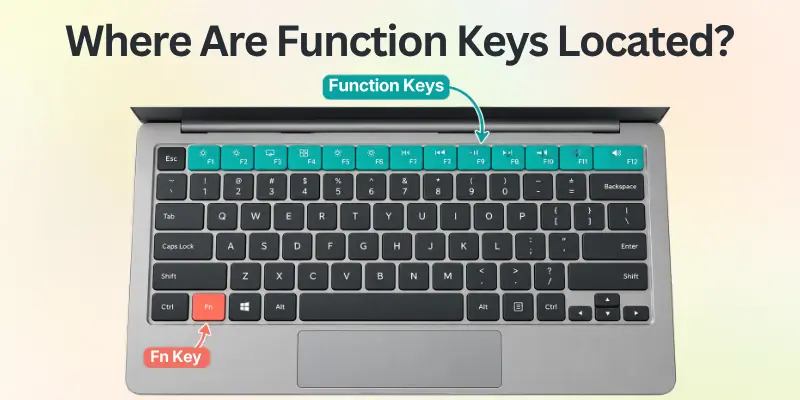
On many laptops, the same physical keys have two functions. One function may be the normal F-key command, while the other may control a device feature such as sound or screen brightness.
Quick Location Guide
- F1 to F4: Usually on the left side of the function key row.
- F5 to F8: Usually in the middle.
- F9 to F12: Usually on the right side.
- Fn key: Commonly found near the bottom left area of many laptops.
- Esc: Usually appears just before F1.
Useful Tip: If you are using a laptop and F1 to F12 are not performing the action you expect, look for an Fn key or an Fn Lock setting.
F1 to F12 Function Keys and Their Uses
The following table provides a simple overview of common function key uses. Remember that the actual function can change between applications and operating systems.
| Function Key | Common Use | Where You May See It |
| F1 | Opens Help | Windows applications |
| F2 | Renames a selected file or folder | Windows |
| F3 | Searches for content | Some applications |
| F4 | Performs application specific commands | Windows and software |
| F5 | Refreshes or reloads content | Web browsers and applications |
| F6 | Moves focus between interface areas | Browsers and applications |
| F7 | Performs an application specific command | Some programs |
| F8 | Used for special startup or application functions | Some Windows systems |
| F9 | Performs application specific commands | Software |
| F10 | Activates menu commands in some Windows applications | Windows applications |
| F11 | Often enters or exits full screen mode | Web browsers |
| F12 | Performs application specific commands | Browsers and software |
Remember: This table shows common functions, not a fixed rule. Software developers can assign different commands to function keys.
F1 Key: Help and Support
The F1 key is commonly associated with Help. In many Windows applications, pressing F1 opens a help page or support window related to the program.This makes F1 useful when you are working with unfamiliar software and need instructions. F1 Key at a glance:
- Main purpose: Help
- Common use: Open application help
- Useful for: Beginners learning software
- Laptop note: May also control another device feature
Suggestion: If you are confused about a program, try checking its Help option rather than randomly changing settings.
F2 Key: Rename Files and Folders
The F2 key is especially useful in Windows. When you select a file or folder and press F2, you can usually rename it without opening a separate menu. For example, if you have a file called Homework.docx, selecting it and pressing F2 lets you edit its name. Simple F2 steps are:
- Select a file or folder.
- Press F2.
- Type the new name.
- Press Enter.
Useful Tip: F2 can save time when you need to rename many files because you do not have to open the right click menu each time.
F3 Key: Search
The F3 key is commonly associated with search functions in some applications. Its behavior is not identical everywhere, but it can help users find information quickly in supported programs.
For example, certain Windows interfaces and older applications use F3 to search for files or content.
Important Things to Know: F3 is not a universal search button. If it does nothing in your application, use the program’s search command instead.
F4 Key: Address Bar and Other Commands
The F4 key has different functions depending on the software. One well known Windows shortcut is Alt + F4, which closes the active window or application.
In some Windows environments, pressing F4 with Alt can therefore be much more useful than pressing F4 by itself. Common F4 combination is Alt + F4: Close the active window or application.
Warning: Be careful with Alt + F4. It can close the program you are currently using, so save your work before using it.
F5 Key: Refresh or Reload
The F5 key is one of the most familiar function keys because it is commonly used to refresh or reload a webpage or application view. If a website does not appear to show the latest information, pressing F5 may reload the page. Some basic F5 quick facts are described in the following table.
| Action | Result |
| F5 in many browsers | Refreshes the current page |
| F5 in some applications | Runs or refreshes a command |
| Shift + F5 | Application specific behavior |
| Ctrl + F5 | Often performs a stronger browser refresh |
Useful Tip: Do not repeatedly refresh a page if it is slow. First check your internet connection and the website itself.
F6 Key: Move Between Interface Areas
The F6 key is often used to move the keyboard focus between different parts of an application. In many web browsers, it can help move focus between areas such as the webpage and address bar. This is especially useful for people who prefer keyboard navigation instead of using a mouse.
Recommended: Try F6 in your browser and observe where the focus moves. The exact behavior can vary by browser and operating system.
F7 Key: Grammar and Application Commands
The F7 key is commonly associated with spelling or grammar checking in some word processing applications. For example, certain versions of Microsoft Office have used F7 to start spelling and grammar checking. Its function is application dependent, so it may not do anything noticeable in other programs. F7 key can be useful for:
- Checking spelling.
- Reviewing written content.
- Running application specific commands.
- Using keyboard based editing features.
Suggestion: If you write documents regularly, learning the shortcuts supported by your word processor can make editing much faster.
F8 Key: Special Startup and Application Functions
The F8 key has historically been associated with Windows startup options and Safe Mode on some older Windows versions. Its behavior has changed with newer Windows startup systems. F8 can also have different functions inside specific applications.
Important Things to Know: Online guides may show older F8 instructions that do not work the same way on modern computers. Always check instructions for your specific Windows version.
F9 Key: Application Specific Commands
The F9 key does not have one universal function. Different applications can use it for different tasks. For example, some office or development software may assign F9 to a special command, calculation, update, or other action.
Useful Tip: If you use specialized software, check its keyboard shortcut list. You may discover that F9 performs a useful command that you did not know about.
F10 Key: Menu Commands
The F10 key is commonly connected with menu access in some Windows applications. Pressing F10 can move keyboard focus to menu commands, allowing users to navigate without a mouse. A commonly known combination is Shift + F10, which can open a context menu in supported Windows interfaces. Some F10 shortcut facts:
- F10: May activate menu commands.
- Shift + F10: Often opens a context menu.
- Fn + F10: May control a laptop hardware feature.
Remember: Laptop keyboards may give F10 a completely different primary action, such as controlling sound or another hardware feature.
F11 Key: Full Screen Mode
The F11 key is commonly used to enter or exit full screen mode in many web browsers. Full screen mode can give you more space by hiding some browser interface elements. Pressing F11 again commonly returns the browser to its normal view.
Useful Tip: If your browser suddenly looks different and you cannot see the usual toolbar, try pressing F11.
F12 Key: Developer and Application Functions
The F12 key can have different functions depending on the program. In many modern web browsers, pressing F12 can open developer tools, although the exact shortcut may differ between browsers and systems. Some software also uses F12 for saving, debugging, or other specialized commands.
Suggestion: If you are learning web development, understanding browser developer tools and their keyboard shortcuts can be particularly useful.
Function Keys on Laptop Keyboards
Laptop keyboards often use function keys differently from desktop keyboards. Because laptops have limited space, manufacturers may place two or more functions on the same physical key. For example, an F key may also have an icon for:
- Speaker volume
- Screen brightness
- Keyboard brightness
- Wireless connection
- Media playback
- Touchpad controls
- Screen projection
The Fn key is commonly used to switch between these functions.
Warning: Do not assume every laptop uses the same Fn behavior. The exact design depends on the manufacturer and model.
What Is the Fn Key?
The Fn key, short for Function, is commonly found on laptops and compact keyboards. It works together with another key to access an additional function.
For example, pressing Fn with a key that has a brightness icon may change the screen brightness instead of performing the normal F key command.
Fn Key Checklist
- Find the Fn key on your laptop.
- Look for small icons on the F1 to F12 keys.
- Try Fn + an F-key to access the secondary function.
- Check your laptop manual if the combination does not work.
- Look for an Fn Lock option if the behavior seems reversed.
Useful Tip: Some laptops allow you to change whether the F-keys work as standard function keys or hardware controls by default.
Standard Function Keys vs Multimedia Keys
Modern keyboards often combine traditional function keys with multimedia controls. This means the same physical key may perform two different actions.
For example, one key might work as F5 in a standard keyboard mode but control media playback in another mode.
| Keyboard Feature | Standard Function | Possible Secondary Function |
| F1 | Help | Volume or hardware control |
| F2 | Rename | Brightness |
| F3 | Search | Wireless control |
| F4 | Software command | Volume |
| F5 | Refresh | Keyboard brightness |
| F6 | Navigation | Media control |
| F7 | Software command | Previous track |
| F8 | Software command | Play/Pause |
| F9 | Software command | Next track |
| F10 | Menu command | Mute |
| F11 | Full screen | Volume down |
| F12 | Application command | Volume up |
Important Things to Know: The secondary functions in this table are examples. Your keyboard may use completely different icons and controls.
Most Useful Function Key Shortcuts
Function keys become even more powerful when combined with other keys. These combinations can perform commands faster than navigating through menus. Popular function key combinations details are given below.
| Shortcut | Common Action |
| Alt + F4 | Close the active window |
| Shift + F10 | Open a context menu in supported Windows interfaces |
| Ctrl + F4 | Close the current document or tab in some applications |
| Ctrl + F5 | Refresh content in many browsers |
| Shift + F5 | Application specific command |
| Alt + F10 | Application specific command |
| Fn + F1 to F12 | Access laptop specific secondary functions |
Remember: Shortcuts are application dependent. A combination that works in one program may perform a different action in another.
Function Keys in Microsoft Windows
Windows gives many function keys useful roles, but their exact behavior can depend on the application. For example, F2 is widely used for renaming selected files, while Alt + F4 is a familiar shortcut for closing the active window. Other keys can perform different tasks in specific applications.
Windows Function Key Quick Guide
- F1: Help in many applications.
- F2: Rename selected file or folder.
- F5: Refresh in many interfaces.
- F10: Menu related keyboard control.
- Alt + F4: Close the active window.
- Shift + F10: Context menu in supported interfaces.
Recommended: Learn the Windows shortcuts you actually use instead of trying to memorize every possible function.
Function Keys in Web Browsers
Web browsers make several function keys useful for navigation and page control. F5 is commonly associated with refreshing a page, while F11 is commonly used for full screen mode. Some browsers also use F12 for developer tools.
Browser Function Key Checklist
- Try F5 to refresh a page.
- Try F11 to enter or leave full screen mode.
- Try F6 to move keyboard focus between browser areas.
- Try F12 to access developer tools if supported.
- Check your browser’s shortcut guide for additional commands.
Useful Tip: Keyboard shortcuts can make browsing faster, especially when you regularly work with many tabs, webpages, or development tools.
Why Are Function Keys Important?
Function keys are important because they provide quick access to commands. Instead of opening menus or searching through settings, you can sometimes press one key or a simple key combination.
They are especially useful for office work, web browsing, software development, document editing, gaming, and other computer activities.
Money Making Tip: If your work involves repetitive computer tasks, learning the function key shortcuts supported by your software can help reduce unnecessary mouse movements and save time.
Advantages of Using Function Keys
Function keys can make computer use more efficient when you know how to use them.Main benefits of function keys are:
- Faster work: Perform supported commands quickly.
- Less mouse use: Navigate using the keyboard.
- Better productivity: Speed up repeated tasks.
- Easy navigation: Move around applications efficiently.
- Useful shortcuts: Combine F-keys with Ctrl, Alt, Shift, or Fn.
- Accessibility: Keyboard navigation can help users who prefer not to rely heavily on a mouse.
Suggestion: Choose five function key commands that are useful for your daily work and practice those first.
Common Problems With Function Keys
Sometimes a function key may appear not to work. This does not always mean that the key is damaged. The keyboard may be using a different function mode, the application may not support that key, or the laptop may require the Fn key.
Quick Troubleshooting Checklist
- Check whether the application supports the key.
- Try the key in another application.
- Press Fn together with the F-key.
- Check whether Fn Lock is enabled.
- Look for keyboard settings in your operating system.
- Restart the computer.
- Check for keyboard or manufacturer software.
- Test the physical key for signs of damage.
Warning: If only one physical key fails in every application while other keys work normally, the problem may be hardware related.
How to Learn Function Keys Easily
The easiest way to learn function keys is through regular practice. You do not need to memorize F1 through F12 in a single day. Start with the keys that are useful for your everyday tasks. Once you become comfortable with those, gradually learn more.
Simple Learning Plan
Day 1: Learn F1, F2, and F5.
Day 2: Practice F6 and F11.
Day 3: Learn Alt + F4 and Shift + F10.
Day 4: Explore F7 and F10 in your commonly used software.
Day 5: Test F12 and application specific shortcuts.
Day 6: Practice Fn combinations on your laptop.
Day 7: Review all the shortcuts you have learned.
Recommended: Practice function keys inside the software you actually use. This makes the information easier to remember because you immediately see the result.
Function Keys: Facts and Figures
Function keys are a common part of traditional computer keyboard layouts, with the familiar set running from F1 to F12.
However, there is no rule that every keyboard must contain exactly the same function key design. Compact keyboards, laptops, gaming keyboards, and specialized devices may change the layout or combine functions.
Quick Facts
- A traditional keyboard commonly includes 12 function keys, from F1 through F12.
- Function keys are generally placed along the top row.
- Laptop keyboards often combine F-keys with hardware controls.
- The Fn key is commonly used to access secondary laptop functions.
- Function key behavior can change between applications.
- Some function keys become more useful when combined with Ctrl, Alt, Shift, or Fn.
- F5 is commonly associated with refreshing content.
- F11 is commonly associated with full screen mode.
- F2 is commonly used for renaming selected files in Windows.
Remember: These are common functions, not universal rules. Always check the keyboard and software you are using.
How to Test Function Keys
If you want to check whether your function keys are working, open an application where you know the expected shortcut. Press each key individually and observe the result.
You can also use a keyboard testing tool to check whether the computer detects individual key presses. This can be especially helpful when a particular function key appears unresponsive.
Useful Tip: Test the F-keys individually first. If a key works with one application but not another, the issue may be related to software behavior rather than the physical keyboard.
Conclusion
Function keys on keyboard layouts may look simple, but they can provide quick access to many useful commands. From F1 for Help and F2 for renaming to F5 for refreshing and F11 for full screen mode, these keys can make everyday computers work faster.
The most important thing to remember is that function key behavior is not always universal. Applications, operating systems, laptops, and keyboard manufacturers can assign different actions to the same keys. Learn the shortcuts that match your daily tasks, practice them regularly, and use the Fn key when your laptop provides secondary functions.
Frequently Asked Questions About Function Keys
These FAQs answer common questions about function keys in a short and simple way. They are useful for beginners who want a quick review after reading the complete guide.
1. What are function keys on a keyboard?
Function keys are special keys, usually labeled F1 to F12, that perform commands or shortcuts in computer software.
Their actions can vary depending on the program or operating system. They provide quick access to commonly used commands without navigating through menus.
Quick Tip: Their purpose may change when you switch between different programs.
2. How many function keys are there?
A traditional keyboard commonly has 12 function keys, from F1 through F12. Some modern keyboards may use a different layout.
On most full size models, they appear in a row across the top. Laptops may combine them with controls for brightness, sound, and other features.
Things to Know: The number and arrangement can differ between devices.
3. How can I check whether an F-key is working?
Try it in a program that supports that command or use a keyboard testing tool to see whether the computer detects the key press.
A tester can help determine whether the problem is with the physical key or the software. This is especially useful when only one or two keys appear unresponsive.
Quick Tip: If the key is detected but produces no action, check the program’s settings or shortcuts.
4. What is F2 used for?
In Windows, F2 is commonly used to rename a selected file or folder. It provides a faster alternative to opening a context menu. The same key may perform a different task in other software.
Useful Tip: Select the item, press F2, enter the new name, and press Enter.
5. What does F5 do?
F5 commonly refreshes or reloads content in web browsers and some other applications. It can be helpful when a webpage has not displayed the latest information. Other programs may assign a different command to it.
Quick Tip: If refreshing does not work as expected, try the browser’s reload button or check its shortcut settings.
6. What is F11 used for?
F11 commonly switches between normal and full screen viewing in many web browsers. This can provide more screen space for webpages, videos, presentations, and other content. Pressing it again usually returns the display to its previous view.
Things to Remember: Some laptops require Fn + F11 to access this command.
7. Why do function keys not work on my laptop?
Try pressing the Fn key with the desired key. Your laptop may be configured to use the top row for controls such as volume or brightness.
Some devices also include Fn Lock, which changes the default behavior. Manufacturer settings can affect how these controls operate.
Quick Tip: Check the keyboard settings or device manual if the problem continues.
8. Can function keys be used with other keys?
Yes. They can often be combined with:
- Ctrl
- Alt
- Shift
- Fn
- Windows key
- Command key on Mac
These combinations provide additional shortcuts and commands. Their availability depends on the operating system and software being used.
Useful Tip: Learning a few commonly used combinations can make everyday computer tasks quicker.
9. What is the most useful function key?
There is no single most useful option because their purposes vary by task. F2, F5, F11, and combinations such as Alt + F4 are useful in different situations. For example, F2 can rename files, F5 can refresh content, and F11 can provide a full screen view.
Things to Know: The most useful choice depends on the software and tasks you use most often.
10. What does F1 do?
F1 commonly opens Help in many Windows applications. It may provide instructions, troubleshooting information, or guidance specific to the program. Some software assigns another command to it.
Quick Tip: If nothing happens, check the program’s Help menu or shortcut settings.



- Be Respectful
- Stay Relevant
- Stay Positive
- True Feedback
- Encourage Discussion
- Avoid Spamming
- No Fake News
- Don't Copy-Paste
- No Personal Attacks
- Be Respectful
- Stay Relevant
- Stay Positive
- True Feedback
- Encourage Discussion
- Avoid Spamming
- No Fake News
- Don't Copy-Paste
- No Personal Attacks
