Keyboard Keys: Names, Types, Functions, and Useful Shortcuts
Published: 24 Oct 2026
A computer keyboard may look like a simple group of buttons, but every key has a specific purpose. From typing letters and numbers to moving around a document, opening menus, and using shortcuts, keyboard keys help us control a computer quickly.
Learning the names and functions of keyboard keys is especially useful for beginners. Once you understand what each key does, typing becomes easier and many everyday computer tasks become faster.
What Are Keyboard Keys?
Keyboard keys are the buttons you press to enter text, numbers, symbols, or commands into a computer. Different keys perform different jobs, and some keys work together to create keyboard shortcuts.
A standard full size keyboard usually has more than 100 keys, although the exact number can change depending on the keyboard design. Laptops, compact keyboards, gaming keyboards, Mac keyboards, and other layouts may have different keys or combinations.
Important Things to Know: You do not need to memorize every key at once. Start with the keys you use every day, such as Enter, Spacebar, Backspace, Shift, Ctrl, and the arrow keys.
Main Types of Keyboard Keys
Keyboard keys can be grouped according to what they do. Common groups include alphanumeric keys, function keys, control or modifier keys, navigation keys, editing keys, toggle keys, and numeric keypad keys.

Here are the main types you should know:
- Alphanumeric keys: Letters, numbers, and common symbols used for typing.
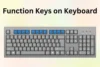
- Function keys: F1 through F12, usually found at the top of the keyboard.
- Modifier keys: Ctrl, Alt, Shift, and the Windows or Command key.
- Navigation keys: Arrow keys, Home, End, Page Up, and Page Down.
- Editing keys: Backspace, Delete, and Insert.
- Toggle keys: Caps Lock, Num Lock, and Scroll Lock.
- Numeric keypad: A calculator style group of number keys on many full size keyboards.
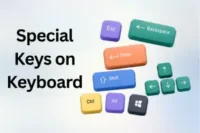
- Special keys: Enter, Esc, Tab, Spacebar, Print Screen, and other keys with specific tasks.
Useful Tip: If you are learning computer basics, learn keyboard keys by groups instead of trying to remember every key separately.
Keyboard Keys Names and Their Functions
The following table gives a quick look at common keyboard keys and their basic functions. The exact action of some keys can change between operating systems and applications.
| Keyboard Key | Main Function | Common Use |
| A to Z | Types letters | Writing words |
| 0 to 9 | Types numbers | Entering numbers |
| Spacebar | Adds a space | Separating words |
| Enter | Confirms an action or starts a new line | Forms and documents |
| Backspace | Deletes the character to the left | Correcting text |
| Delete | Deletes selected or following content | Editing |
| Shift | Creates capital letters and alternate symbols | Typing |
| Caps Lock | Turns uppercase typing on or off | Capital letters |
| Tab | Moves to the next field or adds indentation | Forms and documents |
| Esc | Cancels or exits an operation | Closing menus |
| Ctrl | Works with other keys for shortcuts | Copy, paste, save |
| Alt | Works with other keys for commands | Menus and shortcuts |
| Arrow Keys | Move the cursor or selection | Navigation |
| Home | Moves to the beginning of a line or area | Text navigation |
| End | Moves to the end of a line or area | Text navigation |
| Page Up | Moves upward by a page or screen area | Browsing |
| Page Down | Moves downward by a page or screen area | Browsing |
| F1 to F12 | Performs function specific commands | Software shortcuts |
| Print Screen | Captures screen content on supported systems | Screenshots |
| Num Lock | Changes numeric keypad behavior | Number entry |
Remember: A key’s function is not always the same in every program. Some applications can assign their own actions to the same keyboard key.
Alphanumeric Keys
Alphanumeric keys are the main typing keys on a keyboard. They include letters from A to Z and numbers from 0 to 9, along with punctuation and symbols depending on the keyboard layout.
These are the keys you use most often when writing documents, entering passwords, searching online, sending messages, or entering information into forms.
What Can You Do With Alphanumeric Keys?
- Write letters and words.
- Enter numbers.
- Type punctuation marks.
- Enter symbols with the help of Shift or other modifier keys.
- Write usernames, passwords, and codes.
- Search for information online.
Suggestion: Practice typing short words first. As your fingers become familiar with the keyboard layout, your typing speed will naturally improve.
Function Keys F1 to F12
The function keys are usually located in a row at the top of the keyboard. They are labeled F1, F2, F3, and so on up to F12.
Their exact functions depend on the operating system and software. For example, F1 commonly opens Help in Windows applications, while F5 is commonly used to refresh content in many applications.
Common Function Key Uses
| Key | Common Function |
| F1 | Open Help in many applications |
| F2 | Rename a selected file or folder in Windows |
| F3 | Search in some applications |
| F4 | Used for different commands depending on the program |
| F5 | Refresh or reload in many applications |
| F6 | Move focus between interface areas in some applications |
| F7 | Application specific function |
| F8 | Application or startup specific function |
| F9 | Application specific function |
| F10 | Activate menu commands in some Windows applications |
| F11 | Often switches full screen mode |
| F12 | Application specific function, including developer tools in some browsers |
Warning: Do not assume that F1 to F12 always perform the same action. Laptop keyboards may also require the Fn key to access their function key commands.
Control and Modifier Keys
Control and modifier keys are important because they can change what another key does. Common examples include Ctrl, Alt, Shift, Windows, and Command on Mac keyboards.
For example, pressing Ctrl by itself usually does not type a character. When you combine it with another key, it can perform an action such as copying or saving. Microsoft describes Ctrl, Alt, Shift, and the Windows logo key as modifier keys that can alter the meaning of another key.
Common Modifier Keys
- Ctrl: Used in many Windows keyboard shortcuts.
- Alt: Used for menus and shortcut combinations.
- Shift: Used for capital letters and alternate symbols.
- Windows key: Opens the Start menu and works with other keys for Windows shortcuts.
- Command key: Commonly used for shortcuts on Mac computers.
- Fn: Common on laptops for accessing secondary hardware functions.
Useful Tip: Learn Ctrl+C, Ctrl+V, Ctrl+X, Ctrl+Z, and Ctrl+S first. These are among the most useful everyday keyboard shortcuts.
Navigation Keys
Navigation keys help you move around a document, webpage, or screen without constantly using a mouse.
The main navigation keys include the four arrow keys, Home, End, Page Up, and Page Down. Microsoft also groups these keys as navigation keys.
Navigation Key Checklist
- Up Arrow: Move upward.
- Down Arrow: Move downward.
- Left Arrow: Move left.
- Right Arrow: Move right.
- Home: Move toward the beginning of a line or area.
- End: Move toward the end of a line or area.
- Page Up: Move up through a page or screen.
- Page Down: Move down through a page or screen.
Recommended: Try using arrow keys while editing a short document. This simple practice can help you reduce mouse use.
Enter, Spacebar, Backspace, and Delete Keys
Some keyboard keys are used so frequently that beginners may not realize how important they are. The Enter, Spacebar, Backspace, and Delete keys are basic editing keys that you will use almost every time you type.
The Spacebar creates spaces between words. Enter can create a new line or confirm an action. Backspace normally removes the character before the cursor, while Delete commonly removes selected content or the character after the cursor.
| Key | Simple Meaning | Example |
| Spacebar | Makes a space | Hello World |
| Enter | Starts a new line or confirms | Submit a form |
| Backspace | Deletes backward | Correct a spelling mistake |
| Delete | Removes content | Delete selected text |
| Tab | Moves to the next field | Fill out a form |
Important Things to Know: Backspace and Delete are not exactly the same. Backspace normally removes content to the left of the cursor, while Delete commonly removes content to the right or removes selected content.
Shift and Caps Lock
Both Shift and Caps Lock can help you type uppercase letters, but they work differently. Holding Shift while pressing a letter creates one uppercase letter. Caps Lock keeps uppercase typing active until you turn it off. For example:
- Shift + A = A
- Caps Lock + typing = HELLO
- Shift can also type symbols shown on the upper part of some keys.
Suggestion: Use Shift when you only need one or a few capital letters. Use Caps Lock when you need to type several uppercase letters.
Numeric Keypad
A numeric keypad is the calculator style section found on many full size keyboards. It normally contains numbers, mathematical operators, Enter, decimal point, and other related keys.
It is particularly useful for people who enter numbers frequently, such as students, accountants, office workers, and data entry users.
Numeric Keypad Facts
| Feature | Details |
| Location | Usually on the right side of a full size keyboard |
| Layout | Similar to a calculator |
| Main purpose | Fast number entry |
| Important key | Num Lock |
| Useful for | Calculations and data entry |
Useful Tip: If your number pad is not entering numbers as expected, check whether Num Lock is enabled.
Toggle Keys: Caps Lock, Num Lock, and Scroll Lock
Toggle keys change a mode when you press them. You normally press the key once to turn the mode on and again to turn it off.
The three traditional examples are Caps Lock, Num Lock, and Scroll Lock. Their behavior can vary depending on the operating system and application.
Quick Facts
- Caps Lock: Toggles uppercase typing.
- Num Lock: Controls the numeric keypad mode on supported keyboards.
- Scroll Lock: Has limited use in many modern applications but still exists on some keyboards.
Remember: If your keyboard suddenly behaves differently, check whether Caps Lock or Num Lock was accidentally turned on.
Keyboard Shortcuts You Should Learn
Keyboard shortcuts let you perform common actions without searching through menus. They can make everyday computers work faster and are widely supported across many applications.
Microsoft recommends using familiar key combinations for frequently used commands, while common shortcut references include combinations such as Ctrl+C, Ctrl+V, Ctrl+X, and Ctrl+Z.
Most Useful Keyboard Shortcuts
| Shortcut | Action |
| Ctrl+C | Copy |
| Ctrl+V | Paste |
| Ctrl+X | Cut |
| Ctrl+Z | Undo |
| Ctrl+Y | Redo in many Windows applications |
| Ctrl+A | Select all |
| Ctrl+S | Save |
| Ctrl+F | Find |
| Ctrl+P | |
| Ctrl+N | Create a new item in many applications |
| Ctrl+W | Close the current tab or document in many applications |
| Alt+Tab | Switch between open windows |
| Windows+D | Show or hide the desktop |
| Ctrl+Home | Move toward the beginning of a document |
| Ctrl+End | Move toward the end of a document |
Money Making Tip: If you work with documents, spreadsheets, customer support, data entry, or online tasks, learning common keyboard shortcuts can save small amounts of time repeatedly. Those small savings can add up during a long workday.
Keyboard Keys on Windows vs Mac
Keyboard layouts can look different depending on the computer. Windows keyboards commonly have a Windows logo key, while Mac keyboards use the Command key for many shortcuts.
The same basic ideas still apply, but shortcut combinations can change. For example, many Windows shortcuts use Ctrl, while equivalent Mac shortcuts often use Command.
| Task | Windows | Mac |
| Copy | Ctrl+C | Command+C |
| Paste | Ctrl+V | Command+V |
| Cut | Ctrl+X | Command+X |
| Undo | Ctrl+Z | Command+Z |
| Select All | Ctrl+A | Command+A |
| Save | Ctrl+S | Command+S |
| Find | Ctrl+F | Command+F |
Important Things to Know: Keyboard shortcuts can also change between applications. Always check the shortcut for the specific software you are using when an action does not work.
How Many Keys Are on a Keyboard?
There is no single number that applies to every keyboard. A traditional full size keyboard often has around 101 to 105 keys, while laptops and compact keyboards may have fewer physical keys.
The number can also change because manufacturers add media controls, programmable keys, macro keys, or other special buttons.
Keyboard Key Count at a Glance
| Keyboard Type | Key Count |
| Traditional full size keyboard | Often around 101 to 105 |
| Laptop keyboard | Varies by model |
| Compact keyboard | Usually fewer physical keys |
| Gaming keyboard | Varies and may include extra keys |
| Mac keyboard | Varies by model |
Useful Tip: Do not judge a keyboard by its number of keys. The best keyboard is the one that gives you the functions you need comfortably.
Common Keyboard Problems and Simple Checks
Sometimes a key does not work because of a simple setting or connection issue. Before assuming that the keyboard is broken, try a few basic checks.
Quick Keyboard Troubleshooting Checklist
- Check whether the keyboard is connected properly.
- If it is wireless, check its battery or charging status.
- Try another USB port if it is a wired keyboard.
- Check Caps Lock and Num Lock.
- Restart the computer.
- Test the key in another application.
- Check whether the keyboard layout or language has changed.
- Clean around the affected key carefully.
- Test another keyboard if one is available.
Warning: Do not force a key that feels stuck. Applying too much pressure can damage the key mechanism.
How to Learn Keyboard Keys Faster
You do not have to learn everything in one day. Start with the keys you use most and practice them during normal computer activities. A simple learning order can make the process easier:
- Learn A to Z and number keys.
- Practice Spacebar, Enter, Backspace, and Delete.
- Learn Shift and Caps Lock.
- Practice arrow keys and navigation keys.
- Learn Ctrl and common shortcuts.
- Explore F1 to F12.
- Learn the numeric keypad if you use it regularly.
Recommended: Spend just 10 to 15 minutes practicing each day. Regular practice is usually more useful than trying to memorize a large list in one sitting.
Keyboard Keys Facts and Figures
Keyboard designs have changed over time, but the basic purpose remains the same: accepting user input and sending that input to a computer or other device.
Modern keyboards can also include special keys for media, lighting, wireless controls, macros, or application specific functions. Different layouts can therefore have very different numbers and arrangements of keys.
Quick Facts
- A full size keyboard commonly has more than 100 physical keys.
- Function keys are commonly labeled F1 through F12.
- A standard QWERTY layout begins with Q, W, E, R, T, Y on the top letter row.
- Many keyboards include two Shift keys.
- Many full size keyboards include a separate numeric keypad.
- Keyboard shortcuts can use one key or combinations of several keys.
- The same key combination may perform different actions in different software.
Remember: These figures describe common keyboard designs, not a strict rule. Laptop, compact, ergonomic, gaming, and international keyboards can be different.
Why Keyboard Keys Are Important
Keyboard keys are important because they give users a direct way to communicate with a computer. You can write, edit, search, navigate, control software, and perform many tasks without reaching for a mouse.
For students, understanding keyboard keys makes computer lessons easier. For office workers, shortcuts can improve daily productivity. For beginners, knowing the purpose of common keys can make computers feel much less confusing.
Suggestion: Focus on usefulness rather than memorization. Once you understand what a key does, you will naturally remember it through practice.
How to Test Your Keyboard Keys
If you think one or more keys are not working correctly, you can test them by opening a simple text editor and pressing each key. If a particular key does not produce the expected result, try it in another application as well.
A keyboard testing tool can also help you identify whether individual keys are being detected when pressed. This can be useful for checking a new keyboard, finding a faulty key, or testing a laptop keyboard.
Useful Tip: When testing a keyboard, check the keys one by one instead of pressing many keys together. This makes it easier to find the exact key causing a problem.
Conclusion
Understanding keyboard keys is one of the easiest ways to become more comfortable with a computer. From simple typing keys to function, navigation, modifier, editing, and numeric keys, each group has a useful purpose.
You do not need to memorize the whole keyboard in one day. Start with common keys and shortcuts, practice them regularly, and slowly explore the less used functions. With a little practice, you can type, edit, navigate, and work more efficiently without depending on the mouse for every task.
FAQs About Keyboard Keys
These short FAQs cover some of the most common questions beginners ask about keyboard keys. They also give you a quick way to review the most important points.
1. What are keyboard keys?
Keyboard keys are buttons used to enter letters, numbers, symbols, commands, and other input into a computer or device.
Different keys have different purposes, such as typing text, moving around a page, or using shortcuts. Learning the basic key groups can make everyday computer use much easier.
Quick Tip: If you are unsure what a key does, check its label and try it in a safe application such as a text editor.
2. How many keys are on a keyboard?
A traditional full size keyboard often has around 101 to 105 keys, but the number varies by keyboard type and design.
Laptop keyboards may have fewer keys because of their compact layout. Gaming, wireless, and specialized keyboards can also have different key counts.
Things to Know: The number of keys does not always indicate how useful or advanced a keyboard is. Layout and available functions are also important.
3. How can I check if my keyboard keys are working?
You can test individual keys in a text editor or use a keyboard testing tool to check whether the computer detects each key press.
An online keyboard tester can help you quickly identify keys that do not respond correctly. It can also be useful when checking a new, used, or recently cleaned keyboard.
Quick Tip: Test common keys such as letters, numbers, Spacebar, Enter, Shift, Backspace, and arrow keys first.
4. What does the Ctrl key do?
Ctrl is mainly used with other keys to perform keyboard shortcuts, such as Ctrl+C for copy and Ctrl+V for paste.
It can help you complete common tasks without using the mouse. Other useful combinations include Ctrl+X for cut, Ctrl+Z for undo, and Ctrl+A for selecting content.
Useful Tip: Keyboard shortcuts can save time when working with documents, websites, and other applications.
5. What is the difference between Backspace and Delete?
Backspace normally removes the character to the left of the cursor. Delete commonly removes the character to the right or selected content.
Both keys are useful when editing text, but they work in different directions. Their exact behavior can also depend on the application you are using.
Quick Tip: If you accidentally remove text, Ctrl+Z can often undo the change.
6. What are the main keyboard key groups?
The main groups include:
- Alphanumeric keys
- Function keys
- Modifier keys
- Navigation keys
- Editing keys
- Toggle keys
- Numeric keypad keys
- Special keys
Each group has a different role when entering information or controlling a computer. Understanding these groups can make it easier to find the right key for a specific task.
Things to Remember: Some keyboards may combine or remove certain groups because of their smaller design.
7. What does the Spacebar do?
The Spacebar creates a space between words or other characters when typing.
It is usually the longest key on a standard keyboard, making it easy to press with either thumb. It is also used for certain actions in applications and games.
Quick Tip: If the Spacebar stops working, check whether it responds in more than one application before assuming the key is damaged.
8. Why is my numeric keypad not typing numbers?
Check Num Lock first. On many keyboards, Num Lock controls whether the numeric keypad enters numbers or performs other navigation functions.
If Num Lock is already enabled, check whether the keyboard is connected properly. On some laptops, you may need to use an Fn key combination to access the numeric keypad.
Important Note: Compact keyboards may not have a separate numeric keypad at all.
9. Are Windows and Mac keyboard shortcuts the same?
Not always. Many Windows shortcuts use Ctrl, while Mac computers commonly use the Command key for equivalent actions.
Some shortcut combinations are similar, but the key names and functions can differ between operating systems. Applications may also use their own keyboard shortcuts.
Useful Tip: When switching between Windows and Mac, check the application’s shortcut guide to learn the correct key combinations.
10. What are F1 to F12 keys used for?
F1 to F12 are function keys. Their actions depend on the operating system and application. F1 often opens Help, while F5 commonly refreshes content.
On many laptops, these keys may also control brightness, volume, screen settings, or other hardware features. You may need to press Fn with a function key to access one of these actions.
Things to Know: The function of F1 to F12 can change depending on the program, keyboard settings, and device manufacturer.




- Be Respectful
- Stay Relevant
- Stay Positive
- True Feedback
- Encourage Discussion
- Avoid Spamming
- No Fake News
- Don't Copy-Paste
- No Personal Attacks
- Be Respectful
- Stay Relevant
- Stay Positive
- True Feedback
- Encourage Discussion
- Avoid Spamming
- No Fake News
- Don't Copy-Paste
- No Personal Attacks
