How to Fix a Laptop That Gets Stuck on the Windows Logo
Published: 15 Oct 2026
Seeing your laptop freeze on the Windows logo can be frustrating. You press the power button, the Windows logo appears, and then… nothing happens.
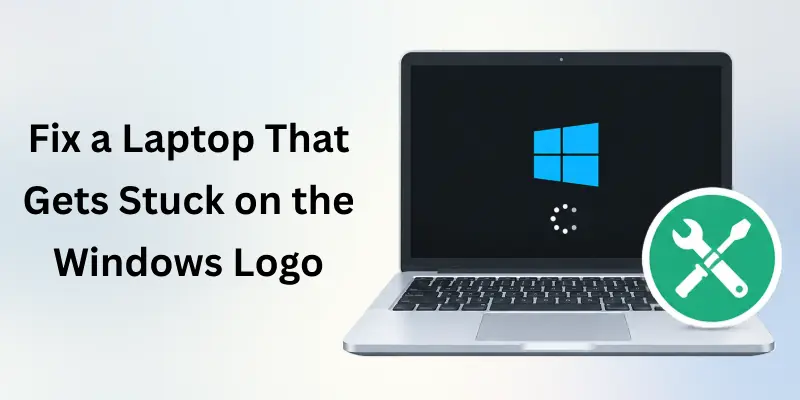
The good news is that this problem does not always mean your laptop is broken. A failed update, damaged system files, a driver problem, a faulty startup setting, or even an external USB device can prevent Windows from loading correctly.
Here you’ll learn how to fix a laptop that gets stuck on the Windows logo using simple methods first and more advanced solutions later. You do not need to be a computer expert to follow the steps.
Try the easier solutions first. If one method does not work, move to the next one rather than making several changes at once.
Why Does a Laptop Get Stuck on the Windows Logo?
Windows has to complete several tasks before you reach the desktop. It loads system files, drivers, startup programs, and important services during this process.
If something goes wrong, the computer may stop at the Windows logo. Some common causes include:
- Corrupted Windows system files
- A failed or incomplete Windows update
- Problematic device drivers
- Damaged boot files
- Too many startup programs
- A recently installed application
- A connected USB device causing a startup conflict
- Problems with the SSD or hard drive
- Incorrect BIOS or boot settings
- Unexpected power loss during an update
Common Causes at a Glance
| Possible Cause | What You May Notice | Difficulty |
| Temporary Windows glitch | Logo freezes once and works after restart | Easy |
| USB device conflict | Laptop starts after removing a device | Easy |
| Failed update | Problem begins after Windows Update | Easy–Medium |
| Driver problem | Freeze occurs after installing hardware/software | Medium |
| Corrupted system files | Windows repeatedly fails to load | Medium |
| Damaged boot files | Windows cannot reach the login screen | Advanced |
| Storage problem | Very slow startup or repeated freezing | Advanced |
| Hardware failure | Freezing continues after recovery attempts | Advanced |
Things to Know: A frozen Windows logo does not automatically prove that your hard drive or SSD has failed. Start with basic troubleshooting before assuming the worst.
What to Do First When Windows Is Frozen
Before trying advanced recovery tools, perform a few quick checks.
1. Give Windows a Few Minutes
If the laptop has just installed an update, Windows may need additional time to finish background tasks. Wait for several minutes before forcing the computer to shut down.
However, if the screen has remained completely unchanged for a long time, continue with the next steps.
2. Disconnect External Devices
Remove unnecessary USB devices, including:
- USB flash drives
- External hard drives
- Printers
- Memory card readers
- USB hubs
- Game controllers
- Other recently connected accessories
Then restart the laptop.
Sometimes the computer tries to boot from an external device or encounters a problem communicating with it.
Useful Tip: Keep only the charger connected during troubleshooting unless your laptop requires another device.
Perform a Proper Forced Restart
If your laptop is completely unresponsive, a forced shutdown may be necessary.
Follow These Steps
- Press and hold the Power button.
- Keep holding it for around 10 seconds.
- Wait until the laptop turns off completely.
- Disconnect unnecessary external devices.
- Wait a few seconds.
- Turn the laptop back on.
Check whether Windows now reaches the login screen.
Warning: Do not repeatedly force the computer off while Windows is writing data or installing an update. Use this method when the system is genuinely frozen and normal shutdown is impossible.
Check Whether Windows Can Start in Safe Mode
Safe Mode starts Windows with only essential drivers and services. This makes it useful when a faulty driver, startup application, or recently installed program is preventing normal startup.
How to Enter Safe Mode
If Windows cannot start normally, you can trigger the Windows Recovery Environment by interrupting startup several times.
- Turn on the laptop.
- When Windows begins loading, hold the power button to turn it off.
- Repeat the process until Windows enters recovery.
- Select Advanced options.
- Choose Troubleshooting.
- Select Advanced options.
- Choose Startup Settings.
- Select Restart.
- Press the key for Safe Mode.
Once Windows starts in Safe Mode, check whether the freezing problem disappears.
What to Do in Safe Mode
If the laptop works normally there, consider:
- Removing a recently installed application
- Rolling back a recently updated driver
- Uninstalling a problematic Windows update
- Disabling unnecessary startup applications
- Running a system file check
Important Note: If Windows works in Safe Mode but freezes during a normal startup, a driver or startup program is a strong possibility.
Run Windows Startup Repair
If Windows cannot start correctly, Startup Repair can automatically look for certain startup related problems.
How to Use Startup Repair
Go to: Troubleshoot → Advanced options → Startup Repair
Windows will examine the startup process and attempt to correct problems that prevent the operating system from loading. This is one of the safest recovery options to try before making deeper system changes.
Recommendation: Let the repair process finish completely. Avoid switching off the laptop while recovery tools are running.
Try System Restore
If the problem began after installing software, a driver, or an update, System Restore may help. System Restore can return certain system settings and files to an earlier restore point.
Use System Restore When:
- The laptop worked normally a few days ago.
- The problem appeared after a software change.
- A restore point is available.
- You want to reverse a recent system level change.
Go to: Troubleshoot → Advanced options → System Restore. Choose an appropriate restore point and follow the instructions.
Things to Know: System Restore is intended to reverse system changes. It is not the same as creating a complete backup of your personal files.
Remove a Recent Windows Update
Sometimes a Windows update can cause compatibility or startup problems. If the laptop began freezing immediately after an update, Windows Recovery Environment may allow you to remove the latest update.
Look for: Troubleshoot → Advanced options → Uninstall Updates
You may see options for removing a recent quality update or feature update, depending on your Windows installation.
Useful Tip: If you know the problem started immediately after an update, this option is worth trying before performing a full Windows reset.
Repair Corrupted Windows System Files
Damaged system files can cause Windows startup problems. If you can reach Safe Mode or Command Prompt through the recovery environment, Windows includes built-in tools that can check and repair system components.
System File Checker
The System File Checker (SFC) tool can scan protected Windows system files. A commonly used command is: sfc /scannow. Allow the scan to complete before restarting the computer.
DISM
Windows also provides the Deployment Image Servicing and Management (DISM) tool for repairing the Windows component store.
A commonly used command is: DISM /Online /Cleanup Image /RestoreHealth
The exact command you should use can depend on whether you are running it from normal Windows, Safe Mode, or the recovery environment.
Warning: Do not randomly enter repair commands from websites without understanding which Windows environment you are using. Recovery Command Prompt and normal Windows Command Prompt can require different approaches.
Check the Boot Configuration
Windows relies on boot information to locate and start the operating system. If boot configuration data becomes damaged, the laptop may fail to move beyond the startup screen.
Advanced users can use Windows recovery tools to inspect or repair boot related configuration. Because incorrect boot commands can create additional startup problems, this step should come after simpler recovery methods have failed.
Recommendation: If you are uncomfortable using Command Prompt, stop at this stage and consider professional assistance rather than experimenting with multiple boot commands.
Check Your SSD or Hard Drive
A storage device that is failing can cause unusual startup behavior, including:
- Extremely slow booting
- Repeated freezing
- Unexpected restarts
- Files becoming inaccessible
- Windows failing to load
- Clicking or unusual mechanical sounds from older hard drives
Modern laptops commonly use SSDs, which have no moving parts, while older systems may contain mechanical hard disk drives.
If Windows continues to freeze after software based troubleshooting, storage health should be considered.
Important Note: If you can still access your files, back them up as soon as possible before performing risky recovery operations.
Check for Overheating and Hardware Problems
Software is not always responsible. A laptop can freeze because of a hardware problem involving:
- RAM
- SSD or hard drive
- Motherboard
- Cooling system
- Battery or power delivery
- Display or graphics hardware
If the computer becomes unusually hot, shuts down unexpectedly, or freezes even when booting from recovery tools, hardware may need to be inspected.
Simple Hardware Checklist
- Laptop fans are running normally
- Air vents are not blocked
- Charger is working correctly
- No unusual smell is present
- External devices have been removed
- Important files have been backed up
- Storage health has been checked
Warning: Do not open the laptop if you are unfamiliar with its internal components. A technician can test RAM, storage, and other hardware more safely.
Windows Logo Freeze: Quick Fix Checklist
Before moving to advanced solutions, work through this checklist.
- Wait a few minutes
- Remove USB and other external devices
- Perform one forced restart if the system is completely frozen
- Try Windows Recovery Environment
- Run Startup Repair
- Try Safe Mode
- Remove a recently installed update
- Use System Restore if available
- Scan Windows system files
- Check the SSD or hard drive
- Back up important files
- Consider professional repair if hardware may be failing
Useful Tip: Work through the list from top to bottom. This approach reduces the chance of making unnecessary changes to your system.
Which Fix Should You Try First?
Not every situation needs the same solution. Starting with a basic fix can save time and help you avoid unnecessary changes to Windows.
The right troubleshooting step often depends on what happened before the problem started. Use the table below to match your symptoms with a suitable first step and move to advanced solutions only when needed.
| Your Situation | Best First Step | Why |
| It happened once | Restart | May be a temporary glitch |
| USB device is connected | Remove peripherals | Rules out external conflicts |
| Problem started after an update | Uninstall recent update | Reverses a possible update issue |
| Windows reaches recovery | Startup Repair | Designed for startup problems |
| Safe Mode works | Check drivers/apps | Helps identify software conflicts |
| Problem began after software installation | System Restore | Can reverse recent system changes |
| Windows files may be damaged | SFC/DISM | Checks system components |
| Laptop is extremely slow | Check storage | May indicate drive problems |
| Recovery tools also freeze | Hardware inspection | Could indicate a physical issue |
Start with the option that best matches your situation rather than trying every fix at once.
After each troubleshooting step, restart or test the laptop to see whether the problem has been resolved. If the first solution does not work, move gradually to the next appropriate method.
How to Prevent Windows From Getting Stuck Again
Fixing the current problem is only half the job. A few habits can reduce the chance of similar startup failures.
Keep Windows Updated: Install Windows updates through the normal Windows Update process and allow updates to finish.
Keep Drivers Updated: Use reliable sources for device drivers, particularly graphics, storage, chipset, and network drivers.
Maintain Enough Free Storage: Windows needs available storage space to operate properly and install updates.
Avoid Sudden Shutdowns: Whenever possible, shut down Windows normally instead of cutting power.
Back Up Important Files: Keep copies of important photos, documents, schoolwork, and other personal files.
Be Careful With Unknown Software: Untrusted applications can introduce unwanted changes, unstable drivers, or malware.
Recommendation: A simple backup routine can save you from much bigger problems if a startup failure turns into a storage or Windows recovery issue.
Windows 10 vs. Windows 11: Does the Fix Differ?
The basic troubleshooting ideas are similar on Windows 10 and Windows 11, although menus and recovery screens can look different.
| Troubleshooting Method | Windows 10 | Windows 11 |
| Safe Mode | ✓ | ✓ |
| Startup Repair | ✓ | ✓ |
| System Restore | ✓ | ✓ |
| Uninstall Updates | ✓ | ✓ |
| SFC | ✓ | ✓ |
| DISM | ✓ | ✓ |
| Windows Recovery Environment | ✓ | ✓ |
The exact screen names and available options can vary depending on your installation and recovery configuration.
Things to Know: If a menu looks different from the instructions above, do not panic. Look for the equivalent Troubleshoot, Advanced options, or Recovery option.
When Should You Stop Troubleshooting?
You should consider professional help when:
- The laptop repeatedly freezes during recovery.
- The SSD or hard drive appears to be failing.
- You hear unusual sounds from a mechanical drive.
- The laptop overheats severely.
- Windows cannot be repaired and important files are at risk.
- The machine has suffered liquid or physical damage.
- You have tried several recovery methods without improvement.
If your files are important, tell the technician that data preservation is a priority before asking for Windows reinstallation.
Warning: Reinstalling Windows can remove applications and, depending on the method chosen, may affect personal data. Back up important information first whenever possible.
Final Thoughts
A laptop that stops at the Windows logo can look like a serious failure, but there are several things you can try before taking it to a repair shop.
Start with the simplest checks: remove external devices, restart the computer, and enter Windows Recovery Environment if necessary. From there, Startup Repair, Safe Mode, System Restore, update removal, and system file repair can help identify and resolve many startup problems.
The most important rule is simple: do not rush into reinstalling Windows or changing advanced boot settings when your personal files are still accessible. Protect your data first, then work through the troubleshooting steps one at a time.
With a little patience and the right approach, you may be able to get your laptop past the Windows logo and back to normal without replacing the entire system.
Frequently Asked Questions
Still unsure what is causing your laptop to stop at the Windows logo? The answers below cover some of the most common questions users have during startup problems. Start with the simple checks first, and move to advanced solutions only when necessary.
1. Why is my laptop stuck on the Windows logo?
Common causes include failed updates, damaged system files, driver conflicts, boot problems, and storage issues.
The exact cause can be different for each laptop, so look for any recent changes before the problem starts. If Windows was working normally before an update or software installation, that change may provide a useful clue.
2. How long should I wait when Windows is stuck on the logo?
If there is no visible progress for an unusually long time, begin troubleshooting rather than waiting indefinitely.
A short delay can sometimes happen during updates or system changes. However, if the screen remains unchanged and there is no sign of progress, restarting and checking the recovery options may be more useful.
3. Can a USB device cause Windows to freeze?
Yes. A faulty or incompatible USB device can sometimes interfere with the startup process. Before turning the laptop on again, remove:
- USB flash drives
- External hard drives
- Printers
- Memory card readers
- USB hubs
Then restart the computer and check whether Windows loads normally.
Useful Tip: During troubleshooting, leave only essential connections attached, such as the charger.
If Windows starts normally after removing a device, reconnect your peripherals one at a time. This can help identify which device may be causing the startup problem.
4. Will restarting fix a frozen Windows logo?
Sometimes. A temporary Windows glitch can disappear after a normal restart.
Restarting can reload Windows services and clear temporary startup problems. It is also a simple first step before using recovery tools or making changes to system files.
If the laptop freezes at the same point after every restart, continue with deeper troubleshooting instead of repeatedly restarting.
5. What should I do if my laptop freezes every time I turn it on?
If the laptop repeatedly stops at the Windows logo, use the Windows Recovery Environment. From there, try:
- Startup Repair
- Safe Mode
- System Restore
- Uninstall Updates
Important Note: Do not immediately reinstall Windows. Try the less destructive recovery options first, especially if you have important files on the laptop.
Repeated startup failures can indicate a software, driver, update, or storage problem. Note any recent changes that may help you choose the most suitable recovery option.
6. Can Safe Mode fix the Windows logo problem?
Safe Mode can help identify whether a driver, application, or startup service is causing the problem.
It starts Windows with a limited set of drivers and services. If the laptop works normally in Safe Mode, you can investigate recently installed software, drivers, or startup programs.
This makes Safe Mode useful for separating normal Windows startup problems from software related conflicts.
7. Does System Restore delete personal files?
System Restore primarily reverses certain system changes. However, you should still back up important data whenever possible.
It can restore system files, drivers, and settings to an earlier restore point. Personal documents, photos, and other personal files are generally not the main target of System Restore.
Before using recovery tools, keep a backup of important files whenever you can access them safely.
8. Can a Windows update cause startup problems?
Yes. An unsuccessful or incompatible update can sometimes contribute to startup failures. This may happen when an update does not install correctly or creates a compatibility problem with existing drivers or system components.
If the issue started immediately after an update, the update history can provide an important clue.
Windows Recovery Environment may provide options to uninstall a recent update if normal startup is not possible.
9. What if Startup Repair does not work?
Don’t worry if Startup Repair cannot solve the issue. It is only one of several recovery options. Try this troubleshooting order:
Startup Repair → Safe Mode → System Restore → Uninstall Updates → System File Repair → Hardware Check
If none of these methods works, the problem may require more advanced diagnosis.
Before moving to more disruptive solutions, note whether any recovery option changes the startup behavior. This information can help narrow down whether the problem is related to Windows or hardware.
10. Can a bad SSD cause Windows to freeze?
Yes. Storage problems can produce slow startup, freezing, failed boots, and other unusual behavior.
An SSD with errors may also cause applications to become unresponsive or files to load unusually slowly. Repeated startup failures combined with other storage symptoms can make the drive worth checking.
If you suspect storage failure, back up important files as soon as possible before performing more intensive troubleshooting.
11. Should I reinstall Windows if it is stuck on the logo?
Not as your first option. Before considering a Windows reinstallation, try:
- Removing external devices.
- Running Startup Repair.
- Starting Safe Mode.
- Removing a recent update.
- Using System Restore.
- Repairing corrupted system files.
Reinstalling Windows can be a more disruptive solution, so it should generally come after less destructive troubleshooting methods.
A clean installation can also affect installed applications, settings, and personal data depending on the method used. Make sure important files are backed up before considering reinstallation.
12. Can overheating make a laptop freeze?
Yes. Excessive heat can cause instability, slowdowns, shutdowns, or freezing. Check whether the laptop becomes unusually hot or whether the cooling fan behaves differently before the freeze occurs. Blocked vents, dust buildup, heavy workloads, and poor airflow can contribute to excessive heat.
Use the laptop on a hard, flat surface and keep the ventilation openings clear while troubleshooting temperature related problems.
13. Why does my laptop work in Safe Mode but not normally?
This usually suggests that something loaded during normal startup may be causing the problem. Possible causes include:
- A faulty driver
- A recently installed application
- A startup service
- A problematic update
- Third party software
What to do next: Remove or roll back the most recent software or driver change, then restart normally.
You can also review recently installed programs and drivers to identify changes made shortly before the problem appeared. If normal startup works again after removing one of these changes, it can help identify the likely cause.
14. Is the Windows logo freeze always a hardware problem?
No. A frozen Windows logo can result from either software or hardware problems.
| Possible Software Cause | Possible Hardware Cause |
| Corrupted system files | Failing SSD |
| Driver conflict | Faulty RAM |
| Failed update | Overheating |
| Boot configuration problem | Motherboard issue |
| Startup application | Power related problem |
Software related problems can often be investigated through Safe Mode, System Restore, updates, and system file repair. Hardware checks become more important when these recovery methods also fail or the laptop shows other physical symptoms.
Knowledge Tip: If recovery tools also freeze or fail repeatedly, hardware becomes more likely and should be checked professionally.
15. What is the safest first step?
Remove external devices and try a normal restart. If the problem continues, move to Windows Recovery Environment and use Startup Repair.
This approach starts with simple troubleshooting and avoids making major changes immediately. If Startup Repair does not resolve the issue, continue with other recovery options based on the symptoms.
Keep important files backed up whenever possible before using advanced recovery or repair methods.





- Be Respectful
- Stay Relevant
- Stay Positive
- True Feedback
- Encourage Discussion
- Avoid Spamming
- No Fake News
- Don't Copy-Paste
- No Personal Attacks
- Be Respectful
- Stay Relevant
- Stay Positive
- True Feedback
- Encourage Discussion
- Avoid Spamming
- No Fake News
- Don't Copy-Paste
- No Personal Attacks
