Laptop Buying Checklist: What to Check Before Buying a Laptop
Published: 10 Oct 2026
Buying a new laptop sounds easy until you start looking at different models. You may see words like CPU, RAM, SSD, GPU, OLED, refresh rate, battery capacity, and USB-C. If you do not know what these terms mean, choosing the right laptop can quickly become confusing.
You do not need to be a computer expert. You only need to know what you actually need. This laptop buying checklist will help you check the important things before spending your money.
Whether you need a laptop for students, work, gaming, studying, programming, or everyday use, this simple guide will help you make a smarter decision.
1. Decide Why You Need a Laptop
The first step in learning how to choose a laptop is understanding your daily work. A student who mainly uses Google, Word, online classes, and YouTube does not need the same laptop as a professional video editor or gamer.
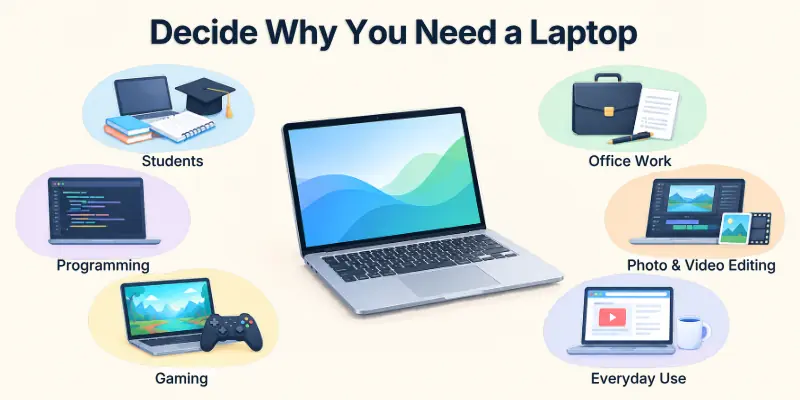
Think about the programs you will use most. Also think about whether you will carry the laptop to school, college, an office, or different places.
Choose According to Your Needs
- For students: Focus on battery life, portability, keyboard, and everyday performance.
- For office work: Look for comfortable typing, good battery life, and smooth multitasking.
- For programming: Choose enough RAM, a good processor, and a comfortable keyboard.
- For photo or video editing: Give more attention to RAM, CPU, GPU, storage, and display quality.
- For gaming: Focus on the graphics card, processor, cooling, display, and power.
- For basic home use: A simple laptop with an SSD and enough RAM may be all you need.
Important Note: Never buy a powerful laptop just because it has impressive specifications. If you will only browse the internet and write documents, you may be paying for power you will never use.
2. Set Your Budget Before You Start Shopping
Your budget should be decided before you fall in love with a particular laptop. When people shop without a budget, they often start with one price and end up spending much more.
Make a simple list of the features you need. Then look for the best combination of those features within your budget.
A balanced laptop is usually a better choice than one with a very powerful processor but weak battery life, poor storage, or an uncomfortable screen.
Recommended: Keep a small amount of your budget for useful accessories such as a laptop bag, mouse, or external storage.
3. Check the Laptop Processor
The laptop processor, also called the CPU, is one of the most important parts of a computer. It helps your laptop perform tasks such as opening programs, browsing websites, running software, and processing information.
When comparing processors, do not look only at words such as “Core 5,” “Core 7,” or “Ryzen 5.” The exact processor model and generation also matter.
For everyday work, a modern mid range processor can provide plenty of performance. More demanding tasks such as gaming, editing, engineering software, and professional applications may require a stronger processor.
Things to Remember: A higher number does not automatically mean a better laptop. Always compare the actual processor models.
4. How Much Laptop RAM Do You Need?
Laptop RAM helps your computer handle multiple tasks at once. Imagine your laptop is a desk. RAM is the space on that desk where you keep the things you are currently working on.
If you open many browser tabs, documents, video calls, and other programs, having enough RAM can make multitasking easier.
For many people, 16GB RAM is a comfortable target today. Basic users may work with less, while people doing heavy editing, virtual machines, large projects, or other demanding tasks may need more.
Useful Tip: Check whether the RAM can be upgraded. Some modern thin laptops have memory that cannot be replaced later.
5. Choose SSD Storage Carefully
Storage is where your files, programs, photos, videos, and operating system are saved. When choosing a modern laptop, SSD storage is usually the better option.
A 256GB SSD can work for a light user, but it may fill up quickly. For many people, 512GB gives a more comfortable amount of space. If you store large videos, games, or creative projects, 1TB or more may be useful.
Which Storage Size Should You Choose?
| Storage | Suitable For |
| 256GB SSD | Basic browsing and documents |
| 512GB SSD | Students and everyday users |
| 1TB SSD | Gamers and content creators |
| 2TB+ SSD | Large files and professional work |
Recommended: If you are unsure, 512GB SSD is a practical starting point for many users.
6. Look Carefully at the Laptop Display
You will spend a lot of time looking at your laptop screen, so laptop display quality should not be ignored.
Check the screen size, resolution, brightness, panel type, refresh rate, and color quality. A good display can make studying, watching videos, editing photos, and everyday work much more comfortable.
A standard Full HD display can be enough for many people. Higher resolution and higher refresh rate screens can be useful for particular users, especially gamers and creative professionals.
Tip: Do not judge a laptop screen only by resolution. A bright, comfortable, good quality Full HD screen can be better for everyday use than a poor quality screen with a higher resolution.
7. Check Laptop Battery Life
Laptop battery life becomes very important when you work away from a charger. Students, travelers, and office workers may all benefit from a laptop that can stay powered for a long time.
Remember that battery claims can vary from real world use. Bright screens, demanding programs, gaming, video editing, and powerful graphics hardware can all consume more power.
If battery life is important to you, look for independent reviews and real world testing instead of relying only on the number printed on the product page.
Warning: A laptop that promises many hours of battery life may provide less time when you perform demanding tasks.
8. Do You Need a Dedicated Graphics Card?
The laptop GPU handles graphics related work. For normal browsing, schoolwork, documents, video calls, and many everyday tasks, integrated graphics are often enough.
A dedicated graphics card becomes more useful for gaming, 3D applications, advanced video editing, animation, and other graphics heavy work.
Graphics Choice at a Glance
| User | Graphics Recommendation |
| Browsing | Integrated graphics |
| Schoolwork | Integrated graphics |
| Office work | Integrated graphics |
| Light editing | Integrated graphics may be enough |
| Gaming | Dedicated GPU |
| 3D design | Dedicated GPU |
| Heavy video editing | Dedicated GPU can be useful |
Money Saving Tip: Do not pay extra for a powerful GPU if you will never use it.
9. Check the Laptop Keyboard and Touchpad
Specifications tell only part of the story. You also need to think about how the laptop feels when you use it.
If you write assignments, emails, reports, or code every day, the keyboard matters a lot. Look for comfortable keys, a useful layout, and enough space for your hands.
The touchpad should also feel smooth and respond accurately to your movements.
Recommended: If possible, test the keyboard and touchpad before buying. Five minutes of testing can save you from years of frustration.
10. Count the Laptop Ports
Do not forget about laptop ports. Think about the devices you already own before choosing a laptop.
You may need USB-A for older accessories, USB-C for modern devices, HDMI for a monitor or TV, and a headphone jack for wired headphones.
USB-C does not always offer exactly the same features on every laptop. One USB-C port may support charging and video output, while another may have fewer capabilities.
Things to Know: Check the exact port specifications of the laptop you want instead of assuming that every USB-C port works in the same way.
11. Think About Laptop Size and Weight
A laptop may look perfect on a store shelf, but carrying it every day can change your opinion quickly.
If you travel often, a smaller and lighter laptop may be more comfortable. If you mainly use your laptop at home, a larger screen may be more useful.
Remember that the laptop weight also includes the charger when you are traveling.
Laptop Size Comparison
| Size | Best For |
| 13 to 14 inches | Students and travelers |
| 15 to 16 inches | General work and entertainment |
| 17 inches or more | Gaming and desktop style use |
Quick Tip: Choose portability if you carry your laptop every day. Choose a larger display if screen space is more important to you.
12. Check Build Quality
A laptop is something you may use for several years, so laptop build quality matters.
Look at the hinges, body, keyboard area, screen frame, and overall construction. The laptop should feel solid without unnecessary movement or weakness.
If you are buying a used laptop, check more carefully for cracks, loose hinges, dents, damaged ports, and signs of liquid damage.
Warning: A beautiful design does not always mean strong construction. Whenever possible, inspect the actual laptop before buying.
13. Choose the Right Operating System
The laptop operating system affects the programs you can use and the way you interact with your computer.
Windows is popular for many types of work and supports a wide range of software. macOS is designed for Apple’s Mac computers. ChromeOS is focused heavily on web based tasks and can be a simple choice for some students and basic users.
Before buying, make a list of the programs you need and check whether they work on your chosen operating system.
Important Note: Software compatibility should be checked before buying, not after.
14. Check the Webcam and Microphone
Online classes, meetings, and video calls are now common parts of everyday life. That makes the webcam and microphone more important than they used to be.
A poor webcam can make your video look dark or unclear. A weak microphone can make it difficult for other people to hear you.
Tip: If online meetings or classes are important, give webcam and microphone quality a higher priority.
15. Do Not Forget Wi-Fi and Bluetooth
Your laptop will probably connect to Wi-Fi every day. It may also connect to wireless headphones, speakers, mice, keyboards, and other devices through Bluetooth.
Check the wireless features before buying, especially if you have a fast home network or regularly use wireless accessories.
You do not always need the newest wireless technology. Choose according to your actual needs.
Things to Remember: A newer Wi-Fi standard is useful only when your router and other equipment can also take advantage of it.
16. Check Warranty and After Sales Support
A laptop can be a large investment, so warranty support should be part of your laptop buying checklist.
Check how long the warranty lasts, what it covers, and where you can get service if something goes wrong.
If you are buying locally, also check the seller’s return policy and whether the laptop is officially supported in your country.
Recommended: Keep your receipt, warranty information, and other purchase documents in a safe place.
17. New Laptop or Used Laptop?
A used laptop can be a good way to save money, but you need to inspect it carefully.
Check the battery, display, keyboard, touchpad, ports, charger, speakers, webcam, storage, and hinges. Also confirm the exact processor model rather than trusting only the seller’s description.
A new laptop usually costs more but may provide a better warranty and lower risk.
New vs Used Laptop
| Feature | New | Used |
| Price | Higher | Usually lower |
| Warranty | Usually better | May be limited |
| Battery | Usually newer | May have wear |
| Condition | Usually predictable | Must be inspected |
| Risk | Lower | Higher |
| Value | Good for long term use | Good if carefully checked |
Warning: Never rush a used laptop purchase. Test the machine before handing over your money.
Laptop Buying Checklist Before You Pay
Before you make your final decision, go through this checklist. It can help you notice important details that are easy to forget.
- I know what I will use the laptop for.
- I have decided my maximum budget.
- I checked the exact processor model.
- I checked the RAM.
- I checked whether RAM can be upgraded.
- I checked the SSD storage capacity.
- I checked the display.
- I checked the expected battery performance.
- I checked the graphics hardware if needed.
- I tested or researched the keyboard.
- I checked the touchpad.
- I checked all important ports.
- I checked the weight.
- I checked the operating system.
- I checked the webcam and microphone.
- I checked Wi-Fi and Bluetooth.
- I checked the warranty and return options.
Quick Tip: Save this checklist on your phone and open it whenever you compare laptops.
Laptop Specifications: A Simple Comparison
The following table is a quick starting point for different users. It is not a strict rule because everyone’s needs are different.
| User | RAM | Storage | Graphics | Main Priority |
| Basic user | 8GB+ | 256GB SSD | Integrated | Price and reliability |
| Student | 16GB | 512GB SSD | Integrated | Battery and portability |
| Office user | 16GB | 512GB SSD | Integrated | Comfort and multitasking |
| Programmer | 16GB+ | 512GB+ SSD | Integrated or dedicated | CPU and RAM |
| Creator | 16GB to 32GB | 1TB SSD | Often dedicated | Display and performance |
| Gamer | 16GB+ | 1TB SSD | Dedicated | GPU and cooling |
Note: These are general starting points. The correct specifications depend on the programs you use.
Facts to Remember Before Buying a Laptop
You do not need to memorize hundreds of technical terms. Just remember these simple facts.
- More expensive does not always mean better. A laptop should match your work, not simply have the highest price.
- RAM affects multitasking. More RAM gives you more room to run several programs at the same time.
- SSD makes everyday use feel faster. It can improve startup and application loading compared with older hard drive storage.
- Bigger screens are not always better. A large screen is useful, but it can make the laptop heavier and less portable.
- Battery life depends on how you use the laptop. Gaming and heavy editing usually consume more power than simple browsing.
- Ports matter. A laptop with the right ports can save you from carrying extra adapters.
- The processor is only one part of the laptop. RAM, storage, cooling, display, battery, and software also affect your experience.
Things to Know: The best laptop is the one that gives you the features you need without making you pay for features you will not use.
Common Laptop Buying Mistakes
Even experienced buyers can make mistakes when they focus too much on specifications. Avoid these mistakes.
- Buying a laptop without deciding what you need it for.
- Choosing a processor only because its number looks bigger.
- Buying too little RAM.
- Buying too little storage.
- Ignoring the display.
- Forgetting about ports.
- Ignoring battery performance.
- Buying a gaming laptop when you only need basic work.
- Ignoring warranty support.
- Buying a used laptop without testing it.
Important Warning: Never allow a salesperson or online advertisement to make the decision for you. Understand your own needs first.
The 5 Minute Final Check
Still confused about which laptop to choose? Ask yourself these five questions before buying.
Step 1: What will I use it for?
Write down your three most important tasks.
Step 2: What is my budget?
Choose a maximum amount and try to stay close to it.
Step 3: Which specifications do I actually need?
Focus on the processor, RAM, SSD, display, battery, and GPU if required.
Step 4: Will I carry it often?
If yes, pay more attention to weight, size, and battery.
Step 5: Will it still be useful for me later?
Think about your future needs, not just what you need today.
Recommended: Buy for the next few years, but do not spend money on imaginary future needs that you may never have.
Final Thoughts
Choosing a laptop becomes much easier when you stop trying to find the “perfect” laptop and start looking for the right laptop for you.
Use this laptop buying checklist to compare your options. Think about your budget, processor, RAM, SSD, display, battery, graphics, ports, weight, operating system, and warranty.
Most importantly, do not let a long list of specifications confuse you. Understand what you need first, then choose the laptop that meets those needs at a fair price.
Final Recommendation: A balanced laptop with good performance, enough RAM, SSD storage, a comfortable display, reliable battery life, useful ports, and solid build quality is usually a smarter purchase than a machine that simply has the biggest numbers.
Frequently Asked Questions About Laptop Buying
Buying a laptop can create many questions, especially when different models have similar prices. These short FAQs give you simple answers to some of the most common questions.
They can help you compare laptop specifications, features, performance, and price before making your final decision.
1. What should I check before buying a laptop?
Check the processor, RAM, SSD, display, battery, graphics, keyboard, ports, weight, operating system, warranty, and price.
Also consider how you plan to use the laptop every day. A good laptop should match your workload instead of simply having the highest specifications.
2. How much RAM do I need?
For many everyday users, 16GB is a comfortable choice. Light users may need less, while demanding professional users may need more.
More RAM can make multitasking easier when you keep many browser tabs and applications open. Check whether the RAM can also be upgraded before buying.
3. Is 8GB RAM enough for a laptop?
It can be enough for light browsing and simple tasks, but 16GB gives you more room for multitasking.
If you mainly use email, documents, videos, and a few browser tabs, 8GB may work. For heavier multitasking, photo editing, or demanding software, more RAM can be useful.
4. Is a 256GB SSD enough?
Yes, if you mainly store documents and use cloud storage. If you have many games, videos, or large files, consider 512GB or more.
Remember that Windows and installed applications also use some of the available storage. Check your storage needs before choosing the SSD size.
5. Is an SSD better than an HDD?
For most modern laptops, yes. SSD storage generally provides faster startup and faster loading than traditional hard drive storage.
SSDs also have no moving mechanical parts, which makes them a common choice for modern laptops. If you need a laptop for everyday work, an SSD can make the system feel more responsive.
6. What processor should I buy?
Choose the processor based on your workload. Basic users need less power, while programmers, creators, and gamers may need stronger processors.
Do not compare processors by the model name alone. Consider the processor generation, number of cores, performance, power efficiency, and the software you plan to use.
7. Do I need a dedicated graphics card?
Only if your work needs it.
- Basic browsing: No
- Schoolwork: Usually no
- Office work: Usually no
- Gaming: Yes, often
- 3D work: Yes, often
- Advanced editing: Often useful
For simple tasks, integrated graphics can be enough and may help keep the laptop lighter and more power efficient. A dedicated GPU becomes more useful for demanding graphics workloads.
8. What laptop screen size is best?
There is no single best size.
| Size | Best For |
| 13 to 14 inches | Portability |
| 15 to 16 inches | General use |
| 17+ inches | Gaming and large screen work |
Your choice should also depend on screen resolution, brightness, panel quality, and how often you carry the laptop. A larger display can provide more workspace but may reduce portability.
9. How important is battery life?
It is very important if you regularly work away from a charger. If you mostly use your laptop at a desk, you may give more importance to other features.
Remember that advertised battery life may differ from real world usage. Screen brightness, applications, Wi-Fi, and workload can all affect how long a battery lasts.
10. What ports should a laptop have?
For many users, USB-C, USB-A, and a headphone jack are useful. HDMI and an SD card slot may also matter depending on your work.
Think about the devices you already use, such as monitors, external drives, phones, cameras, and headphones. This can help you avoid needing extra adapters later.
11. Should I buy a touchscreen laptop?
A touchscreen can be useful for drawing, note taking, presentations, and 2 in 1 laptops. If you will not use it, a normal screen may provide better value.
Touchscreen models can also be convenient for casual navigation and creative tasks. However, compare the price, weight, battery life, and display quality before choosing one.
12. Is a gaming laptop good for students?
It can be, but it may be heavier and more expensive than necessary. A student who mainly studies and browses may be better served by a lighter laptop with longer battery life.
Gaming laptops can provide strong performance for demanding software and games. However, their size, weight, cooling systems, and battery performance are worth considering before buying.
13. Should I buy a new or used laptop?
A new laptop generally has less risk and better warranty protection. A used laptop can save money if you inspect it carefully.
For a used laptop, check the battery health, SSD or HDD condition, screen, keyboard, ports, charger, and overall physical condition. Testing these parts can help you avoid unexpected repair costs.
14. Which laptop brand is best?
There is no single best brand. Compare individual models based on performance, quality, price, warranty, and your needs.
Different brands offer different combinations of features and prices. Focus on the specific laptop model rather than choosing only by brand name.
15. What is the biggest laptop buying mistake?
Buying according to specifications instead of needs. The smartest approach is simple:
- Decide what you need.
- Set your budget.
- Compare suitable laptops.
- Check the important specifications.
- Check warranty and support.
- Buy the model that gives you the best overall value.
A laptop with impressive specifications is not always the right choice for every user. Matching the laptop to your actual work can help you spend your budget more wisely.



- Be Respectful
- Stay Relevant
- Stay Positive
- True Feedback
- Encourage Discussion
- Avoid Spamming
- No Fake News
- Don't Copy-Paste
- No Personal Attacks
- Be Respectful
- Stay Relevant
- Stay Positive
- True Feedback
- Encourage Discussion
- Avoid Spamming
- No Fake News
- Don't Copy-Paste
- No Personal Attacks
