How to Use a Laptop Battery Correctly: A Simple Guide
Published: 9 Oct 2026
A laptop is a useful device for school, work, games, and entertainment. But many people do not know how to use their laptop battery correctly. Poor charging habits, too much heat, and heavy use can make a battery lose its capacity over time.
You can take some simple steps to protect your laptop battery health. Modern laptops usually use lithium-ion batteries. These batteries naturally lose some capacity as they age, but good habits can help slow down battery degradation.
In this guide, you will learn how to charge your laptop, avoid common mistakes, reduce battery wear, and improve your laptop battery lifespan.
What Is a Laptop Battery and How Does It Work?
A laptop battery stores electrical energy and gives power to your laptop when it is not connected to a charger. Most modern laptops use lithium-ion batteries because they can store a lot of energy in a small space.
Every time you use and recharge the battery, it goes through part of a laptop battery charge cycle. A cycle does not always mean charging from 0% to 100% in one go. Small amounts of battery use can add up to one full cycle over time.
Your battery also gets older through a process called laptop battery degradation. This means it slowly loses the amount of energy it can store. As a result, an old laptop may need charging more often than it did when it was new.
Important Note: Battery aging is normal. The goal of good battery care is not to stop aging completely, but to help slow unnecessary wear.
How to Charge a Laptop Battery Correctly
Knowing how to charge a laptop battery is one of the easiest ways to develop better charging habits. You do not need to wait until the battery reaches 0% before charging it.
For everyday use, try to avoid frequent deep discharges. Microsoft recommends keeping a Windows laptop’s battery around 20% to 80% when practical because this can help slow battery degradation.
However, you should not worry if you sometimes charge your laptop to 100%. If you need a full battery for a long class, trip, or work session, charging fully is perfectly reasonable.
Recommended: If your laptop has a built-in smart charging or charge limit feature, consider using it. These features can reduce the amount of time the battery spends at a high charge level.
The Best Laptop Battery Charging Habits
Good laptop battery charging habits are simple. You do not need expensive tools or special equipment. Small daily changes can make battery care much easier.
Try to use the charger and cable recommended by your laptop manufacturer. Also, keep the charging area cool and well ventilated. Heat can speed up the aging of lithium-ion batteries.
Here are some proper laptop charging habits to follow:
- Charge the laptop when the battery gets low.
- Avoid making 0% battery a regular habit.
- Use the correct charger for your laptop.
- Keep air vents clear while charging.
- Avoid charging in very hot places.
- Use smart charging or charge limit features when available.
- Do not worry about reaching exactly 80% every single time.
Things to Remember: The 20% to 80% range is a useful target, not a strict rule that you must follow every day.
Should You Keep Your Laptop Plugged In?
Many laptop users ask, “Should you keep your laptop plugged in?” The answer depends on the laptop and its battery management features.
Modern laptops are designed to manage charging automatically. Some computers can reduce or delay charging when they remain connected to power for a long time. Microsoft calls this Smart charging, while Apple provides features such as Optimized Battery Charging and Charge Limit on supported Macs.
If your laptop has a smart charging option, turning it on can be helpful. If you regularly use your laptop at a desk, this feature can reduce unnecessary battery wear without requiring you to constantly watch the battery percentage.
Useful Tip: Check your laptop manufacturer’s battery settings. You may find a battery health, smart charging, battery protection, or charge limit option.
Why Heat Is Bad for Your Laptop Battery
Heat is one of the biggest things to watch when taking care of a laptop battery. High temperatures can make lithium-ion batteries age faster and may permanently reduce their capacity.
This is why how to avoid laptop battery overheating is an important part of laptop battery care. Do not place your laptop on a soft bed or pillow for long periods if it blocks the air vents.
Simple Ways to Control Laptop Battery Temperature
- Keep the laptop on a hard, flat surface.
- Do not cover the cooling vents.
- Keep the laptop away from direct sunlight.
- Avoid using it in extremely hot rooms.
- Give the laptop space around its vents.
- Do not ignore unusual heat or swelling.
Warning: If a battery becomes visibly swollen or pushes against the laptop case, stop using the device and seek professional service. Do not press, puncture, or try to remove a swollen battery yourself.
How to Extend Laptop Battery Life During Daily Use
Learning how to extend laptop battery life is different from extending the physical life of the battery. Battery life means how long your laptop runs on one charge. Battery lifespan means how long the battery remains useful before its capacity becomes much lower.
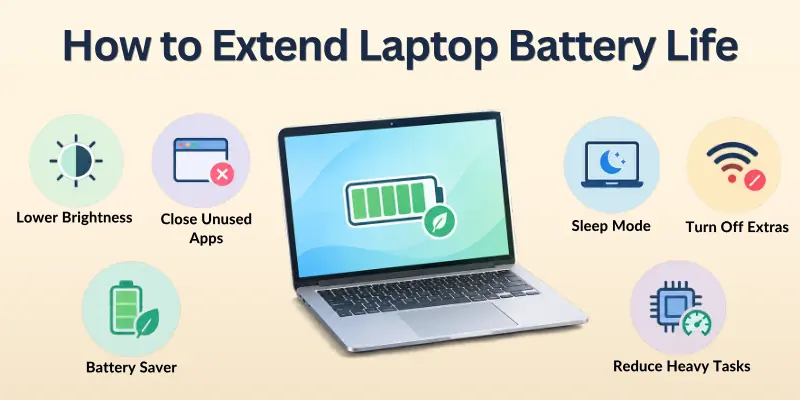
You can improve daily battery life by reducing things that use a lot of power. Screen brightness, background apps, wireless connections, and demanding programs can all affect how quickly your battery runs down.
For Windows laptops, Battery Saver and energy recommendations can help reduce power use. Microsoft also recommends adjusting settings such as screen brightness and sleep timing to help the battery last longer during use.
Recommended Settings:
- Lower the screen brightness to a comfortable level.
- Close apps you are not using.
- Use Battery Saver when the battery is low.
- Let your laptop sleep when you are away.
- Turn off features you do not need.
- Avoid running very demanding programs when battery power is limited.
Should You Charge Your Laptop to 100 Percent?
Another common question is, “Should you charge your laptop to 100 percent?” There is no need to keep the battery at 100% all the time if you want to reduce long term battery wear.
For everyday use, a moderate charge level can be helpful. Microsoft suggests keeping a Windows laptop around 20% to 80% several times a week when possible.
Apple also provides Optimized Battery Charging on supported Macs. This feature can delay charging beyond 80% when it expects the Mac to stay connected to power for a long time. Some newer Macs also offer a Charge Limit feature.
Things to Know: Charging to 100% is not automatically harmful. It can be useful when you need the longest possible battery life for travel, school, or work.
How to Maintain Laptop Battery Health
Good laptop battery care is mostly about avoiding extreme conditions. You should not regularly drain the battery completely, expose it to excessive heat, or leave a device unused for a long time with an empty battery.
If you plan to store your laptop for a long period, Microsoft recommends keeping the battery around 40% to 60%, storing the device in a cool, dry place, and checking the battery occasionally.
The best way: how to maintain laptop battery health is to create simple habits that you can follow without stress. You do not need to check the battery percentage every few minutes.
Suggestion: Think of battery care as a routine, not a difficult task. Keep the laptop cool, avoid frequent deep discharges, and use available battery health features.
Laptop Battery Care: Quick Comparison Table
The table below gives you a simple view of common battery habits. It can help you quickly understand which practices are better for everyday laptop use.
| Battery Habit | Better Choice | Why? |
| Regularly reaching 0% | Avoid when possible | Deep discharges can increase battery wear |
| Keeping it very hot | Avoid | Heat can speed up battery aging |
| Using the correct charger | Recommended | Helps provide suitable charging power |
| Keeping vents blocked | Avoid | Can increase heat |
| Using smart charging | Recommended | Can help reduce unnecessary high charge time |
| Charging to 100% when needed | Fine | Useful when you need maximum battery life |
| Keeping the battery moderate | Recommended | A moderate charge range can help reduce wear |
| Storing at 0% for months | Avoid | Deep discharge during storage can be harmful |
Important Note: Battery behavior can differ between laptop models. Always check the manufacturer’s instructions for model specific features.
Common Laptop Battery Mistakes You Should Avoid
Some battery problems happen because of simple mistakes. For example, a student may use a laptop on a blanket for hours, while another person may repeatedly let the battery fall to 0%.
Another mistake is worrying too much about the exact battery percentage. Battery care should make your life easier, not harder. If you need to charge to 100%, do it. If you need to use your laptop while plugged in, use it.
Avoid These 7 Common Mistakes
- Do not regularly wait for 0% before charging.
- Do not expose your laptop to extreme heat.
- Do not block the cooling vents.
- Do not use damaged charging equipment.
- Do not store a laptop for months with an empty battery.
- Do not ignore a swollen battery.
- Do not constantly worry about reaching exactly 80%.
Recommended Warning: If your laptop becomes unusually hot, shuts down unexpectedly, shows a battery warning, or has a swollen battery, get it checked by a qualified technician.
Facts and Figures About Laptop Batteries
Battery technology may seem complicated, but a few simple facts can make it easier to understand. Modern laptops commonly use lithium-ion batteries, which naturally lose some capacity as they age.
Apple explains that battery chemical age is affected by factors such as temperature history and charging patterns. On supported Mac laptops, battery health systems can use this information to reduce battery aging. Here are some useful facts:
| Fact | What It Means |
| Most modern laptops use lithium-ion batteries | They can store a lot of energy in a small battery |
| Batteries age with use | Battery capacity slowly decreases |
| Heat can speed up aging | Keeping your laptop cool matters |
| Charge cycles matter | Battery use adds up to charge cycles over time |
| 20% to 80% can be a useful range | It can help reduce deep discharge and high charge stress |
| Smart charging can help | Supported laptops can manage charging automatically |
| Battery capacity decreases with age | Older batteries usually provide less running time |
Note: These figures and recommendations are general guidance. Your laptop’s manufacturer may provide different limits or battery care instructions.
How to Check Your Laptop Battery Health
Checking battery health can help you understand whether your laptop battery is still performing well. If the battery suddenly lasts much less than before, checking its health can be a useful first step.
Windows 11 includes a built-in battery report. Microsoft says you can generate it using the powercfg /batteryreport command in Command Prompt. The report can show information such as installed battery details, recent usage, and battery capacity.
Simple Windows Battery Report Steps
- Open Command Prompt as an administrator.
- Type powercfg /batteryreport.
- Press Enter.
- Find the battery report location shown on the screen.
- Open the HTML report in your browser.
- Check the battery information and usage details.
Useful Tip: If the battery capacity has dropped a lot or the laptop shows a service warning, consider getting professional advice instead of replacing the battery yourself.
Laptop Battery Lifespan: What Should You Expect?
The laptop battery lifespan depends on many things, including the battery design, temperature, charging pattern, usage, and age. There is no single number of years that applies to every laptop.
As batteries chemically age, their ability to hold a charge becomes lower. This means an older laptop may work normally but provide fewer hours of battery life between charges.
A battery does not suddenly become useless just because it has aged. You may simply notice that you need to charge it more often. When the battery becomes badly degraded or shows a service warning, replacement may be the better option.
Things to Remember: A battery is a consumable part of a laptop. Good care can slow wear, but it cannot make a battery last forever.
Laptop Battery Checklist
Use this quick checklist to remember the most important laptop battery charging tips and care habits.
- Keep the laptop cool.
- Avoid blocking air vents.
- Avoid frequent deep discharges.
- Charge the laptop when needed.
- Use the correct charger.
- Consider smart charging if available.
- Avoid storing the laptop at 0% for long periods.
- Keep a stored laptop around 40% to 60% when possible.
- Check battery health if performance drops.
- Get professional help if the battery swells.
Quick Tip: You do not need to follow every rule perfectly. Consistent, sensible habits are more useful than worrying about every single charge.
Final Note: Take Care of Your Battery, and It Can Serve You Better
Learning how to use a laptop battery correctly does not have to be difficult. Keep your laptop cool, avoid frequent deep discharges, use the right charger, and take advantage of smart charging features when your laptop provides them.
Remember that batteries naturally age. Your goal is to reduce unnecessary stress and prevent laptop battery damage where possible. With simple laptop battery charging tips and good daily habits, you can help protect battery health and enjoy reliable laptop performance for longer.
Final Recommendation: Do not become obsessed with keeping your battery at one exact percentage. Use your laptop normally, avoid extreme heat and frequent 0% discharges, and follow your manufacturer’s battery care recommendations.
Frequently Asked Questions About Laptop Battery Use
Battery behavior can vary between laptop models, battery types, and Windows settings. Understanding a few basic charging and care habits can help you use your laptop more confidently and avoid unnecessary battery wear.
These short FAQs answer some of the most common questions about laptop battery health, charging, and everyday use. They can also help you quickly find the answer you need.
1. Is it bad to use a laptop while charging?
No. In normal use, you can use your laptop while it is charging. Just make sure the laptop has good airflow and does not become excessively hot.
Using the laptop while plugged in is especially common during demanding tasks. If the laptop becomes unusually hot, check the vents, cooling system, and workload.
2. Should I let my laptop battery reach 0%?
No, not regularly. Frequent deep discharges are best avoided when possible. Microsoft recommends a moderate charge range of roughly 20% to 80% for Windows devices when practical.
You do not need to wait until the battery is nearly empty before charging it. Connecting the charger when the battery is getting low can be a more practical everyday habit.
3. Should I charge my laptop to 100%?
Yes, when you need a full battery. However, you do not need to keep it at 100% all the time.
A full charge can be useful before traveling, attending classes, or working away from a power outlet. For regular plugged in use, your laptop may offer smart charging or a charge limit feature.
4. What is the 20 — 80 battery charging rule?
The 20 – 80 battery charging rule means trying to keep the battery roughly between 20% and 80% during normal use. It is a helpful battery care guideline, not a strict requirement.
You do not need to follow these percentages perfectly every day. Think of them as a simple way to reduce time spent at very low or very high charge levels.
5. Can heat damage a laptop battery?
Yes. High temperatures can make lithium-ion batteries age faster and can reduce their capacity over time.
Heat can also come from blocked vents, heavy workloads, hot rooms, or poor airflow. Keeping the laptop on a hard, flat surface can help maintain better airflow.
6. What is a laptop battery charge cycle?
A charge cycle represents the total use of 100% of a battery’s capacity, even if that happens through several smaller periods of use.
For example, using 50% of the battery today and another 50% later can add up to approximately one full cycle. Battery cycle count can be useful when checking the condition of an older laptop.
7. How can I improve laptop battery life?
Try these quick steps:
- Lower screen brightness.
- Close unused apps.
- Turn on Battery Saver when needed.
- Reduce unnecessary background activity.
- Let the laptop sleep when you are not using it.
Windows provides Battery Saver and energy saving recommendations to help reduce power use.
You can also disconnect unused accessories and reduce unnecessary wireless activity when appropriate. These small changes may help extend runtime between charges.
8. Is it okay to leave my laptop plugged in overnight?
For modern laptops, charging is managed by built-in controls, but long periods at a high charge can contribute to battery aging. If your laptop offers smart charging or a charge limit, consider enabling it.
The exact charging features depend on the laptop manufacturer and model. Check the manufacturer’s battery or power settings if you regularly keep the laptop connected to AC power.
9. How should I store my laptop for a long time?
Keep the laptop in a cool, dry place and avoid storing it completely empty. Microsoft recommends around 40% to 60% charge for storage when possible.
Also keep the laptop away from direct sunlight, moisture, and extreme temperatures. If it will be stored for several months, checking the battery occasionally can be helpful.
10. What should I do if my laptop battery is swollen?
Stop using the laptop and seek professional service. Do not press, puncture, bend, or try to repair a swollen battery yourself.
A swollen battery can damage other laptop components and may create a safety risk. Keep the device away from excessive heat and follow the manufacturer’s instructions for service or disposal.
11. Does a laptop battery last forever?
No. Rechargeable batteries naturally lose capacity as they age. Good battery care can help slow unnecessary wear, but it cannot stop normal aging.
Over time, you may notice shorter battery life or a need to charge more frequently. Battery health reports can help you understand how much capacity remains.
12. What is the easiest way to maintain laptop battery health?
Remember these four things:
- Keep it cool.
- Avoid frequent 0% discharges.
- Use suitable charging features.
- Follow your laptop manufacturer’s recommendations.
You should also avoid using an unsuitable charger or ignoring battery warnings. Simple, consistent care is usually more useful than trying to follow complicated charging rules.
13. How do I know if my laptop battery needs replacement?
Look for signs such as very short battery life, unexpected shutdowns, battery warnings, or physical swelling. A battery health report or professional inspection can help confirm the problem.
You may also notice that the battery percentage drops unusually quickly. If the battery is physically swollen, do not continue using it just to test how long it lasts.
14. Can I use my laptop while it is plugged into power?
Yes. This is normal for laptops. Make sure the device has proper airflow and is not becoming unusually hot.
When the laptop is connected to power, the system can manage charging while you continue working. This can be useful for long tasks such as studying, video calls, or office work.
15. What is the most important laptop battery care tip?
If you remember only one thing, remember this: avoid extreme heat and frequent deep discharges. These are two important factors in keeping a lithium-ion laptop battery healthier for longer.
Also pay attention to battery warnings and changes in battery performance. Regularly checking battery health can help you notice problems before they become more serious.






- Be Respectful
- Stay Relevant
- Stay Positive
- True Feedback
- Encourage Discussion
- Avoid Spamming
- No Fake News
- Don't Copy-Paste
- No Personal Attacks
- Be Respectful
- Stay Relevant
- Stay Positive
- True Feedback
- Encourage Discussion
- Avoid Spamming
- No Fake News
- Don't Copy-Paste
- No Personal Attacks
