How to Check Your Laptop Model and Serial Number
Published: 8 Oct 2026
Knowing your laptop model and serial number is useful when you need drivers, warranty support, repairs, upgrades, or technical help. Every laptop has identifying information that helps you find the exact device you own.
In this tutorial you can check your laptop model and serial number in several simple ways. Windows provides built-in tools, and you can also check the BIOS, Command Prompt, or the physical label on your laptop. Keep your laptop model number and serial number somewhere safe. They can save time when contacting technical support or checking warranty information.
Laptop Model vs. Serial Number: What Is the Difference?
A laptop model number identifies the specific model or product series of a laptop. For example, a manufacturer may sell several versions of the same laptop family with different processors, memory, or storage.
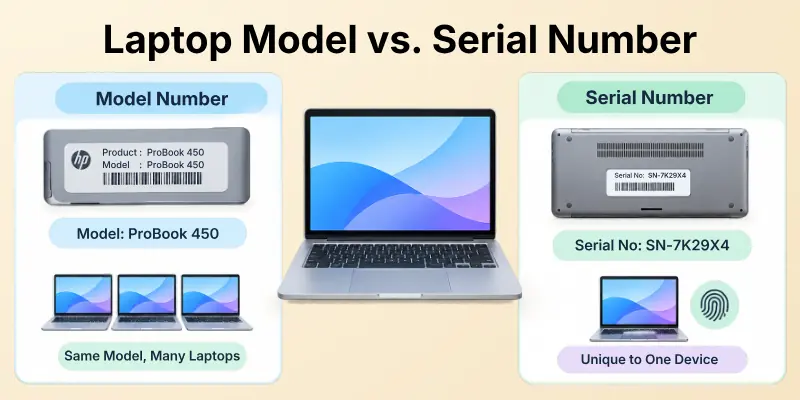
A laptop serial number is a unique identification number assigned to an individual device. Two laptops can have the same model number, but their serial numbers should be different.
| Information | What It Identifies | Common Use |
| Laptop Model | Specific laptop model or series | Drivers, specifications, upgrades |
| Model Number | Exact product/model version | Product identification |
| Serial Number | Individual physical device | Warranty and support |
| Product Number | Manufacturer’s product identifier | Support and parts |
| Service Tag | Manufacturer specific device ID | Technical support |
Things to Know: A model number tells you what type of laptop you have, while a serial number helps identify your individual laptop.
Why Should You Check Your Laptop Model and Serial Number?
Your laptop model and serial number can be important for many everyday technical tasks. Before downloading drivers or buying compatible hardware, knowing your exact laptop model can prevent mistakes.
A serial number can also help when you need laptop serial number lookup information for warranty service or manufacturer support.
Common Reasons to Find Laptop Details
- Checking warranty status
- Downloading the correct drivers
- Finding compatible RAM or storage
- Getting technical support
- Identifying your laptop after a repair
- Checking original device specifications
- Finding the correct BIOS update
- Ordering compatible replacement parts
Recommendation: Always verify the exact model before installing drivers, BIOS updates, or hardware components.
How to Find Laptop Model and Serial Number in Windows
One of the easiest ways to find laptop model Windows 11 or Windows 10 information is through built-in Windows settings. You do not need to install additional software for basic device information.
The Windows System Information and About sections can provide useful details about your laptop. This makes Windows a convenient option for checking your laptop device information.
Method 1: Check Laptop Model in Windows Settings
Windows Settings is a simple place to start when you want to check laptop details.
- Open Settings.
- Select System.
- Choose About.
- Look under Device specifications.
- Check the available device and model information.
This method is especially useful when you want to check a laptop model in Windows without using technical commands.
Quick Tip: If you are using Windows 11, the System > About section is usually the easiest starting point for basic laptop identification.
Method 2: Use System Information
The Windows System Information tool provides more detailed information about your computer. It can be useful when basic Settings information does not provide everything you need.
Steps to Open System Information
- Press Windows + R.
- Type msinfo32.
- Press Enter.
- Look for a System Manufacturer.
- Find System Model.
- Review other available system information.
This method is useful for laptop hardware information, manufacturer details, and model identification.
Things to Remember: System Information can provide more technical details than the regular Windows Settings page, making it useful for troubleshooting and support.
How to Check Laptop Model and Serial Number Using Command Prompt
Command Prompt is another quick method to check laptop serial numbers in Windows. It can be particularly helpful when you want to retrieve information without opening multiple Settings pages.
You can use a simple command to perform a laptop serial number lookup directly from Windows.
Steps to Check Laptop Serial Number
- Open the Start menu.
- Search for Command Prompt.
- Open it.
- Type the appropriate serial number command.
- Press Enter.
- Review the displayed serial number.
You can also use Command Prompt to check your laptop model using Command Prompt. This is useful when Windows Settings does not clearly show the information you need.
Command Prompt Information Checklist
- Laptop serial number
- Laptop model
- System manufacturer
- Device identification information
- Product information
Pro Tip: Copy the displayed information carefully. A single incorrect character can cause problems when you use a serial number for warranty or support requests.
How to Check Laptop Model and Serial Number in BIOS
Another method to find laptop model and serial number is through the BIOS or UEFI firmware. This can be helpful when Windows is not starting correctly.
The exact BIOS interface varies between laptop manufacturers. However, many systems display the laptop model number, serial number, manufacturer, or product information on the main BIOS information screen.
General BIOS Method
- Shut down or restart your laptop.
- Start the laptop again.
- Press the appropriate BIOS/UEFI key during startup.
- Look for System Information, Main, or a similar section.
- Check the model and serial information.
- Exit without changing BIOS settings.
Warning: Do not change BIOS settings unless you know what they do. If you only need identification information, simply view the details and exit.
Check the Physical Laptop Label
If your laptop is not turning on, you can often perform laptop identification by checking the physical device.
Look underneath the laptop for a sticker, printed label, engraved information, or manufacturer’s identification panel. Depending on the laptop, you may find the model, serial number, product number, or service tag.
Some laptops place this information inside the battery compartment or another accessible area. Information you may find on the label are:
| Label | Meaning |
| Model | Laptop model or series |
| S/N | Serial number |
| Serial No. | Individual device number |
| Product No. | Product identification number |
| Service Tag | Manufacturer support identifier |
Suggestion: Take a clear photo of the label before it becomes difficult to read. This can be useful for future repairs and support.
Laptop Model Number, Product Number, and Service Tag
Laptop manufacturers can use different names for identifying information. This can sometimes make laptop model lookups confusing.
A model number, product number, and service tag are not always the same thing. Their purpose depends on the manufacturer and laptop series. What should you look for?
When checking your laptop, look for terms such as:
- Model
- Model Number
- Product Number
- Serial Number
- Serial No.
- Service Tag
- System Model
Important Note: Do not assume that every number printed on your laptop is the serial number. Look specifically for labels such as S/N, Serial Number, or Serial No.
How to Find Laptop Model on Windows 10 and Windows 11
Both Windows 10 and Windows 11 provide built-in options for viewing basic device information. The exact appearance of the menus can differ between versions.
For users searching to find laptop model Windows 11 instructions, Settings and System Information are usually convenient choices.
For Windows 10 users, the same general device information tools can help with Windows laptop serial number and model identification.
Quick Comparison
| Method | Model | Serial Number | Easy to Use |
| Windows Settings | ✓ | Sometimes | ★★★★★ |
| System Information | ✓ | Often available | ★★★★★ |
| Command Prompt | ✓ | ✓ | ★★★★☆ |
| BIOS/UEFI | ✓ | ✓ | ★★★☆☆ |
| Physical Label | ✓ | ✓ | ★★★★★ |
Quick Tip: Start with Windows Settings or System Information. If the required information is missing, try Command Prompt, BIOS, or the physical label.
How to Use Your Laptop Serial Number
After you find a laptop serial number, you can use it for several legitimate support and maintenance tasks.
Manufacturers may request the serial number when you contact technical support. It can also help identify your exact device when checking warranty or service information.
Common Uses of a Serial Number
- Warranty verification
- Technical support
- Repair requests
- Device registration
- Manufacturer support
- Product identification
- Service requests
Privacy Tip: Avoid posting your complete laptop serial number publicly. Share it only with trusted manufacturers, service providers, or other legitimate support channels when necessary.
What If the Laptop Serial Number Is Missing?
Sometimes Windows may display an incomplete serial number, a generic value, or no useful serial number at all. This can happen because of manufacturer firmware settings or system configuration.
If one method does not work, try another. Checking System Information, Command Prompt, BIOS, and the physical label can help you find the required information.
Try These Methods in Order
- Windows Settings
- System Information
- Command Prompt
- BIOS/UEFI
- Physical laptop label
- Manufacturer support tools
Troubleshooting Tip: If Windows cannot show the serial number, check the physical label or BIOS before assuming that your laptop does not have one.
Laptop Identification Checklist
Before finishing your laptop model lookup, make sure you have identified the correct information. Final checklist is:
- Laptop manufacturer
- Laptop model
- Model number
- Serial number
- Product number
- Service tag, if applicable
- Windows version
- System information
Keeping these details together makes future laptop hardware information searches much easier.
You Must Know: The model number and serial number serve different purposes. Record both when possible.
Final Thoughts
Learning how to check a laptop model and serial number is simple when you know where to look. Windows Settings, System Information, Command Prompt, BIOS, and the physical laptop label all provide useful ways to identify your device.
Your laptop model number can help you find compatible drivers, parts, and specifications, while the serial number can help with warranty and technical support. Choose the easiest method available and keep your device information stored safely.
Final Suggestion: If you regularly manage laptops, save the model and serial information in a secure record. It can make future troubleshooting, upgrades, and support much faster.
FAQs About Laptop Model and Serial Number
If you are buying a used laptop or checking your own device, learning where to find this information can save time. The FAQs below explain the easiest methods and the difference between a model number and a serial number.
1. How do I check my laptop model and serial number?
You can find both details in several ways. Check Windows Settings, System Information, Command Prompt, BIOS/UEFI, or the label on your laptop.
The available method may depend on your laptop manufacturer and Windows version. If one method does not show the information, try another option.
2. How do I find my laptop model in Windows?
The easiest method is:
- Open Settings.
- Go to System > About.
- Look for your device and model information.
You can also type msinfo32 in the Run dialog to open System Information.
Quick Tip: System Information can provide more detailed hardware information than the basic About page, which can be helpful when checking your laptop specifications.
3. How do I check my laptop serial number?
Try one of these quick methods:
- Open System Information.
- Use Command Prompt.
- Check BIOS/UEFI.
- Look for the serial number on the laptop’s physical label.
The serial number may also be printed on the original box or included in the manufacturer’s documentation. Keep this information private when sharing screenshots or photos online.
4. Can I find my laptop model without turning it on?
Yes. Turn the laptop over and check the bottom panel for a model number, product name, service tag, or identification sticker.
This method is especially useful when the laptop cannot start. Some manufacturers place the identification information under a removable battery or another accessible panel.
Things to Know: The exact location and format of the model information can vary between laptop brands and models.
5. What is a laptop serial number used for?
A laptop serial number works as a unique identifier for your device. It can be useful for:
- Warranty checks
- Repairs
- Technical support
- Product registration
- Device identification
It can also help manufacturers identify the exact device when you contact support. This can make it easier to find compatible service information or warranty details.
6. Is the laptop model number the same as the serial number?
No, they are different. The model number identifies a laptop model or product series, while the serial number identifies your specific laptop.
For example, many laptops can have the same model number, but each individual laptop normally has its own serial number. This difference is important when requesting support or checking device records.
7. Can Command Prompt show my laptop serial number?
Yes. On many Windows laptops, Command Prompt can display the serial number stored in the system firmware.
Open Command Prompt and use the appropriate serial number command to check whether your device information is available.
If the command returns a missing, blank, or generic value, try checking System Information, BIOS/UEFI, or the physical label instead.
8. Why can’t I find my laptop serial number?
Sometimes Windows may not display the serial number correctly because of firmware or manufacturer configuration. If it is missing, check BIOS/UEFI or look for the serial number on the laptop’s bottom label.
Useful Tip: If the physical label is damaged or difficult to read, the laptop manufacturer’s support page may provide another way to identify the device using its model or other product information.





- Be Respectful
- Stay Relevant
- Stay Positive
- True Feedback
- Encourage Discussion
- Avoid Spamming
- No Fake News
- Don't Copy-Paste
- No Personal Attacks
- Be Respectful
- Stay Relevant
- Stay Positive
- True Feedback
- Encourage Discussion
- Avoid Spamming
- No Fake News
- Don't Copy-Paste
- No Personal Attacks
